


File Information
| File | Details |
|---|---|
| Software Name | Natron – Open source node based VFX & Compositing Software |
| Latest Version | 2.5.0 |
| Platforms Supported | Windows, macOS, Linux |
| License | GNU GPL Free & Open Source |
| Download Formats | Windows: .zip |
| Github | Natron |
| Category | Best Free Alternative for After Effects, Nuke & Fusion |
Table of contents
Description
Natron is a professional grade open source compositing software designed for creators, editors, educators, and filmmakers who need high quality results without the heavy price tag. It is completely free to use and offers the same node based workflow used in the biggest studios across the world.
Unlike layer based software, Natron uses a powerful node graph system that lets you build complex effects, control every step of your pipeline, and achieve studio quality compositing. Whether you are editing films, adding visual effects, creating motion graphics, or experimenting with AI enhanced workflows, Natron offers a reliable & versatile platform.
What makes Natron stand out is its ability to deliver 32 bit floating point processing, advanced color management, and full support for OpenFX plugins. It can handle everything from rotoscoping, chroma keying, and motion tracking to advanced multi-view and stereoscopic compositing.
If you are looking for the best free alternative to Adobe After Effects, Natron is the answer. It is cross platform, works smoothly on Windows, macOS, and Linux, and can be extended with plugins & Python scripting. For anyone who wants professional quality VFX tools without paying monthly subscriptions, Natron is the ultimate choice.
Features of Natron
- Node based compositing workflow with unlimited flexibility
- Support for 32 bit per channel rendering with accurate color management
- Full compatibility with OpenFX plugins, both free and commercial
- Advanced rotoscoping, rotopaint, motion tracking, and keying tools
- Built in curve and dope sheet editors for precise animation control
- Cross platform support for Windows, macOS & Linux
- Command line batch rendering for automation and render farms
- Proxy and background rendering for smooth performance
- Python scripting and custom node creation for pipeline integration
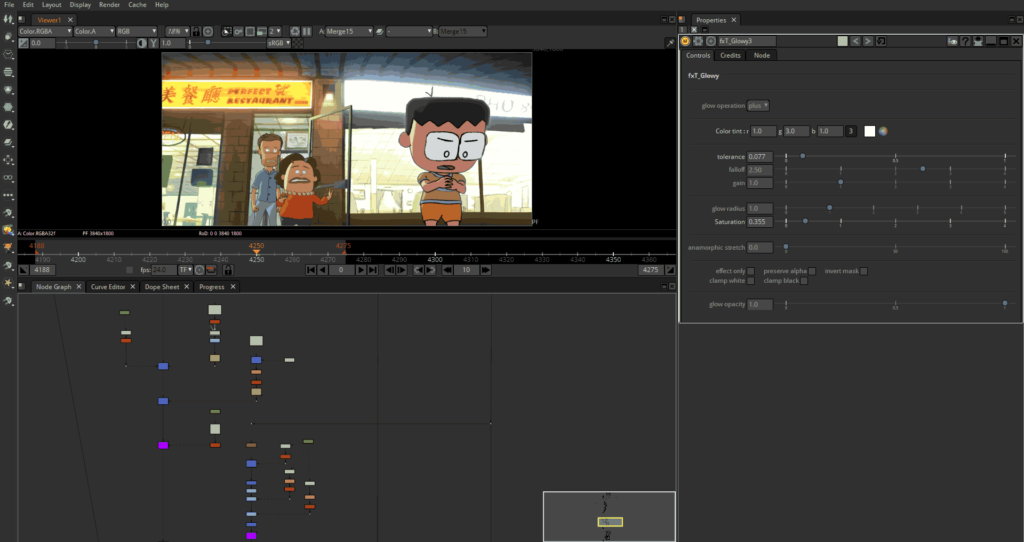
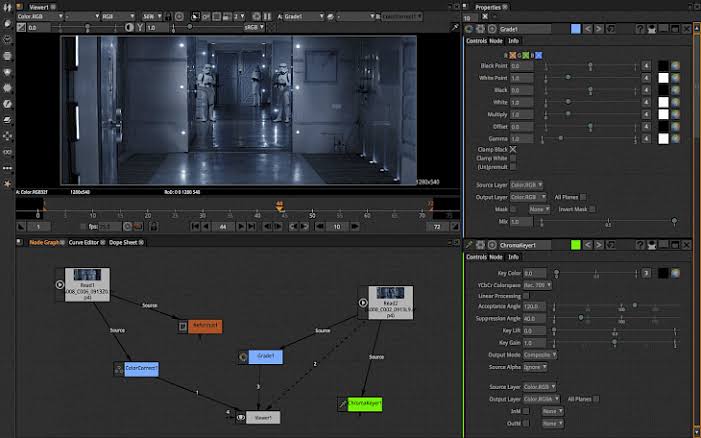
Screenshots
System Requirements
| Component | Windows (64 bit) | macOS (Intel Only) | Linux (x86 64 bit) |
|---|---|---|---|
| OS | Windows 8.1, 10, 11 | macOS 10.6 and later (supports macOS 10.15) | Linux with glibc 2.17+ and libgcc 4.8+ |
| Processor | Intel Core2 Duo or higher | Intel 64 bit CPU (Apple Silicon via Rosetta 2) | Any modern x86 64 bit CPU |
| RAM | Minimum 3 GB (6 GB+ recommended) | Minimum 3 GB (8 GB+ recommended for heavy work) | Minimum 3 GB (6–8 GB recommended) |
| Graphics | OpenGL 2.0 compatible GPU | OpenGL 2.0 compatible GPU | OpenGL 2.0 compatible GPU with proper drivers |
| Storage | 5 GB free space recommended | 5 GB free space recommended | 5 GB free space recommended |
How to Install Natron??
Before installation – scroll down to the download section & grab the correct file for your operating system.
Windows Installation
- Download the
.zippackage for Windows. - Extract the files & run the setup executable.
- Follow the installation wizard and finish setup.
- Run the Application and Enjoy!
macOS Installation
- Download the Universal
.dmgfile (supports macOS 10.15 and later). - Open the disk image and drag Natron into Applications.
- Launch Natron and start compositing instantly.
Linux Installation
- Download the
.tgzpackage for Linux. - Extract the files in your preferred directory.
- Run the Natron executable from the extracted folder.




