


File Information
| File | Details |
|---|---|
| Name | Krita Generative AI Plugin + ComfyUI Integration |
| Windows (.exe), macOS (.dmg), Linux (manual setup) | |
| Developer | Krita community & plugin contributors |
| Version | v1.36.1 |
| Requirements | Krita v5+, ComfyUI, Python 3.12+ |
| AI Backend | ComfyUI with Stable Diffusion |
| Supported Models | SD 1.5, SDXL, ControlNet, IPAdapter, LoRAs |
| License | Open Source (GPL 3.0) |
| Format | .zip |
Table of contents
Description
Krita has long been a top choice among open-source digital painting tools. Now, with the addition of a powerful Generative AI plugin, Krita gains cutting-edge functionality powered by Stable Diffusion & the flexibility of ComfyUI. This plugin allows artists to seamlessly access AI features such as image generation, inpainting, content fill, upscaling, and ControlNet, all without leaving the Krita’s UI.
What makes this tool especially powerful is its integration with ComfyUI, a visual node-based workflow interface for Stable Diffusion. If you already have ComfyUI installed, the plugin can connect directly to your local setup, maintaining compatibility with your preferred settings and custom nodes. If you don’t, the plugin offers automatic installation and even supports online backends for users without capable local GPUs.
Once installed and activated, the plugin allows you to:
- Create new images using text prompts.
- Perform inpainting to alter or touch up existing artwork.
- Use ControlNet layers for structural guidance.
- Apply image upscaling with advanced models.
- Experiment in Live Mode for real-time AI generation.
This plugin is for digital artists, illustrators, concept designers, and hobbyists alike, Krita with Generative AI delivers an end-to-end creative environment with deep AI integration that feels native and intuitive. With support for LoRAs, negative prompts, & advanced nodes like Ultimate SD Upscale and IP-Adapter, the tool matches and in some cases exceeds the capabilities of more complex standalone AI UIs.
If you’re working on Linux, note that installation is more hands-on, involving manual Python environment setup & git cloning of ComfyUI. However, Windows & macOS users can use our ready-to-install packages below.
Features
1. AI Image Generation
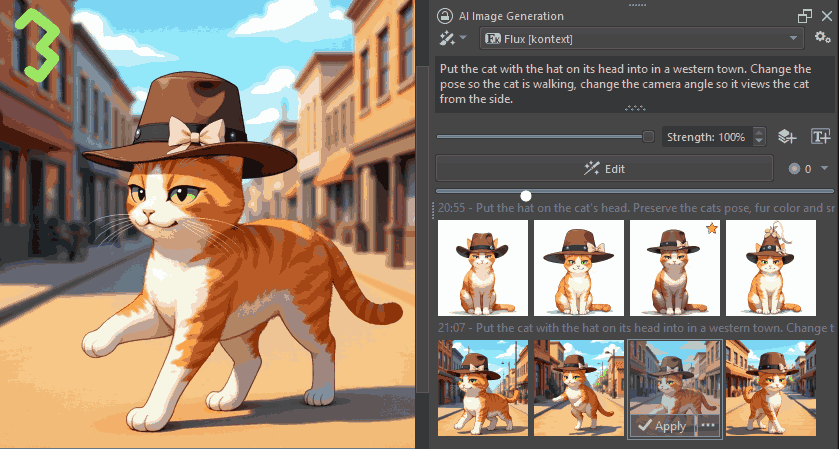
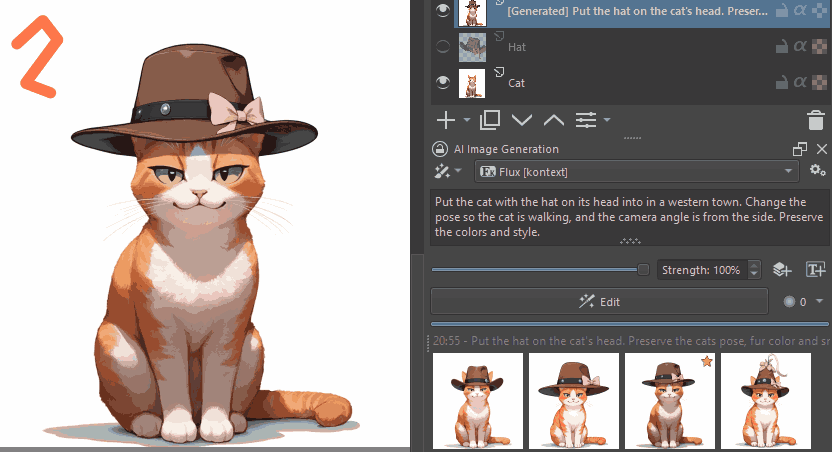
Quickly generate images from scratch using text prompts. Just create a canvas, enter your idea, and click Generate. You’ll get results right inside Krita.
2. Inpainting & Object Removal
Select an area, write what you want to appear or change, and let AI regenerate that section. Perfect for editing sketches, concept art, or illustrations.
3. Fill (Generative Fill)
Select any area without needing a sketch and generate content directly, based on your prompt and surrounding context.
4. ControlNet Layers
Apply depth maps, edge detection, pose guides, and more to control the image generation using ControlNet directly within Krita.
5. Upscale
Use models like NMKD or OmniSR to upscale artwork without losing detail. Ideal for preparing images for print or high-res export.
6. Live Mode
Activate AI generation in real-time as you work on your canvas. Changes reflect immediately based on your selected region and prompts.
7. LoRA & Prompt Control
Support for LoRAs, positive and negative prompts, and advanced generation settings makes this plugin ideal for professionals who want full control over AI behavior.
8. ComfyUI Integration
Utilizes one of the most powerful backends in the Stable Diffusion ecosystem. Reuse your models and custom nodes.
Screenshots
System Requirements
| Platform | System Requirements |
|---|---|
| Windows / macOS | 1. Krita 5.0 or higher 2. ComfyUI or use bundled backend 3. 8GB+ RAM (16GB recommended) 4. GPU with CUDA (Nvidia), ROCm (AMD), or XPU (Intel) |
| Linux | 1. Python 3.12+ (3.13 supported but not recommended yet) 2. Git, Pip, Torch (installed manually) 3. AMD: ROCm 6.3+ Intel: IPEX or nightly XPU builds Nvidia: Torch with CUDA 12.8 or higher |
How To Install?? (For ALL Platforms)
Step 1: Download the Plugin File (bottom of post)
Step 2: Install Krita (if not already installed)
Step 3: Install the Plugin in Krita
- Open Krita > Tools > Scripts > Import Python plugin from file
- Select the plugin file and restart Krita.
Step 4: Enable the Plugin Panel
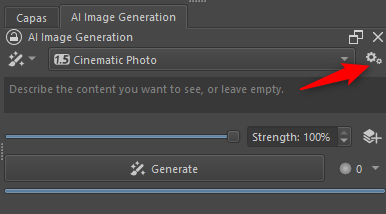
- Go to Preferences > Panels > AI Image Generation to show the plugin UI.
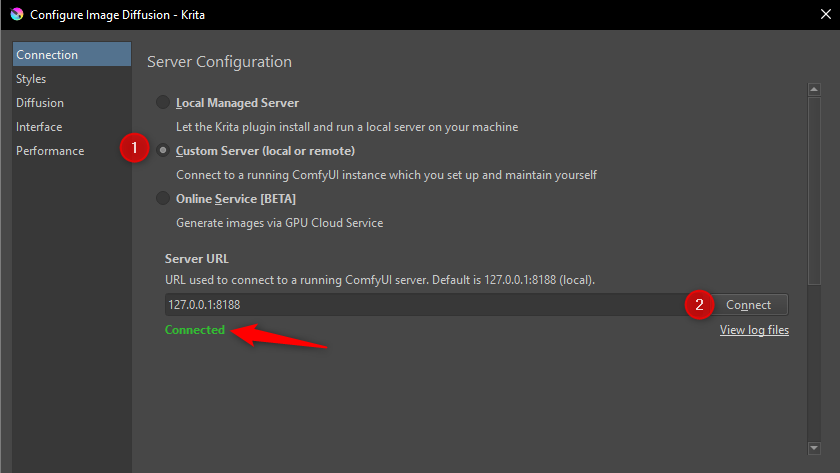
Step 5: Connect ComfyUI Backend
- If you have ComfyUI installed, connect it in the plugin settings.
- Otherwise, choose the built-in or online option if you lack GPU support.
Step 6: Install Required Nodes (from ComfyUI Manager)
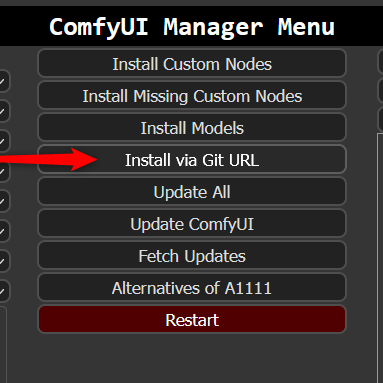
- Open ComfyUI > Click “Manager”
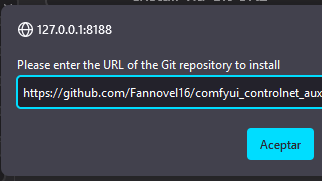
- Use “Install via Git URL” to add all required nodes below:
Step 7: Download Required Models
Place the following in your ComfyUI folder:
Models required for Plugin
- Clip-Vision in
models/clip_vision/SD1.5 - NMKD Superscale SP_178000_G in
models/upscale_models - OmniSR_X2_DIV2K in
models/upscale_models - OmniSR_X3_DIV2K in
models/upscale_models - OmniSR_X4_DIV2K in
models/upscale_models - MAT_Places512_G_fp16 in
models/inpaint
Stable Diffusion 1.5 models
- ControlNet inpaint in
models/controlnet - ControlNet tile in
models/controlnet - IP-Adapter (SD1.5) in
models/ipadapter - Hyper-SD-LoRA (SD1.5) in
models/loras
Stable Diffusion XL models
- IP-Adapter (SDXL) in
models/ipadapter - Hyper-SD-LoRA (SDXL) in
models/loras - Fooocus Inpaint (Head) in
models/inpaint - Fooocus Inpaint (Patch) in
models/inpaint




