



File Information
| Name | Kiwix: Offline Wikipedia Reader |
|---|---|
| Version | v3.7.8 |
| File Size | Windows: ~85.8 MB • macOS: ~110 MB • Linux: ~120 MB |
| Platforms | Windows • macOS • Linux (64-bit only) |
| License | Open Source (GNU GPL v3) |
| Official Repository | GitHub – kiwix/kiwix-js |
| Official Site | kiwix |
Table of contents
Description
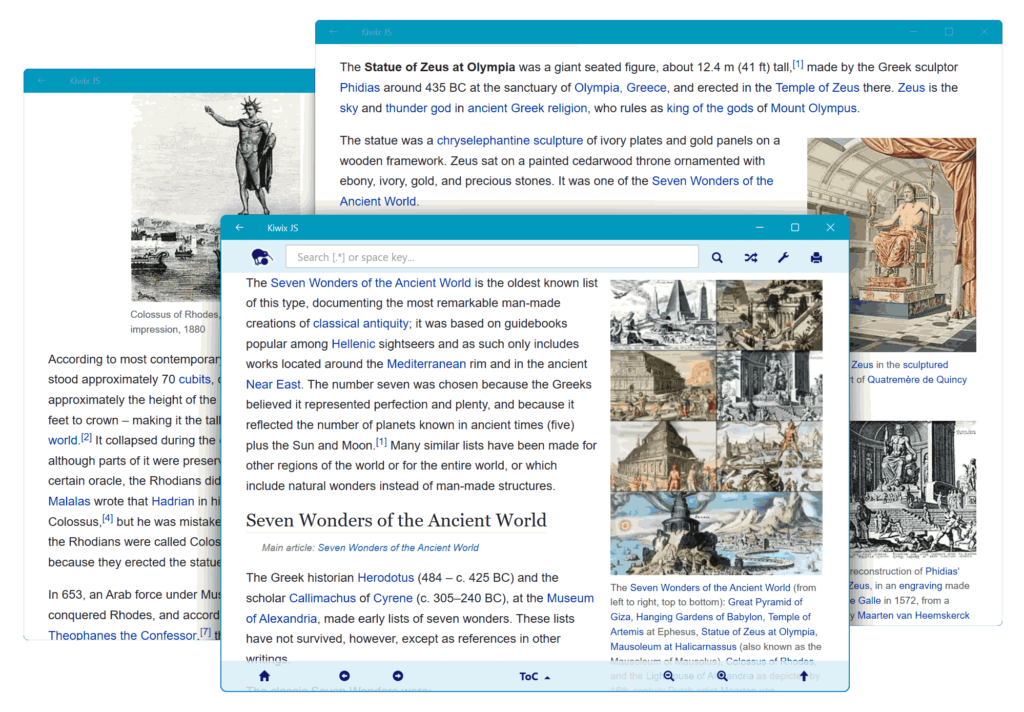
Have you ever wished to access Wikipedia without the internet? Meet Kiwix, the open-source software that brings the entire Wikipedia, TED Talks, Stack Exchange, Project Gutenberg, and many other knowledge resources directly to your device even when you’re offline!
Whether you’re a student, researcher, or explorer living in low-connectivity areas, Kiwix is your portable library of human knowledge. It’s fast, free, and open source, making it one of the most powerful offline alternatives to Wikipedia ever built.
Features of Kiwix
| Feature | Description |
|---|---|
| Offline Wikipedia Access | Browse and search Wikipedia, Stack Exchange, and more without an internet connection. |
| ZIM File Support | Easily download and read .zim content files, including Wikipedia, Wikivoyage, and Wikibooks. |
| Lightweight & Fast | Designed for low-resource devices — ideal for schools, libraries, and remote regions. |
| Cross-Platform | Runs on Windows, macOS, Linux, Android, and iOS — a true universal knowledge tool. |
| Open Source | Licensed under the GNU General Public License (GPL), ensuring transparency and freedom. |
| Portable | Works without installation — perfect for use on USB drives or offline machines. |
Screenshots
System Requirements
| Component | Minimum Requirement |
|---|---|
| Processor | Dual-core CPU (x86_64 or ARM64) |
| RAM | 2 GB or higher recommended |
| Storage | 1 GB free space (additional space required for content libraries like Wikipedia ZIM files) |
| Operating Systems Supported | Windows 10/11, macOS 10.13+, Linux (Ubuntu, Fedora, Debian, Arch) |
How to Install Kiwix??
Windows (Using .exe Installer)
- Download the Installer:
Go to the official Kiwix page or your software portal and downloadKiwix-JS-Electron-Setup-3.7.8-E.exe. - Run the Installer:
- Double-click the downloaded
.exefile. - If you see a Windows SmartScreen prompt, click “More Info” → “Run Anyway.”
- Double-click the downloaded
- Follow Installation Wizard:
- Choose the installation location (default is fine).
- Click Next → Install.
- Wait for installation to complete.
- Launch Kiwix:
- Find Kiwix in your Start Menu or desktop shortcut.
- Open it, and start exploring offline Wikipedia instantly!
macOS (Using.dmg File)
- Download the macOS Installer:
GetKiwix-JS-Electron-3.7.8-E-macOS-x64.ziporKiwix-JS-Electron-3.7.8-E-macOS-arm64.zip, depending on your Mac model.
(File size: ~110 MB) - Open the DMG File:
- Double-click the downloaded
.dmgor unzip the.zipfile if applicable. - Drag the Kiwix app into your Applications folder.
- Double-click the downloaded
- Allow App Permissions (First Launch):
- If macOS shows a security message:
Go to System Settings → Privacy & Security, then click “Open Anyway.”
- If macOS shows a security message:
- Launch the App:
- Open Kiwix from Applications or Spotlight search (
Cmd + Space → Kiwix). - Enjoy browsing offline Wikipedia and educational resources.
- Open Kiwix from Applications or Spotlight search (
Linux (Using .AppImage or .deb)
Option 1: Using AppImage (Universal Method)
- Download the AppImage:
DownloadKiwix-JS-Electron-3.7.8-E.AppImage. - Make It Executable:
Open Terminal and run:chmod +x Kiwix-JS-Electron-3.7.8-E.AppImage - Run the App:
./Kiwix-JS-Electron-3.7.8-E.AppImageThat’s it, no installation needed!
Option 2: Using .deb Package (Debian/Ubuntu-based Systems)
- Download the Package:
Getkiwix-js-electron_3.7.8-E_amd64.deb. - Install via Terminal:
sudo dpkg -i kiwix-js-electron_3.7.8-E_amd64.deb sudo apt --fix-broken install - Launch Kiwix:
Find it in your application launcher or run:kiwix-js-electron
Post-Installation Tip:
Once installed, you can download content packages like Wikipedia, Wikivoyage, TED Talks, and Stack Exchange directly inside Kiwix, all for offline use.
Download Kiwix For Windows, macOS & Linux
Conclusion
Kiwix is more than software, it’s a revolution in digital knowledge access. By allowing anyone to carry Wikipedia offline, it empowers education, equality, and exploration across the globe.
If you’re searching for a lightweight, open-source, offline Wikipedia alternative, Kiwix is the tool you’ve been waiting for. Download it for Windows, macOS, or Linux, and keep the world’s knowledge just a click away, even without the internet.




