


File Information
| Attribute | Details |
|---|---|
| Name | Git |
| Version | 2.51.1 |
| File Size | 63 MB (Windows), varies for macOS & Linux packages |
| Platforms | Windows, macOS & Linux |
| License | Open Source (GPL) |
| Official Repository | git |
| Official Site | git-scm |
Table of contents
Description
Git is the best free version control software widely used by developers & teams to efficiently manage source code changes. Developed by Linus Torvalds in 2005, Git has become the backbone of modern software development projects. It provides a fast, reliable & distributed version control system that enables teams to collaborate seamlessly, track changes, revert to previous states, & maintain multiple development branches simultaneously.
Unlike other version control systems, Git is designed for performance, security, & flexibility. Its distributed architecture means every developer has a complete copy of the project repository on their local machine, making operations like commit, branch, merge & revert lightning-fast. Git is compatible with major platforms such as Windows, macOS & Linux, making it a cross-platform tool suitable for individual developers, startups & enterprise-level projects.
Git integrates perfectly with popular hosting platforms like GitHub, GitLab & Bitbucket, making it easier to share code, manage pull requests & contribute to open-source projects. It also supports extensive branching strategies, allowing teams to experiment with new features without affecting the main codebase. With Git, developers can ensure code integrity, maintain a history of changes, & simplify collaboration even in large-scale projects.
Features of Git
| Feature | Description |
|---|---|
| Distributed Version Control | Every developer has a full local copy of the repository for faster & reliable operations |
| Branching & Merging | Create branches for features or experiments & merge them efficiently without conflicts |
| Commit History | Track every change with detailed commit logs for transparency & accountability |
| Integration with Hosting Platforms | Seamlessly connect with GitHub, GitLab & Bitbucket for code sharing & collaboration |
| Open Source & Free | Completely free & open-source, allowing modification & customization |
| Performance & Security | High performance with cryptographically secure SHA1 checksums to ensure data integrity |
| Staging Area | Prepare commits by staging files before finalizing changes |
| Lightweight | Small file size & efficient operation even on large repositories |
| Cross-Platform Compatibility | Works perfectly on Windows, macOS & Linux |
| Command-Line & GUI Support | Use Git via terminal commands or graphical interfaces like GitKraken & Sourcetree |
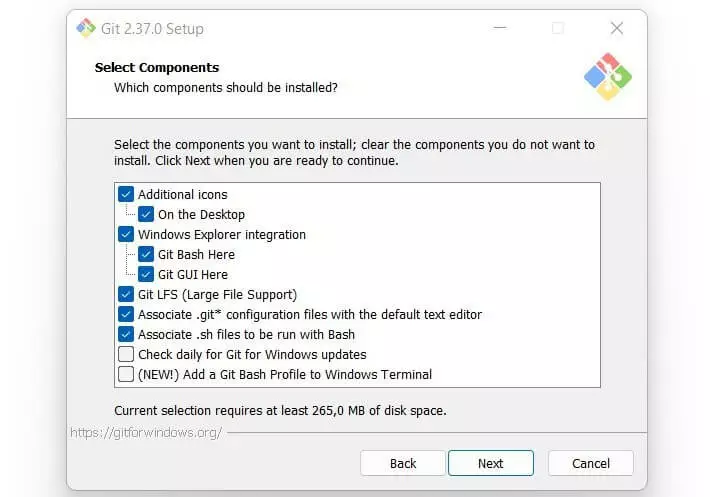
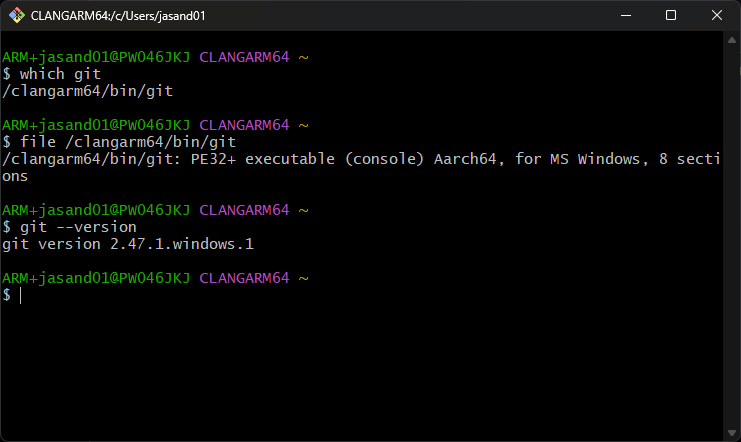
Screenshots
System Reqirements
| Platform | Minimum Requirements | Recommended Requirements |
|---|---|---|
| Windows | Windows 7, 2 GB RAM, 200 MB Disk Space | Windows 10 or 11, 4 GB RAM, 500 MB Disk Space |
| macOS | macOS 10.12+, 2 GB RAM, 200 MB Disk Space | macOS 12+, 4 GB RAM, 500 MB Disk Space |
| Linux | Ubuntu 18.04+, 2 GB RAM, 200 MB Disk Space | Latest Linux distributions, 4 GB RAM, 500 MB Disk Space |
How to Install Git in Windows , macOS & Linux??
Installing Git From .exe on Windows
- Scroll down to the download section & click on the Windows .exe file.
- Run the downloaded file and follow the installation instructions.
- Choose default settings or customize according to your preferences.
- Open Git Bash or Command Prompt and verify installation with
git --version.
Installing Git from Tar.gz on macOS & Linux
Before installation, download the latest Git tar.gz file by scrolling down to the download section. Installing from source gives you the latest version and full control over configuration options.
Step 1: Download the Tarball
Scroll down to download section & download the .tar.gz file for your platform.
Step 2: Extract the Tarball
Open Terminal and navigate to the folder where the tar.gz file is located. Run:
tar -xvzf git-2.51.1.tar.gz
cd git-2.51.1
Step 3: Configure the Build
Prepare the installation with:
./configure --prefix=/usr/local
This sets the installation path. You can change /usr/local to another folder if needed.
Step 4: Compile Git
Compile the source code by running:
make
This step may take a few minutes depending on your system.
Step 5: Install Git
Install the compiled binaries with superuser permissions:
sudo make install
Step 6: Verify Installation
Check if Git is installed correctly:
git --version
You should see the latest version displayed.
Extra for macOS:
If you want Git’s GUI tools (git-gui & gitk), you can install them after building from source:
brew install git-gui
Extra for Linux:
After installation, you can also add Git to your system PATH if necessary, though /usr/local/bin is usually included by default.
Advantages of Installing from Tar.gz:
- Get the latest Git version not available via package managers.
- Full control over installation paths & configuration options.
- Works on any UNIX-like system, including macOS & Linux.
- No dependency on third-party repositories or outdated system packages.
Download Git For Windows, macOS and Linux
Conclusion
Git is the most reliable, free, and open-source version control software available for developers, teams, and organizations across Windows, macOS, and Linux. Its distributed architecture, robust branching and merging capabilities, and seamless integration with platforms like GitHub, GitLab, and Bitbucket make it an essential tool for modern software development.




