



File Information
| Name | Diffusion Bee – Stable Diffusion GUI for macOS |
|---|---|
| Platform | macOS |
| Installer | .dmg |
| Version | v2.5.3 |
| Architecture | Intel • Apple Silicon (M1 / M2) |
| Models Supported | SD 1.x • SD 2.x • SD XL • Inpainting • ControlNet • LoRA |
| License | AGPL 3.0 License |
| Size | 312MB (model size may vary) |
| Github Repository | Github DiffusionBee |
| Official Website | diffusionbee |
Table of contents
Description
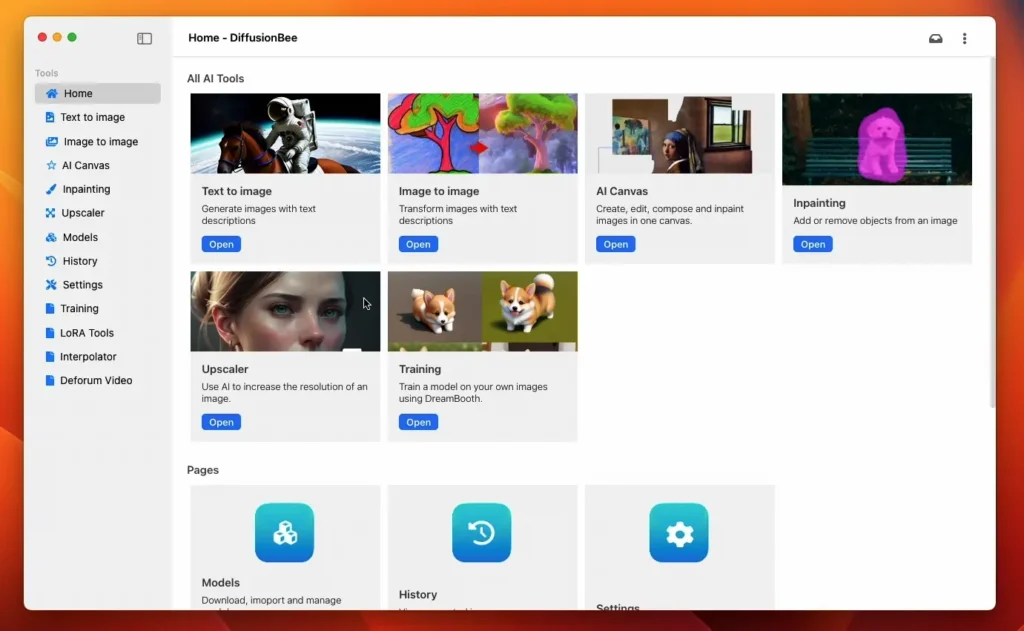
Diffusion Bee is a simple, powerful, and privacy-first Stable Diffusion GUI app for macOS that allows you to generate AI images locally on your Mac with zero setup complexity. Designed specifically for Intel and Apple Silicon Macs, Diffusion Bee offers a one-click installer and a clean interface that makes AI image generation accessible to everyone.
It runs entirely on your system. No prompts, images, or data are sent to the cloud, except when downloading model weights or if you explicitly choose to upload an image. This makes it an excellent choice for creators who value privacy, speed, and full control.
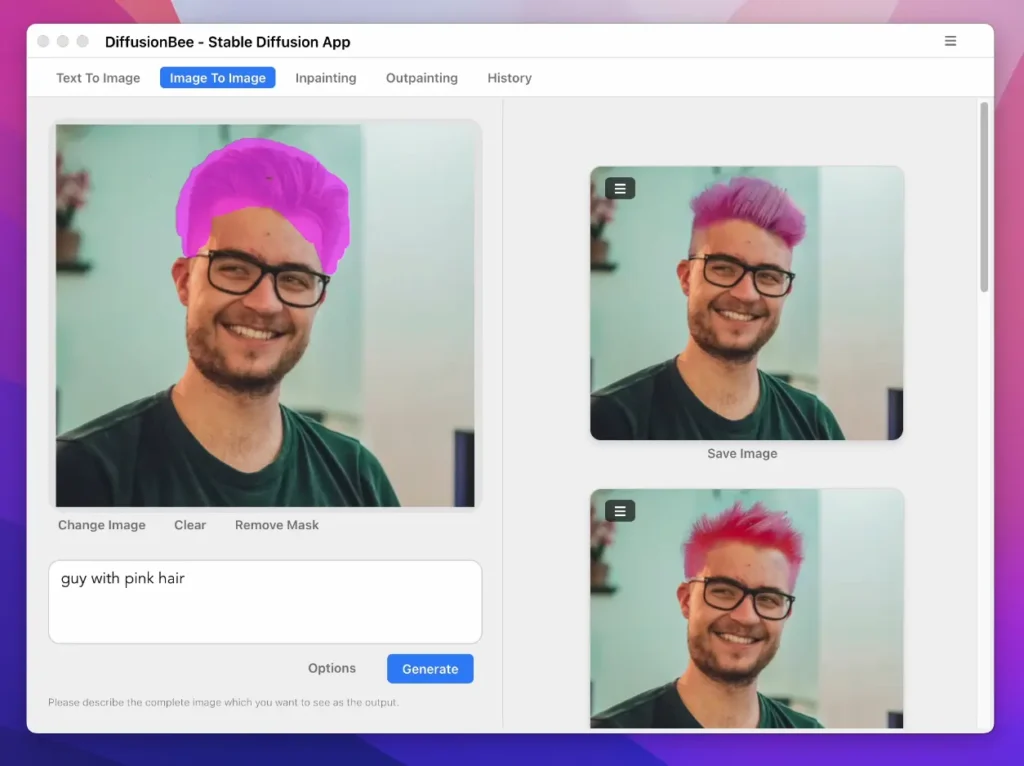
Screenshots
Features of DiffusionBee
| Feature | Description |
|---|---|
| Runs Locally | All image generation happens on your Mac |
| Full Data Privacy | Nothing is sent to the cloud by default |
| One-Click Installer | No setup, dependencies, or configuration required |
| Clean macOS UI | Simple, beginner-friendly interface |
| Text-to-Image | Generate images from text prompts |
| Image-to-Image | Transform existing images |
| Inpainting | Edit specific parts of an image |
| Outpainting | Extend images beyond their borders |
| ControlNet Support | Advanced pose, depth, and structure control |
| LoRA Support | Use lightweight fine-tuned models |
| Model Manager | Download models directly from the app |
| Generation History | View and reuse previous generations |
| Upscaling | Enhance image resolution |
| Negative Prompts | Fine-tune outputs more precisely |
| Optimized for M1/M2 | Fast and efficient on Apple Silicon |
System Requirements
| Hardware | Requirement |
|---|---|
| CPU | Intel or Apple Silicon (M1 / M2) |
| macOS (Intel) | macOS 12.3.1 or later |
| macOS (M1/M2) | macOS 11.0.0 or later |
How to Install DiffusionBee??
- Download the Diffusion Bee
.dmgfile from the download section below. - Open the downloaded
.dmg. - Drag Diffusion Bee into the Applications folder.
- Launch the app from Applications.
- On first run, Diffusion Bee will guide you through downloading the required model weights.
Download DiffusionBee: Stable Diffusion GUI for macOS
Conclusion
Diffusion Bee is one of the best ways to run Stable Diffusion locally on macOS. Its ease of use, strong privacy focus, and support for advanced features like ControlNet and LoRA make it perfect for both beginners and professionals.
If you want powerful AI image generation without the cloud, Diffusion Bee is a must-try.




