
File Information
| Name | Cupscale 1.39.0 |
|---|---|
| Version | 1.39.0 |
| File Size | 284 MB |
| Platforms | Windows 10/11 |
| License | MIT License |
| Official Repository | cupscale |
Table of contents
Description
Cupscale provides a user-friendly interface for AI-powered image upscaling. It uses ESRGAN & Real-ESRGAN models to increase image resolution without losing details. Users can apply multiple models at once using Model Chaining, work with entire folders of images via Batch Upscaling, and even directly process images from the clipboard. It supports common image formats including PNG, JPEG, BMP, WEBP, TGA, and DDS.
The software also offers pre-processing to downscale low-resolution images before upscaling, automatic image tiling to avoid VRAM overflow, and post-processing to resize images after enhancement. Its GPU compatibility ensures faster processing, while CPU fallback allows functionality on systems without dedicated GPUs.
Cupscale’s versatility, ease of use, & open-source nature make it an excellent choice for designers, photographers, & gamers looking for high-quality AI image enhancement for free.
Features of Cupscale
| Feature | Description |
|---|---|
| AI Backends | CUDA, Vulkan/NCNN, CPU |
| Model Converter | Included for NCNN format |
| Model Interpolation | Blend multiple models for smooth results |
| Model Chaining | Run images through multiple models simultaneously |
| Batch Upscaling | Process multiple images or entire folders |
| Image Tiling | Automatic split & merge to prevent VRAM issues |
| Pre-Processing | Optional downscaling before upscaling |
| Post-Processing | Automatically resize after upscaling |
| Supported Formats | PNG, JPEG, BMP, WEBP, TGA, DDS |
| Clipboard Input | Load images directly from clipboard |
| Comparison Tools | Side-by-side, 50/50, GIF or MP4 animations |
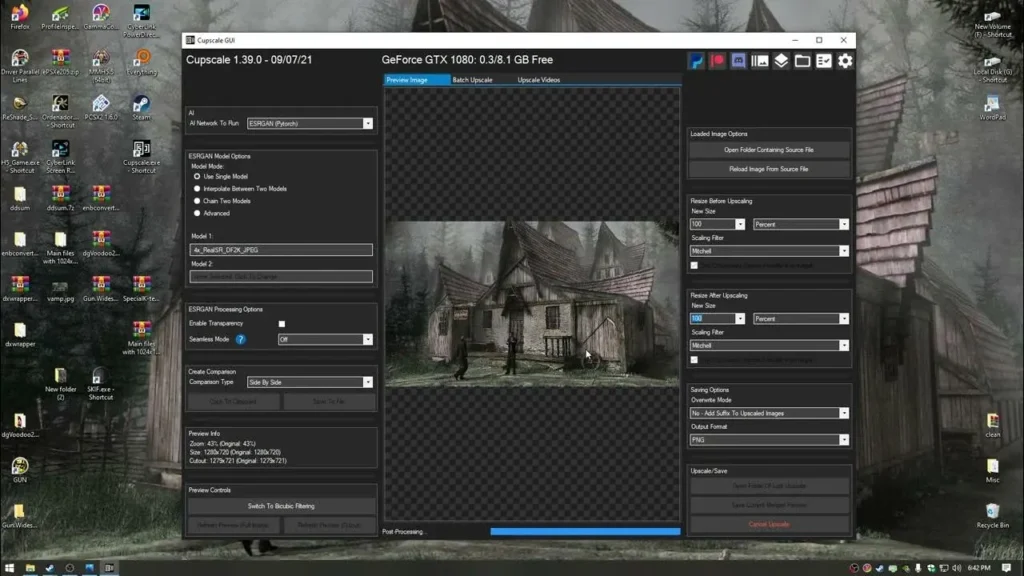
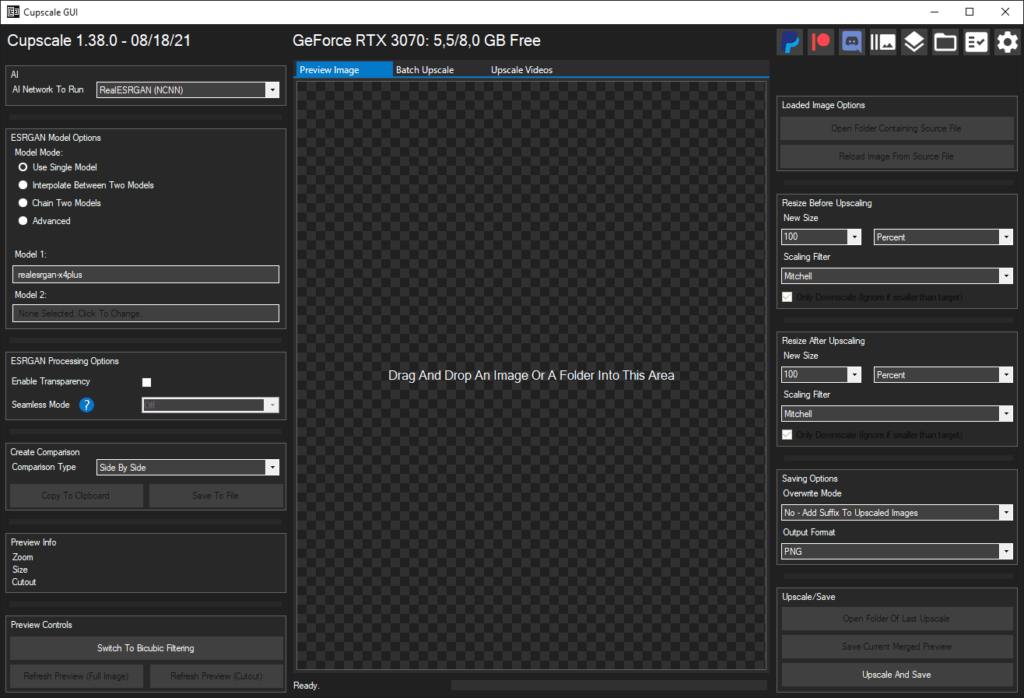
Screenshots
System Requirements
| Component | Requirement |
|---|---|
| OS | Windows 10/11 (64-bit) |
| Processor | Intel Core i5 or equivalent |
| Memory | 8 GB RAM minimum |
| Graphics | NVIDIA/AMD GPU recommended for CUDA/Vulkan |
| Storage | 500 MB free disk space |
How to install Cupscale ??
Windows
- Download the File
Scroll down to the Download section & downloadCupscale-1.39.0.zip. - Extract the ZIP
Right-click → Extract to a folder anywhere (avoid protected locations like Program Files). - Run Cupscale
Open the extracted folder → double-clickCupscale.exe.
The app is portable & ready to use immediately.
Note: Temporary files are stored in the installation directory by default.
Download Cupscale Free Open Source AI Image Upscaler for Windows
Note: If you want a powerful alternative to Cupscale AI image upscaler that also works perfectly in macOS & Linux then you should definitely try Upscayl, its a powerful AI image upscaler for Windows, macOS and Linux with active updates!
Advantages of Using Cupscale
- Free & Open Source: Fully free, community-supported, MIT licensed.
- High-Quality AI Upscaling: Achieve professional-grade image enhancement.
- Batch Processing: Save time by processing multiple images at once.
- Flexible Model Support: Works with CUDA, Vulkan, & CPU backends.
- Easy Comparison: Visualize improvements with built-in comparison tools.
- Portable: No complicated installation, runs directly from folder.
Conclusion
If you want a easy to use AI image upscaler then you should try Cupscale, it provides a user friendly interface for AI powered image upscaling. Enjoy!