



Your computer can do almost anything these days.
But try to do something simple, like copy text from an image and you might end up sending it through a cloud service. Try to figure out what’s eating your storage, and suddenly you’re looking at thousands of free and paid “cleaner” tools trying to solve a problem that should be straightforward.
Somewhere along the way, it starts to feel like we’re tenants in our own PC.
The frustrating part is that you usually don’t need another giant application.
There are small tools that do exactly what you need, keep things on your machine and then get out of the way.
Here are some of the ones worth knowing about.
Table of Contents
1. NormCap
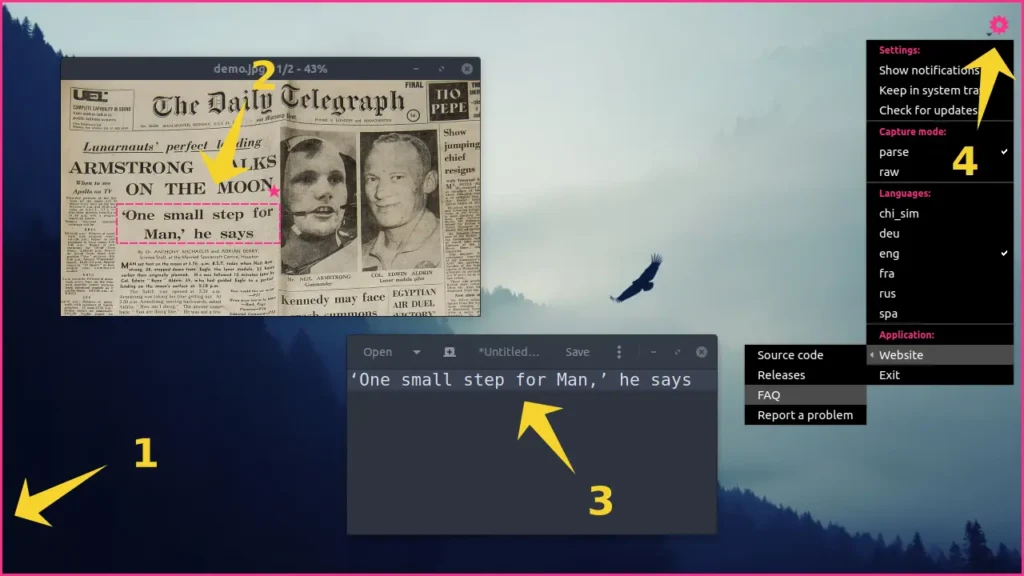
Copying text from a screenshot, video, or an app shouldn’t be a big thing. Usually, your operating system already has some way to do it. The catch is that some of these features rely on cloud services to process what you’re showing them.
And that’s when it starts to feel like you’re a tenant in your own system.
NormCap solves the problem locally. Start it, select the part of your screen you want, and it extracts the text straight into your clipboard. The image stays on your computer while the OCR runs there too.
It also handles multiple languages, QR codes and barcodes, and can clean up things like URLs and email addresses automatically.
NormCap isn’t the smallest app here, Its size can range roughly from 65 MB to 120 MB depending on the platform. But for an offline OCR tool that runs entirely on your machine, that’s a limitation worth making.
2. CzkawkaTauri and Krokiet
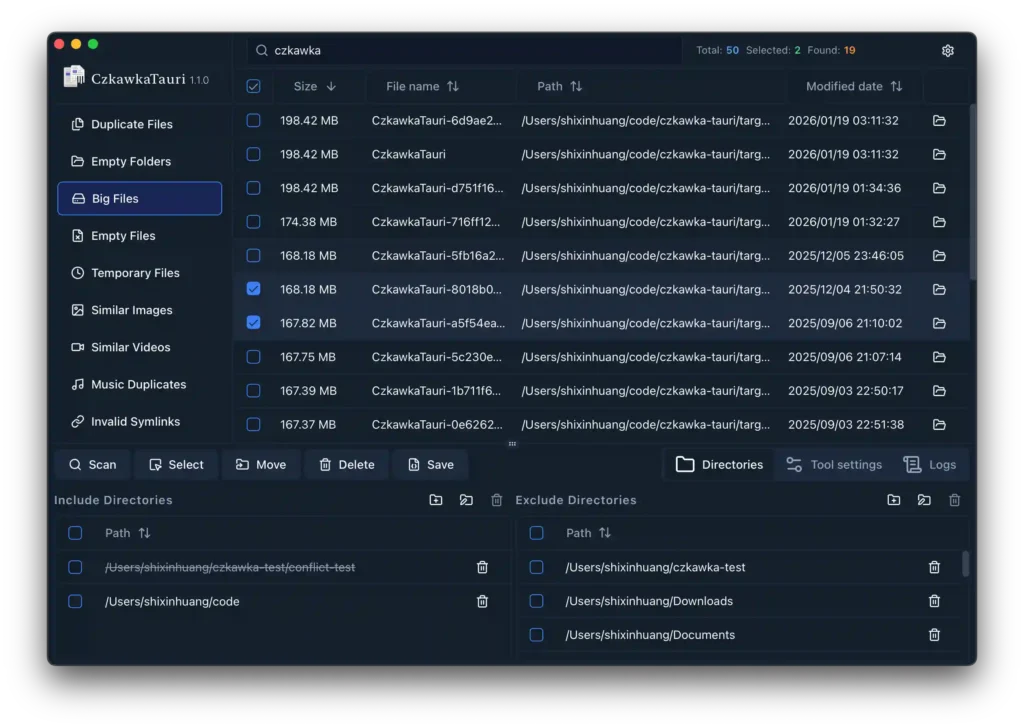
Ever looked at your storage and wondered where all the space went?
You can spend hours digging through folders only to find multiple copies of the same files, old photos, empty folders and other junk you forgot existed.
Czkawka is built to find that stuff for you. It can scan for duplicate files, similar images, large files, empty files and folders, temporary files and more while keeping the work on your computer.
On Windows and macOS, CzkawkaTauri gives you a clean frontend. On Linux, Krokiet is the newer frontend from the Czkawka project.
You don’t need an account, Just point it at a folder or drive and let it show you what’s taking up space.
It’s the kind of utility you won’t think about until your disk starts getting full. Then it becomes very useful.
3. LocalSend
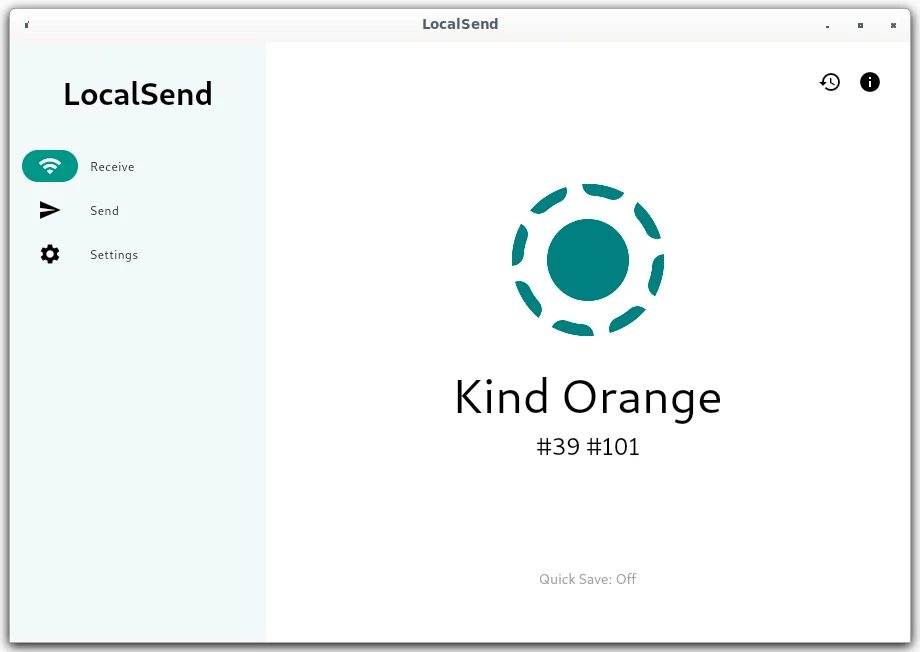
Moving a file from your phone to your computer shouldn’t require uploading it somewhere first.
Yet that’s often the easiest option. You put the file in Drive, send it through a messaging app, email it to yourself, or install some service that wants an account before it lets you move a few photos.
LocalSend skips all of that. Open it on both devices, pick what you want to send, and it transfers the files directly over your local Wi-Fi network. There are no accounts, servers or internet connection involved and the project says transfers are encrypted with HTTPS.
It works across Windows, macOS, Linux, Android and iOS, so you can use the same tool whether you’re moving a photo from your phone to your laptop or sending a folder between two computers.
It’s open source and still actively maintained.
Sometimes the simplest way to share a file is to just send it directly.
4. Simplewall, LuLu and OpenSnitch
One of the strangest things about modern computers is how little control you get over what your applications do once they’re connected to the internet.
An app can make connections in the background and you may never know about them.
You can take that control back without installing a giant security suite. There are small, open-source firewalls built specifically for this job and the best choice depends on which operating system you’re using.
Simplewall For Windows
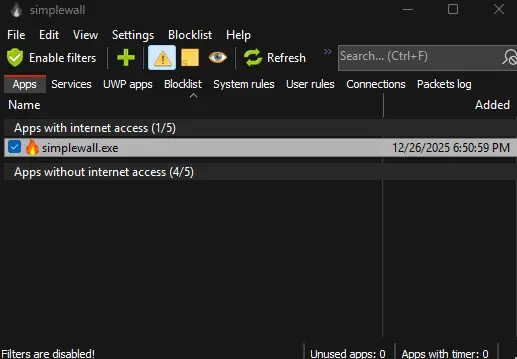
Simplewall is too small in size for what it does.
It uses Windows Filtering Platform, the networking infrastructure already built into Windows, rather than replacing it with its own networking stack. The application itself is less than 1 MB and can run as a portable app.
Once filtering is enabled, you can create rules for applications and decide which connections should be allowed or blocked. The filters continue working even when the Simplewall interface isn’t running.
It’s basically a tiny control panel for something Windows already knows how to do.
LuLu For macOS
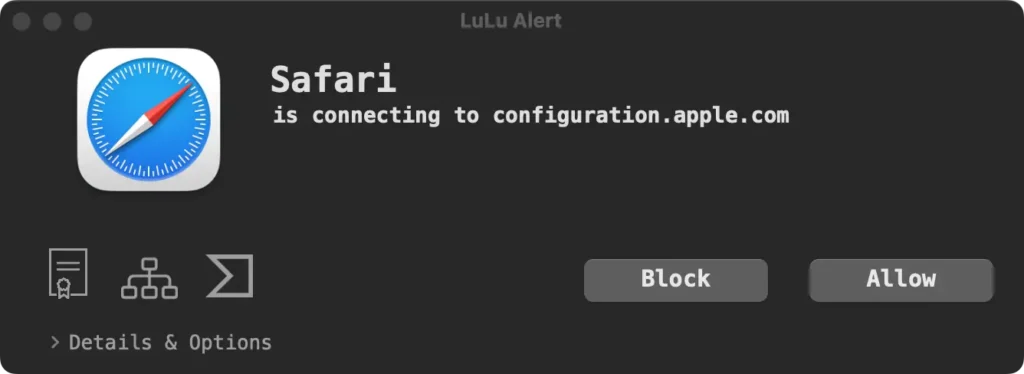
LuLu takes the same idea to macOS.
It watches for new outgoing connections and alerts you when an application tries to communicate with a remote destination. You can allow or block the connection and create rules that apply to the whole process or only a particular destination.
It’s free, open source and focused on letting you decide which applications get to talk to the internet.
LuLu currently supports macOS 10.15 and later.
OpenSnitch For Linux
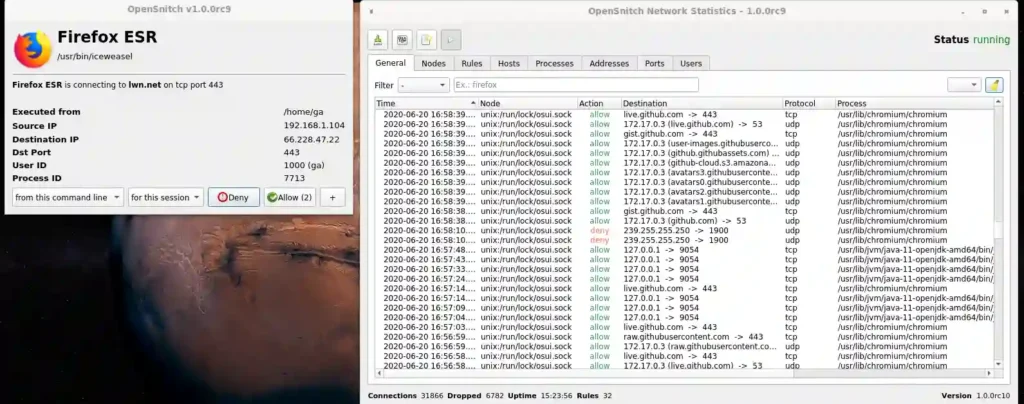
On Linux, OpenSnitch fills a similar role.
It’s an interactive application firewall that can intercept outbound connections and ask you whether they should be allowed or denied. It can also configure system firewall rules through nftables and supports filtering ads, trackers and malware domains.
OpenSnitch separates the background daemon from its user interface, so the firewall can keep doing its job independently of the GUI.
The result is the same across all three platforms: instead of trusting every application you install, you get a chance to decide what it is actually allowed to do.
And you don’t need a bloated security suite to get that control.
You May Like: Open Source Tools That Turn Your PC Into a Full Creator Studio
5. Converseen
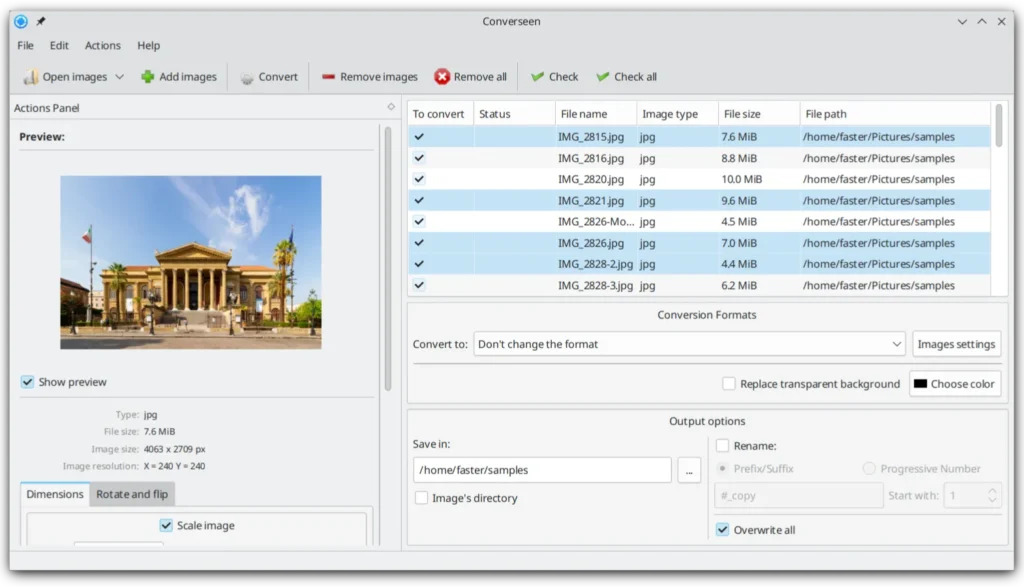
Resizing one image is easy.
Resizing 100 of them is where things get annoying.
You could open an image editor, load them one by one, change the dimensions, export them and repeat until you’re wondering why you started.
Converseen does the boring part for you.
Drop in a whole folder of images and you can convert, resize, compress, rotate, flip or rename them in one go. It supports more than 100 formats through ImageMagick, including JPEG, PNG, WebP, SVG, TIFF and HEIC/HEIF. It can even turn an entire PDF into a set of images.
There’s no cloud service involved, and the project says Converseen doesn’t transfer information to other networked systems.
It’s also properly cross-platform, with versions for Windows, Linux, macOS and FreeBSD. The project is still being actively updated too.
You give it a pile of images and one job. It gets through the pile without making you do the same thing 100 times.
6. FineTune, EarTrumpet and pavucontrol
If you’ve ever tried to balance music, a YouTube video and a call at the same time, you know how annoying this gets.
Your computer already knows which app is making which sound. The problem is getting to those individual controls.
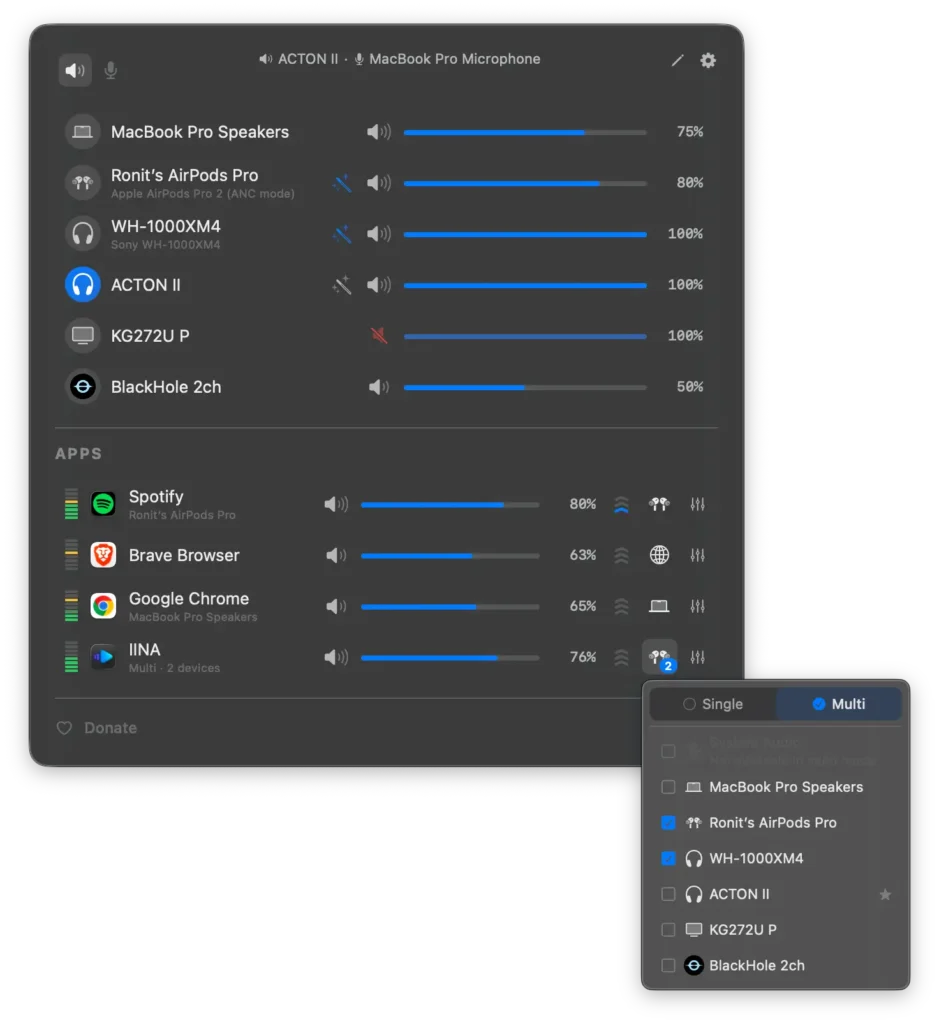
On macOS, FineTune fills a gap Apple still doesn’t cover with a built-in per-app volume mixer. It gives every active app its own volume slider from the menu bar, and you can also route different apps to different audio devices.
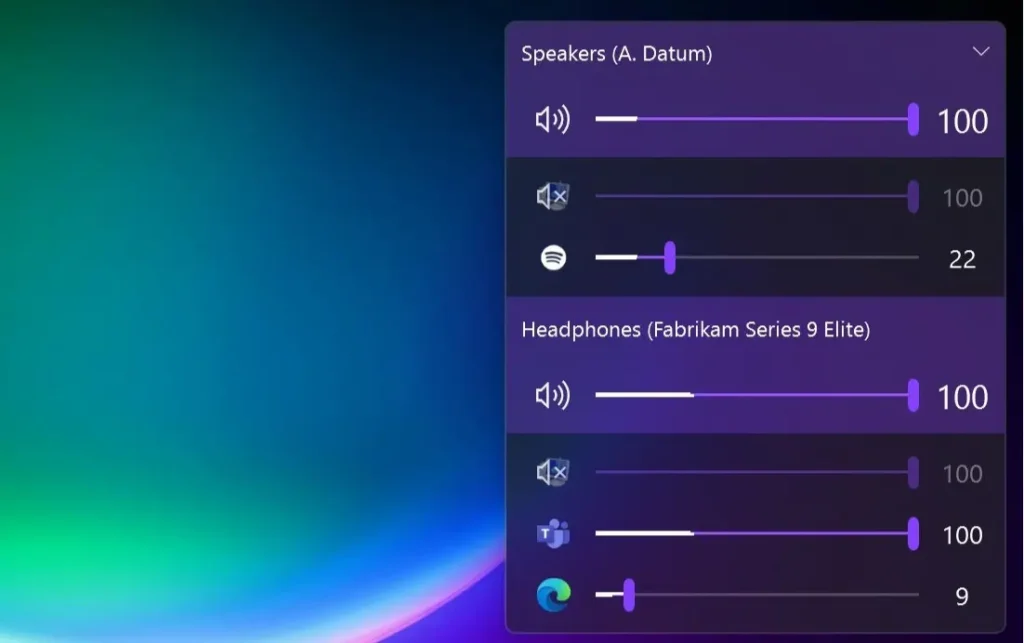
On Windows, EarTrumpet takes controls that already exist in Windows and puts them somewhere much more convenient. Click its tray icon and you get per-app volume sliders and quick output-device switching without having to dig through Settings. It uses Windows’ standard audio APIs, so there’s no driver or reboot involved.
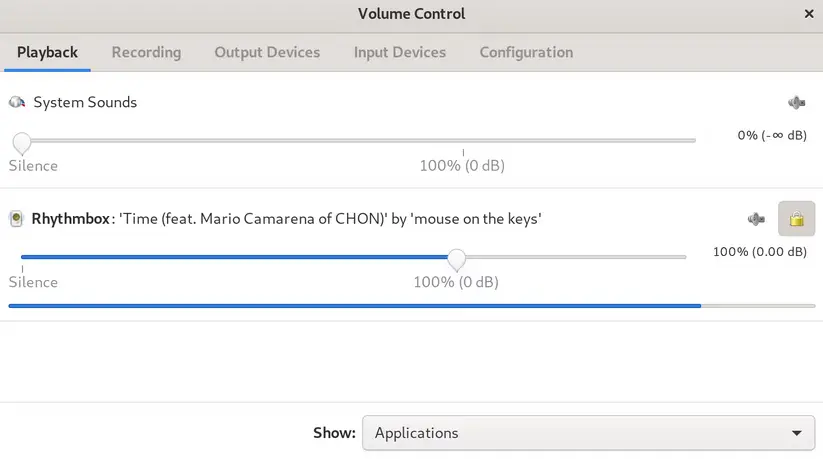
And on Linux, there’s pavucontrol. It’s an old-school little mixer, but that’s part of the appeal. It lets you control individual playback streams separately from the main system volume, along with your input and output devices.
Three operating systems, three slightly different solutions to the same annoying problem.
You shouldn’t have to change your whole computer’s volume just because one application decided to be louder than everything else.
Also Read: Powerful Offline AI Tools You Can Install Directly on Your System
7. Cryptomator
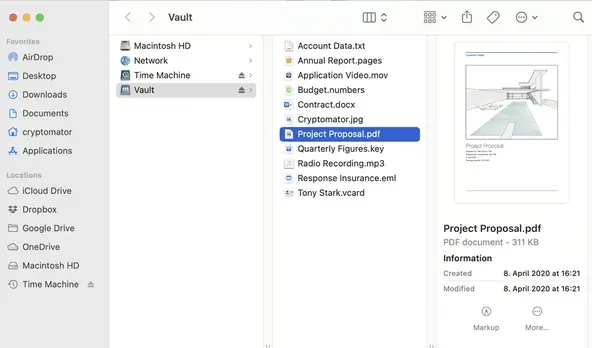
You can put your files in the cloud without giving the cloud provider the keys to them.
That’s what Cryptomator is for.
It creates an encrypted vault inside the cloud storage you already use. Anything you put into that vault is encrypted on your computer before it gets uploaded, including the filenames. Your cloud provider still syncs the files normally, but what it sees is encrypted data rather than the documents and photos themselves.
You don’t need to switch cloud providers or set up your own server. Create a vault, choose a password, and Cryptomator gives you a virtual drive that works like a normal folder. Put your files there and encryption happens automatically.
It’s open source, doesn’t require an account for the individual desktop app, and works across Windows, macOS and Linux.
The nice thing about Cryptomator is that it doesn’t ask you to give up the convenience of cloud storage. It just puts the encryption under your control.
Sometimes taking back control doesn’t mean leaving the cloud. It means making sure the cloud never gets the keys in the first place.
Your PC. Your Rules
None of these tools changes what your computer is capable of.
They just give you access to things that should have been easier to control in the first place.
They’re small additions, but together they change how the machine feels to use.
You stop working around the limitations of the software and start making the computer work the way you want.
Your PC is yours. And it should feel like it.