


File Information
| Attribute | Details |
|---|---|
| Name | WebP Converter – Multi-Platform Image Converter |
| Version | v1.2.3 (Latest Stable Release) |
| File Size | Windows: ~5MB (.msi) • macOS: ~5.7MB (.tar.gz) • Linux: ~78.4MB (.AppImage) 5.64MB (.deb) |
| Platforms | Windows • macOS • Linux |
| License | Open Source (C0-1.0 license) |
| Official Repository | GitHub/webo-converter |
| Official Site | WebP Converter |
Table of contents
Description
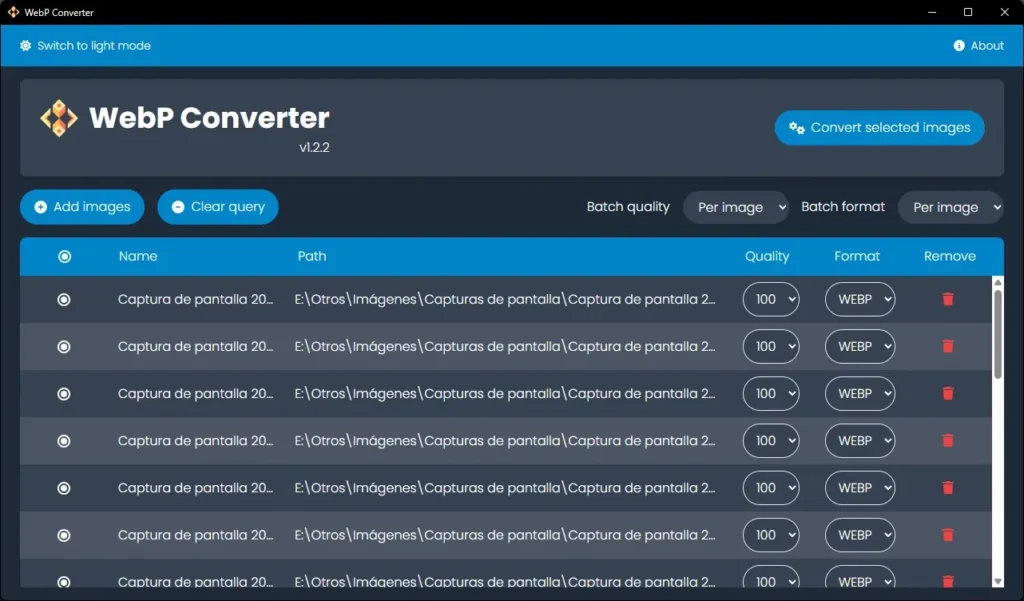
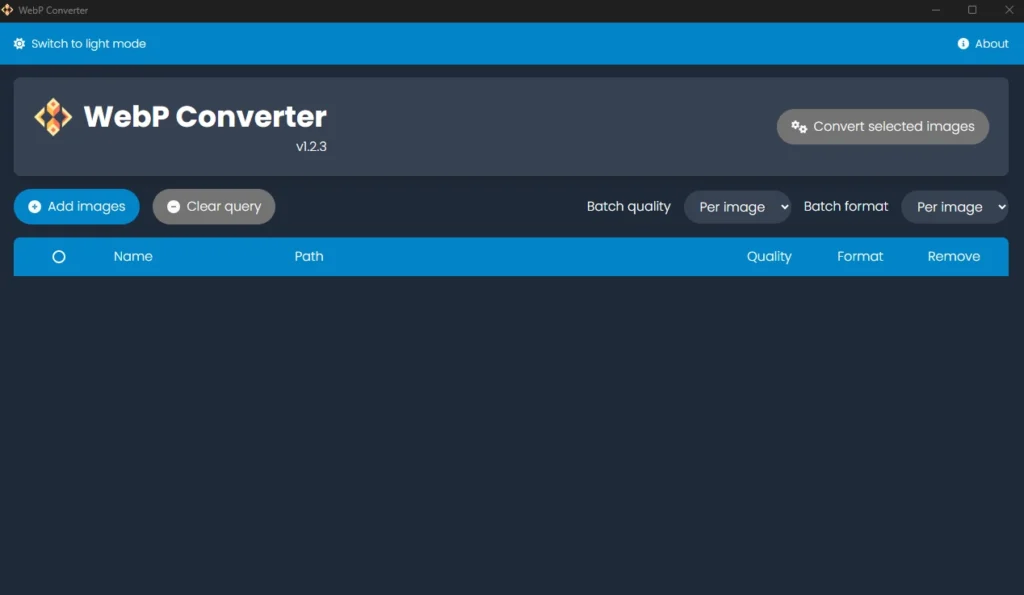
WebP Converter is a lightweight, multi-platform desktop application that allows you to convert images between WebP, JPG, PNG, TIFF, and BMP formats quickly and efficiently. With support for batch conversions, customizable quality settings, and both light and dark themes, it’s perfect for designers, photographers, and developers who frequently handle image files.
Whether you need to convert a single file or an entire folder, WebP Converter makes the process fast, simple, and precise.
Screenshots
Features of WebP Converter
| Feature | Description |
|---|---|
| Multi-Platform | Runs on Windows x64, macOS (Intel & Apple Silicon), and Linux |
| Format Support | It Can Convert image to WebP, PNG, TIFF, JPG, BMP |
| Batch Conversion | Convert multiple images at once with individual settings |
| Quality Control | Set output quality and format for each file |
| Themes | Switch between light and dark interface |
| Fast & Lightweight | Minimal system resource usage with high-speed processing |
Why You Should Use WebP Converter??
- Completely Free & Open Source: No hidden costs or restrictions. You can use, modify, and share it freely.
- Local Processing Only: All image conversions happen on your device; nothing is uploaded to the cloud.
- Privacy Guaranteed: Your files stay private. No external tracking or data collection.
- Supports Multiple Formats: Convert between WebP, JPG, PNG, TIFF, and BMP effortlessly.
- Fast & Lightweight: No heavy software dependencies; works efficiently across all supported platforms.
- Batch Conversion & Quality Control: Convert multiple files at once with customized output settings.
System Requirements
| Platform | Minimum Specifications |
|---|---|
| Windows | Windows 10 or newer, 4 GB RAM |
| macOS | macOS 10.14 or newer (Intel / Apple Silicon) |
| Linux | Modern Linux distribution, GTK 3 support |
| Node.js | v22.14.0 or higher |
| Rust | rustc v1.87.0 or higher |
Recommended For You: PhotoDemon: Lightweight Portable Photo Editor for Windows
How to Install WebP Converter??
Before jumping to the installation part, make sure to download the software from the download section as per your system’s operating system
For Windows
- Download the MSI installer from the links above.
- Double-click the
.msifile. - Follow the on-screen instructions to complete installation.
- Launch WebP Converter from the Start Menu.
Note: If SmartScreen appears, click More info & then Run anyway.
This is normal for new or unsigned open-source apps.
For macOS
WebP Converter provide separate builds for Intel (x64) and Apple Silicon (ARM64) Macs:
- Download
WebP.Converter_*.tar.gz. - Extract the
.tar.gzarchive. - Drag the
WebP Converter.appto your Applications folder. - Launch from Applications.
For Linux
AppImage
- Download the
.AppImagefile. - Make it executable:
chmod +x WebP-Converter*.AppImage
- Run:
./WebP-Converter.AppImage
Debian/Ubuntu (.deb)
- Download the
.debfile. - Install via terminal:
sudo dpkg -i webp-converter_<version>.deb
sudo apt-get install -f
Now WebP Converter is ready to use on your system. You can convert images between WebP, PNG, JPG, TIFF, and BMP effortlessly.
Download WebP Converter Multi Platform Tool to Convert Images
Conclusion
WebP Converter is your go-to solution for fast, secure, and versatile image conversion. Supporting multiple platforms and formats, it ensures all files are processed locally while offering batch operations, quality control, and an intuitive interface. Best of all, it’s completely free and open source. Upgrade your image conversion workflow today with WebP Converter!




