



File Information
| Name | Brave Browser |
|---|---|
| Version | Latest stable release |
| File Size | Windows: ~133 MB (.exe) • macOS: ~222 MB (.dmg) • Linux: varies (.deb • .rpm) |
| Platforms | Windows • macOS • Linux |
| License | Open Source (MPL 2.0) |
| Official Repository | GitHub / Brave Browser |
| Official Site | brave |
Table of contents
Description
Brave Browser is a fast, privacy focused, open source web browser designed to deliver a secure & efficient browsing experience across all platforms. Built on Chromium, Brave offers full compatibility with modern websites while providing a cleaner, faster & more private environment compared to traditional browsers.
Brave blocks intrusive ads, trackers, third party cookies, fingerprinting scripts & unwanted network requests by default. This not only protects user privacy but also significantly improves browsing speed & reduces bandwidth consumption. Brave Shield, built directly into the browser, offers real time protection that users can customize based on their privacy needs.
The browser includes additional features such as private browsing with Tor, built in HTTPS upgrades, memory optimization, script blocking, built in content filtering, cross platform syncing & a clean user interface suited for beginners and advanced users. Brave also provides a strong ecosystem with Brave Search, Brave Firewall on iOS, & the ability to manage rewards for optional privacy respecting ads.
Its availability on Windows, macOS & Linux makes Brave accessible to everyone while ensuring consistent performance and security across devices.
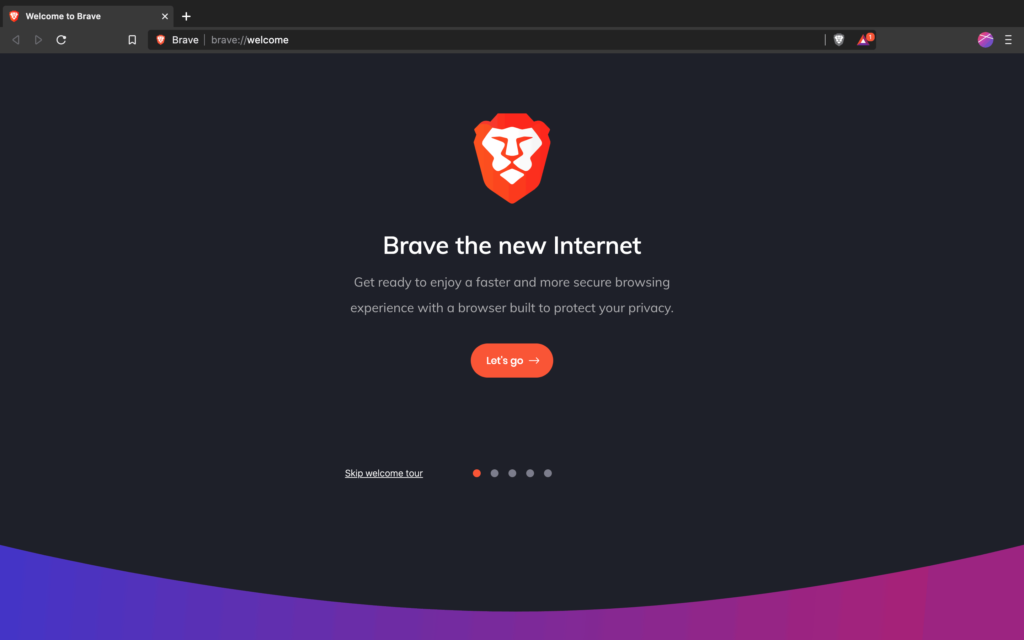
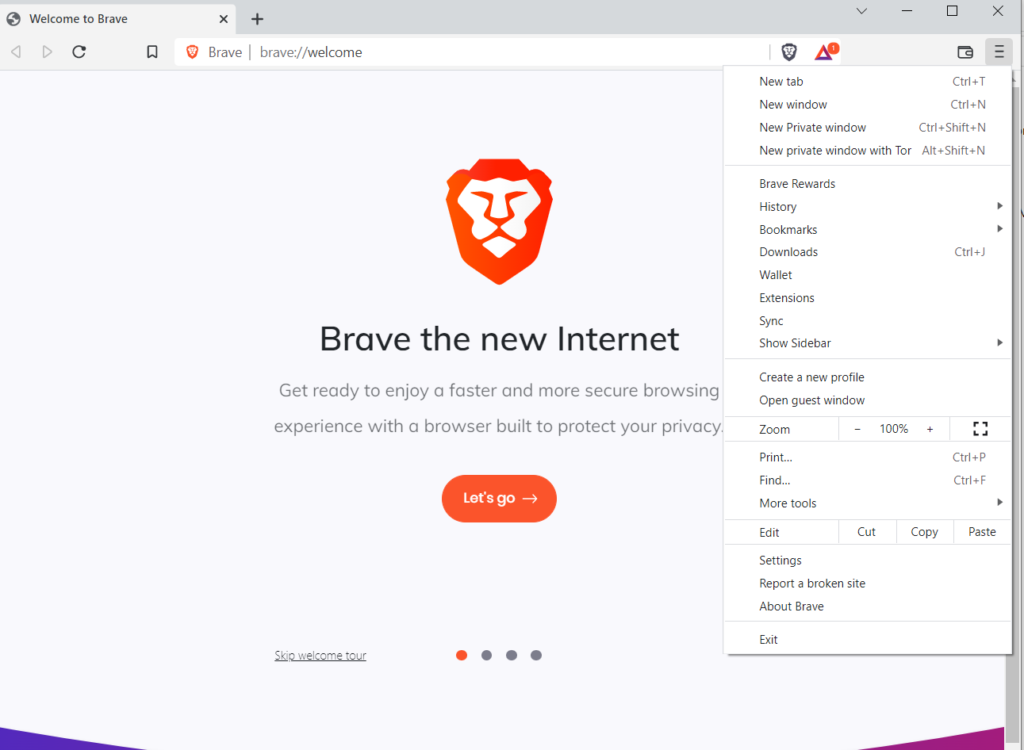
Screenshots
Features of Brave Browser
| Feature | Description |
|---|---|
| Advanced Ad & Tracker Blocking | Brave blocks ads, trackers & unwanted scripts, improving privacy & speed. |
| Faster Browsing | Reduced network requests and fewer trackers lead to faster page loading. |
| Built in Privacy Tools | Includes HTTPS upgrades, fingerprinting protection & private window with Tor. |
| Chromium Compatibility | Supports Chrome extensions & modern websites with no compatibility issues. |
| Brave Shield | Real time protection with fine control over scripts, cookies & cross site tracking. |
| Cross Platform Sync | Sync browsing data across Windows, macOS & Linux. |
| Import & Export | Easy migration from Chrome, Firefox & other browsers. |
| Low Resource Usage | Optimized for lower RAM consumption & better performance on older systems. |
| Open Source | Transparent codebase with active community support. |
| Built in Wallet (optional) | Support for Web3 tools, wallet features & Brave Rewards. |
System Requirements
| Platform | Minimum Specification |
|---|---|
| Windows | Windows 10 or newer, 64 bit, 4 GB RAM, 200 MB free disk space |
| macOS | macOS 10.13 or newer, Intel or Apple Silicon, 4 GB RAM, 200 MB free disk space |
| Linux | Modern Linux distribution, 64 bit processor, 4 GB RAM, 200 MB free disk space |
How to Install Brave Browser??
Windows (.exe)
- Download the Brave Browser .exe file.
- Double click to run the installer.
- Follow the installation instructions.
- Launch Brave from the Start Menu & begin browsing.
macOS (.dmg)
- Download the Brave Browser .dmg file.
- Open the file & drag Brave into the Applications folder.
- If macOS Gatekeeper shows a warning, right click Brave & select Open.
- Launch Brave from the Applications folder.
Linux Installation
Brave offers .deb, .rpm style binary releases for linux and even more you can check on their official website. Choose the correct method for your Linux distribution.
Install Using .deb (Debian, Ubuntu, Linux Mint & similar)
- Download the Brave .deb package.
- Open your terminal in the folder where the file is saved.
- Install it using:
sudo apt install ./brave-browser_X.X.X_amd64.deb - Launch Brave from the applications menu.
If you see dependency errors:
sudo apt --fix-broken install
Install Using .rpm (Fedora, RHEL, CentOS, openSUSE & similar)
- Download the Brave .rpm package.
- Open the terminal in the download folder.
- Install via:
For Fedora & RHEL based systems:
sudo dnf install brave-browser-X.X.X.rpm
For older RPM based systems:
sudo rpm -i brave-browser-X.X.X.rpm
- Open Brave using the applications menu.
Advantages of Using Brave Browser
• Strong privacy protection by default
• Fast browsing experience with fewer ads & trackers
• Full compatibility with Chrome extensions
• Consistent performance across Windows, macOS & Linux
• Transparent open source development
• Clean interface suitable for all types of users
• Reliable community support & ongoing updates
• Optional advanced security & Web3 features
Download Brave Browser – Fast, Secure & Privacy Focused Web Browser
Conclusion
Brave Browser offers a fast, secure & privacy centered browsing experience that stands out among modern browsers. With built in ad blocking, tracker protection, HTTPS upgrades, fingerprinting resistance & cross platform availability, it provides an efficient and secure environment for everyday browsing. Its open source foundation, lightweight performance & compatibility with Chrome extensions make it suitable for both regular users and advanced privacy enthusiasts.
Whether you are switching from a mainstream browser or searching for a performance oriented and privacy friendly alternative, Brave Browser delivers a balanced mix of speed, reliability & strong user control across Windows, macOS & Linux.




