


File Info
| File | Details |
|---|---|
| Name | Vibe Transcribe |
| Version | 1.0.0 |
| Developer | Vibe AI |
| License | Free & Open Source (MIT License) |
| Platform | Windows, macOS, Linux |
| Architecture | x64 (64-bit) |
| File Size | 150 MB (may vary slightly per platform) |
| Release Date | July 2025 |
| Category | Speech-to-Text, AI Transcription, Productivity |
| Languages Supported | Multilingual (Supports 100+ languages) |
Table of contents
Description
Vibe Transcribe is a powerful offline transcription software designed for creators, professionals, journalists & language learners who value privacy, speed & flexibility. It leverages advanced AI models to transcribe audio & video files into multiple formats with high accuracy all while running 100% locally on your system.
Whether you’re working with YouTube videos, MP3 podcasts, or real-time microphone input, Vibe supports it all. From batch processing of files to generating subtitles or summarizing entire transcripts, Vibe delivers a clean, GPU-accelerated experience that doesn’t rely on cloud servers ensuring zero data leakage.
Built for developers & creators alike, Vibe even supports CLI operations, HTTP API access, and local model integration for advanced workflows. With compatibility across Windows, Linux & macOS, and support for AMD, Intel & Nvidia GPUs (via Vulkan or CoreML), it’s a versatile solution for anyone serious about efficient, private transcription.
Features of Vibe Transcribe
- Transcribe almost every language accurately
- 100% Offline: No internet required for transcription
- User-friendly modern interface
- Supports audio & video file transcription
- Transcribe media from sites like YouTube, Vimeo, Facebook & Twitter
- Batch transcribe multiple files
- Export in SRT, VTT, TXT, HTML, PDF, DOCX, JSON formats
- Real-time preview of transcription
- Transcript summarization using Claude API
- Ollama integration for local AI-based summaries
- Translate any language to English
- Print transcripts directly from the app
- Automatic software updates
- GPU-accelerated processing (Windows, macOS, Linux)
- Compatible with Intel, AMD & Nvidia GPUs
- Customize models easily from settings
- Advanced model arguments for pro users
- Transcribe from system audio or live microphone
- Command-line interface support (
--help) - Speaker diarization support
- iOS & Android support (coming soon)
- Integrate custom models with
vibe://download/?url=<model_url> - Adjust caption lengths (reels, shorts, long form)
- Built-in HTTP API with Swagger docs (
--server)
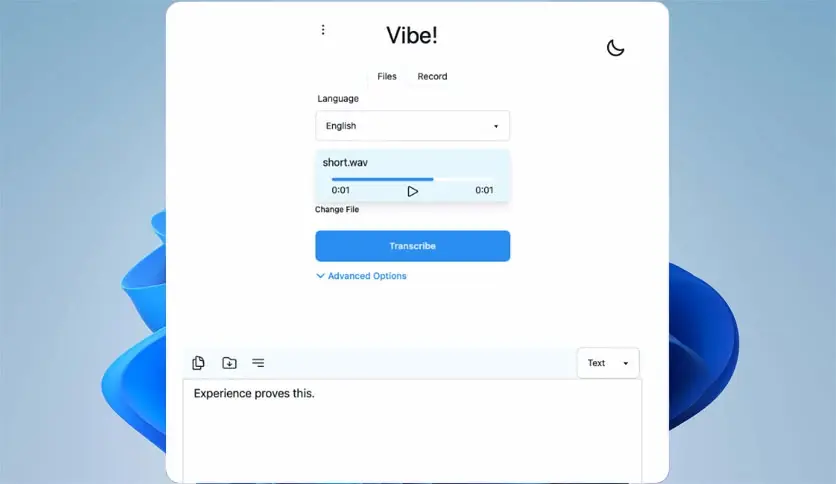
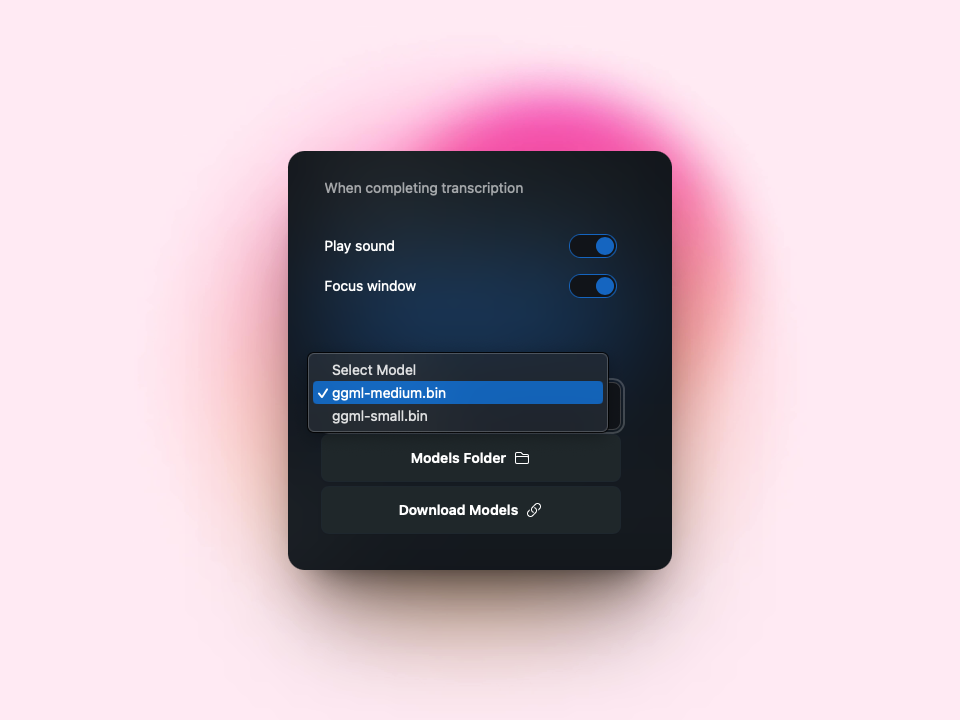
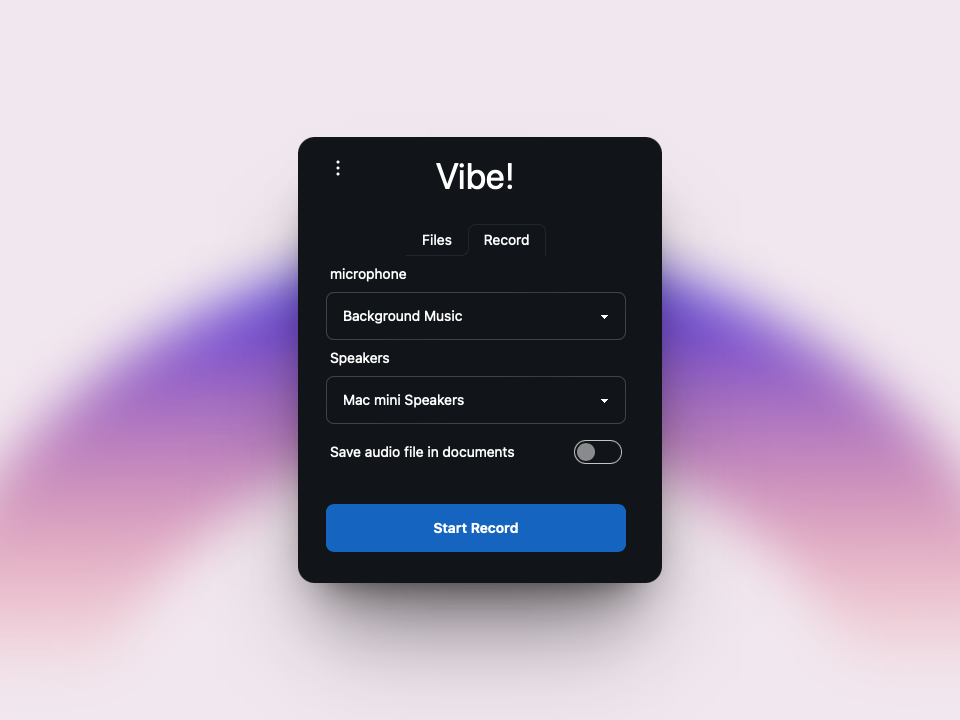
Screenshots
System Requirements
Minimum:
- OS: Windows 10/11, macOS Catalina or later, Ubuntu 20.04+
- CPU: Intel i5 / Ryzen 5 or equivalent
- RAM: 8 GB
- GPU: Integrated graphics (for basic transcription)
- Disk Space: 1 GB free space
- Internet: Only required for API-based summarization (Claude/Ollama)
Recommended:
- CPU: Intel i7 / Ryzen 7
- RAM: 16 GB+
- GPU: Nvidia RTX 20/30/40 series or AMD RX series
- Additional: Python installed (for CLI users), Port 3022 open for HTTP API
How to Install??
- Download the latest version of Vibe Transcribe from the Download section below.
- Unzip the archive (if applicable).
- For Windows:
- Run
Vibe.exe
- Run
- For Linux:
- Run
chmod +x vibe.AppImage && ./vibe.AppImage
- Run
- For macOS:
- Open the
.dmgor.appfile
- Open the
For Linux
Quick Install
curl -sSf https://thewh1teagle.github.io/vibe/installer.sh | sh -s v3.0.5
Yay (Arch Linux)
yay -S vibe-bin




