File Information
| Name | UniGetUI: Universal Package Manager GUI for Windows |
|---|---|
| Platform | Windows 10 / 11 (x64) |
| License | Open Source (MIT License) |
| Official Repo | Github UniGetUI |
| Developer | Marti Climent |
| Size | 54.2MB |
Table of contents
Description
UniGetUI (formerly known as WingetUI) is a free and open-source graphical user interface (GUI) designed to simplify how you manage software packages on Windows 10 and 11. Instead of using command-line tools, UniGetUI provides a sleek, intuitive desktop interface for popular Windows package managers like WinGet, Scoop, Chocolatey, Pip, NPM, .NET Tool, and PowerShell Gallery.
With UniGetUI, you can search, install, update, or uninstall applications published across supported repositories, all from one dashboard. Whether you’re a developer, power user, or casual Windows user, UniGetUI eliminates the need to remember command-line syntax while still providing full control over your package ecosystem.
Note: UniGetUI is an unofficial project and is not affiliated with any of the supported package managers. Please use responsibly and verify software sources.
Screenshots

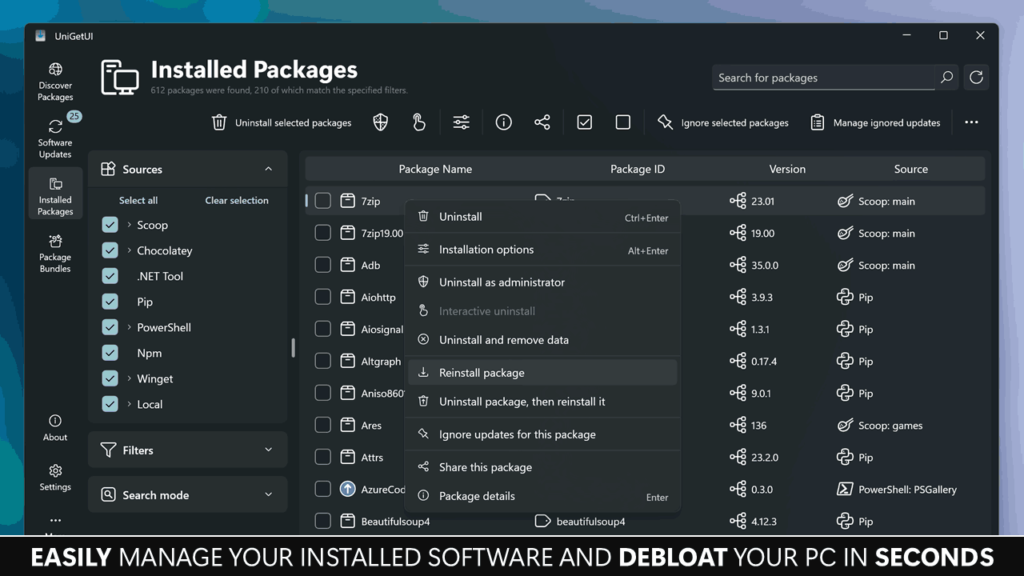
Features of UniGetUI
| Category | Description |
|---|---|
| All-in-One Package Manager GUI | Manage WinGet, Scoop, Chocolatey, Pip, NPM, .NET Tool, and PowerShell Gallery from a single app. |
| Install & Update Software | Search and install any package instantly — update or uninstall software without the command line. |
| Multiple Package Sources | Combine results from all managers for a unified experience. |
| Batch Operations | Install, upgrade, or remove multiple packages at once. |
| Advanced Search & Filters | Filter packages by name, category, repository, or update status. |
| Clean Interface | Built with a modern, user-friendly design that’s easy for anyone to navigate. |
| CLI Arguments Support | Automate actions with command-line parameters for advanced workflows. |
| Translations | Available in multiple languages including English, Spanish, German, French, Japanese, and more. |
| Community-Driven | Actively maintained by open-source contributors. |
| Secure & Transparent | 100% open source — inspect and verify everything before running. |
System Requirements
| Component | Requirement |
|---|---|
| Operating System | Windows 10 or Windows 11 (64-bit) |
| Memory | 2 GB RAM or more recommended |
| Disk Space | 200 MB free space |
| Internet Connection | Required for downloading and updating packages |
| Permissions | Administrator access for certain package installations |
Supported Package Managers
| Package Manager | Description |
|---|---|
| WinGet | The official Windows Package Manager by Microsoft. |
| Scoop | Lightweight command-line installer for Windows apps. |
| Chocolatey | Popular Windows software package manager. |
| Pip | Python package manager for installing libraries and tools. |
| NPM | Node.js package manager for JavaScript development. |
| .NET Tool | Installs and manages global .NET command-line tools. |
| PowerShell Gallery | Repository for PowerShell modules and scripts. |
How to Install UniGetUI??
- Download the latest version of
UniGetUI.Installer.exefrom the download section below. - Run the installer and follow the on-screen setup instructions.
- Launch UniGetUI from the Start Menu or Desktop shortcut.
- Once open, you can start installing or updating apps instantly.
Tip: You can also use the portable version (no installation required) directly from GitHub if you prefer a lightweight, standalone setup.
Why Use UniGetUI?
- Unified Management: All major Windows package managers in one place.
- Faster Workflows: Install or update multiple tools in one click.
- Smart Search: Instantly locate software across repositories.
- Open-Source & Secure: Transparent, community-verified codebase.
- Modern UI: Beautiful interface designed for accessibility and ease of use.
- Multi-Language Support: Available in several languages for a global audience.
- No Vendor Lock-in: Use it freely with your existing package managers.
Download UniGetUI: The Ultimate Open-Source GUI for Windows Package Managers
Conclusion
UniGetUI is the perfect open-source alternative to multiple Windows package manager GUIs — merging the power of WinGet, Scoop, Chocolatey, Pip, NPM, and PowerShell Gallery into one simple app. It’s fast, secure, and user-friendly, offering everything Windows power users need to maintain, install, and update software efficiently.
If you’re tired of memorizing commands and want a modern, lightweight way to manage your apps, UniGetUI is your ultimate solution, fully open-source, transparent, and completely free.