
File Info
| File | Details |
|---|---|
| Name | Sefirah |
| Version | v2.4.0 |
| Developer | Open Source Contributors |
| License | GPL 3.0 License (Open Source) |
| Platform | Windows, Linux, Android |
| Size | 115MB (may vary by OS) |
| Screen Mirroring Engine | Scrcpy |
| Connection Type | Local Network (LAN) |
| Github Repository | shrimqy/Sefirah |
Table of Contents
Description
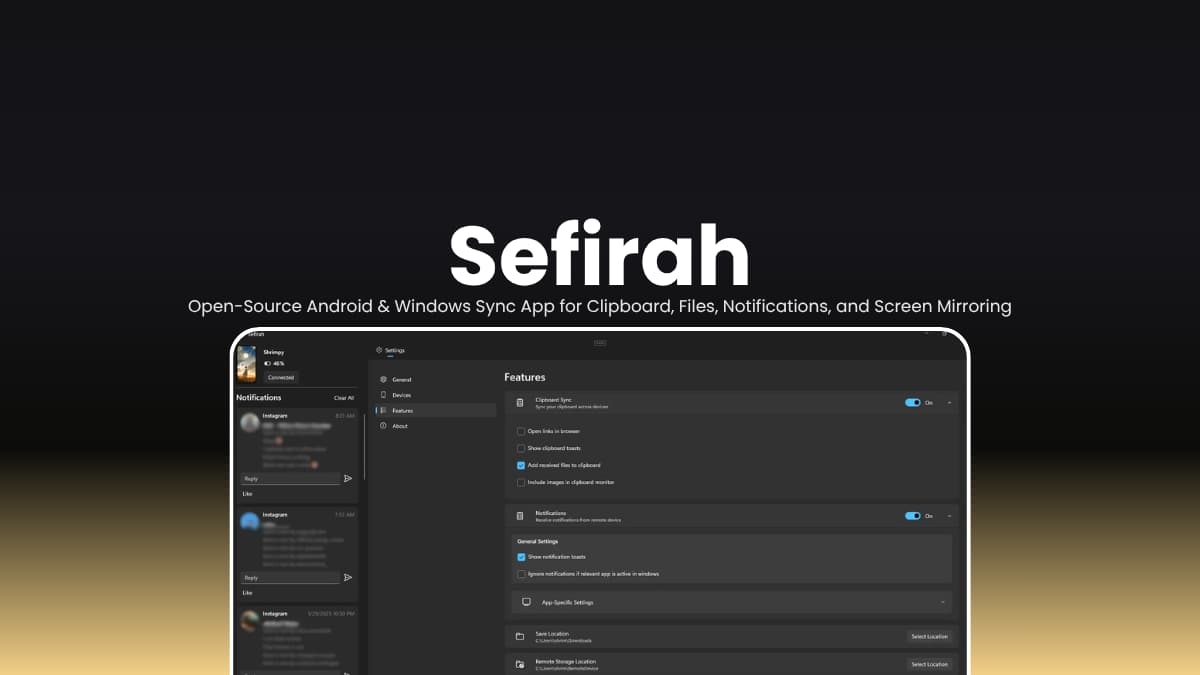
If you’ve ever wished your Android phone and Windows PC behaved like parts of the same device, Sefirah is trying to solve exactly that.
Instead of focusing on cloud syncing or complicated account setups, it creates a direct connection between your phone and computer so everyday tasks feel faster. Copy something on your phone and paste it on your PC. Send files between devices. Mirror your Android screen. Read notifications on your desktop. Even control media playback remotely.
Features that normally require multiple apps are available inside a single tool, while everything stays on your local network.
Use Cases
- Copy text on your phone and instantly paste it on your PC
- Transfer screenshots, photos, and documents without cables
- View and respond to Android notifications while working
- Control music, videos, and system volume remotely
- Mirror and manage your Android device directly from your desktop
Screenshots
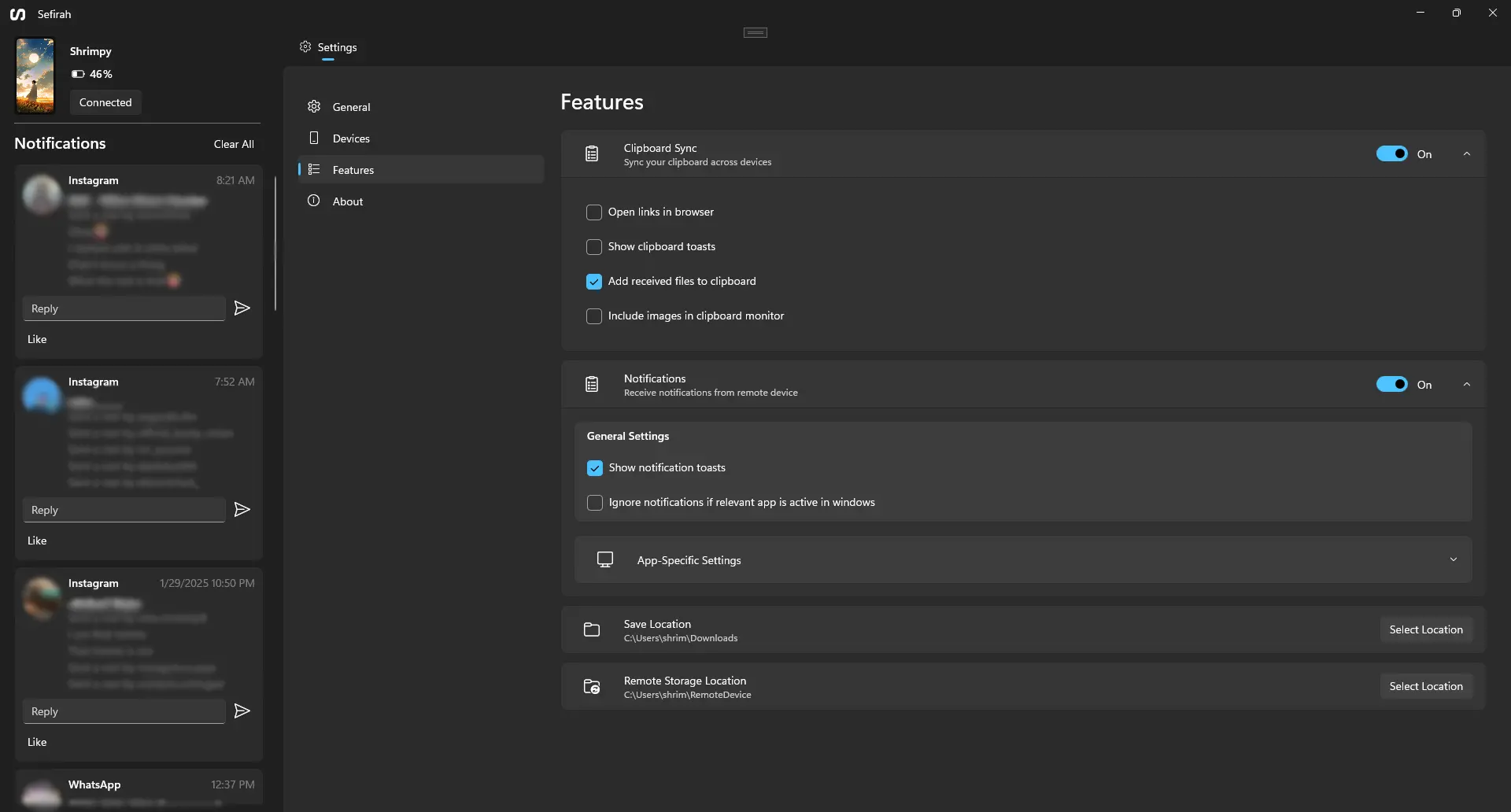
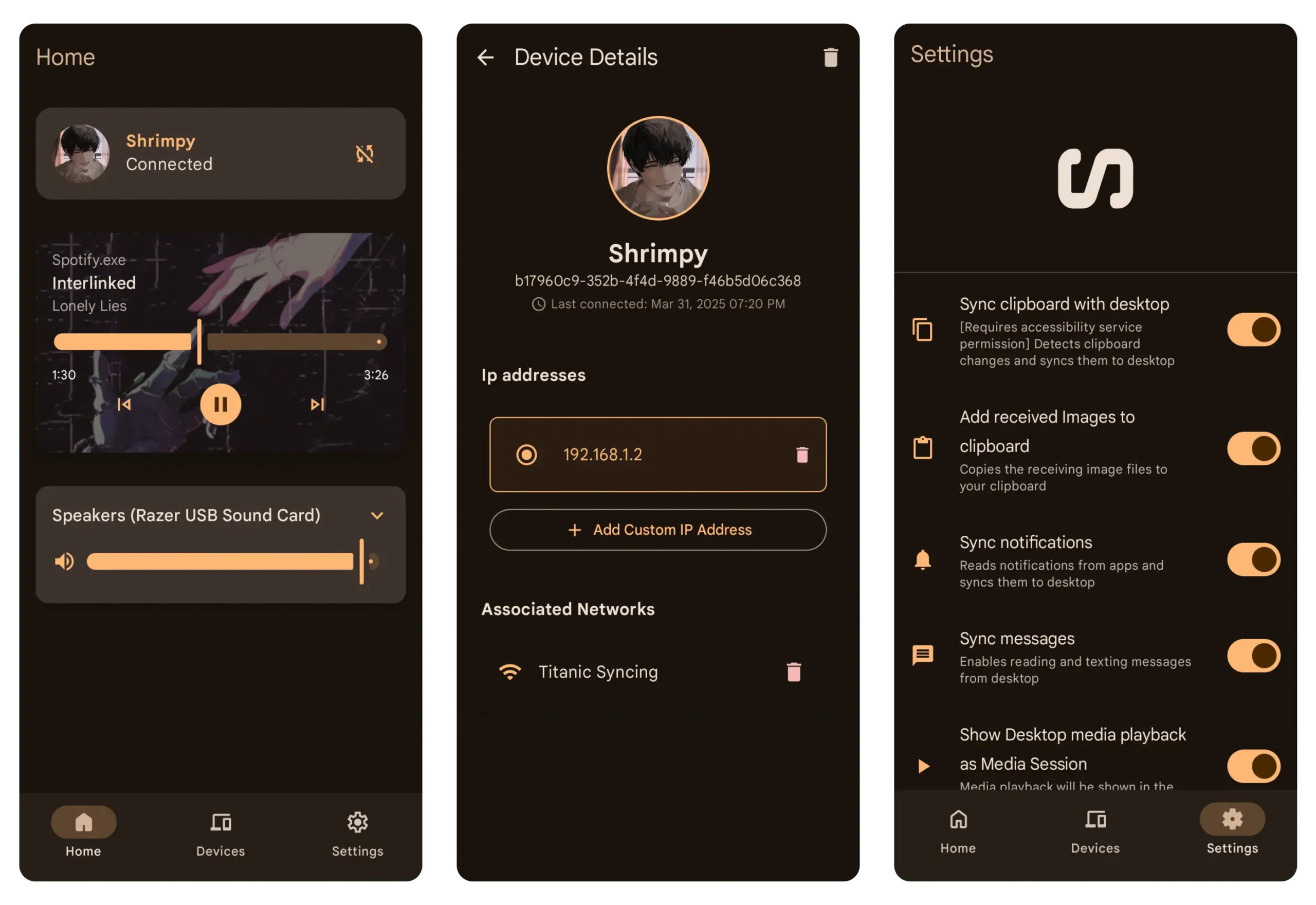
Features of Sefirah
| Feature | Description |
|---|---|
| Clipboard Sharing | Sync text and images between Android and Windows |
| File Transfer | Send files directly between devices |
| Android Notifications | Receive Android notifications on Windows |
| Media Controls | Control PC media playback and volume from Android |
| Android Storage Integration | Access Android storage directly from Windows Explorer |
| SMS Messaging | View and send SMS messages from your desktop |
| Screen Mirroring | Mirror and control Android devices using Scrcpy |
| Auto Device Discovery | Detect devices on the same network automatically |
| Local Network Operation | No cloud account required |
| Open Source | Fully transparent and community-driven |
You May Like: KillerPDF: Portable PDF Editor for Windows and a Real Alternative to Adobe Acrobat
System Requirements
Component | Requirement |
|---|---|
| Operating System | Windows 10/11, Linux |
| Android Version | Android 11 or later recommended |
| Processor | x64, x86, or ARM64 (Windows) |
| RAM | 4 GB minimum |
| Network | Both devices must be on the same local network |
| Additional Tools | Scrcpy required for screen mirroring |
How to Install Sefirah
- Download the version matching your system architecture.
- Extract the file you downloaded.
- Install the Android companion app on your phone.
- Launch Sefirah on both devices.
- Grant the required Android permissions during setup.
- Ensure both devices are connected to the same network.
- Pair the devices and confirm the authentication keys.
- Start using clipboard sync, file sharing, notifications, and other features.
For screen mirroring, download Scrcpy separately and configure its location inside Sefirah settings.
Download Sefirah
Why Sefirah Stands Out
There are plenty of device-sync tools available, but many focus on a single feature or require cloud services and accounts.
Sefirah combines clipboard sharing, file transfer, notification syncing, SMS access, storage integration, and screen mirroring into one open-source application that runs primarily on your local network.
For users who regularly move between Android and Windows throughout the day, that convenience can add up quickly.