
File Information
| Property | Details |
|---|---|
| Name | REAL Video Enhancer |
| Version | 2.3.7 (latest stable release) |
| File Sizes | Windows Setup ~ 51.6 MB, macOS ARM ~ 67.5 MB, macOS Intel ~ 103 MB, Linux portable ~ 359–376 MB |
| Platforms | Windows / macOS (ARM & Intel) / Linux (x86_64 & ARM64) |
| License | AGPL 3.0 (Open Source) |
| Official Repository | REAL-Video-Enhancer |
Table of contents
Description
If you’ve ever wished your old videos, low quality clips or compressed footage could look crisp, clean and cinematic, REAL Video Enhancer is the tool you’ve been waiting for. Using powerful AI interpolation and upscaling models, this software transforms your videos into high fidelity masterpieces. It runs on Windows, macOS & Linux, giving you incredible power on any platform.
REAL Video Enhancer is built as a modern, refined version of RIFE + ESRGAN tools, redesigned for everyday users. It offers intuitive controls, GPU acceleration, batch processing, and smart scene detection. According to its GitHub description, this program “offers convenient access to frame interpolation and upscaling functionalities on Windows, Linux & macOS” and is considered a modern alternative to older tools like Flowframes or Enhancer
Features of REAL Video Enhancer
| Feature | Description |
|---|---|
| AI Super-Resolution | Upscale low-quality videos to HD, 4K, or 8K with AI precision. |
| Noise Reduction | Automatically removes compression noise and artifacts. |
| Batch Processing | Process multiple files in one go for efficient workflow. |
| Cross-Platform | Available for Windows, macOS, and Linux. |
| GPU Acceleration | Leverages CUDA, Metal, or OpenCL for faster performance. |
| Color Enhancement | Improves contrast, brightness, and overall tone. |
| Portable Versions | Run directly without installation (macOS/Linux). |
| Custom Output Options | Choose bitrate, resolution, format, and codec. |
| Offline AI Models | Works entirely offline for privacy and reliability. |
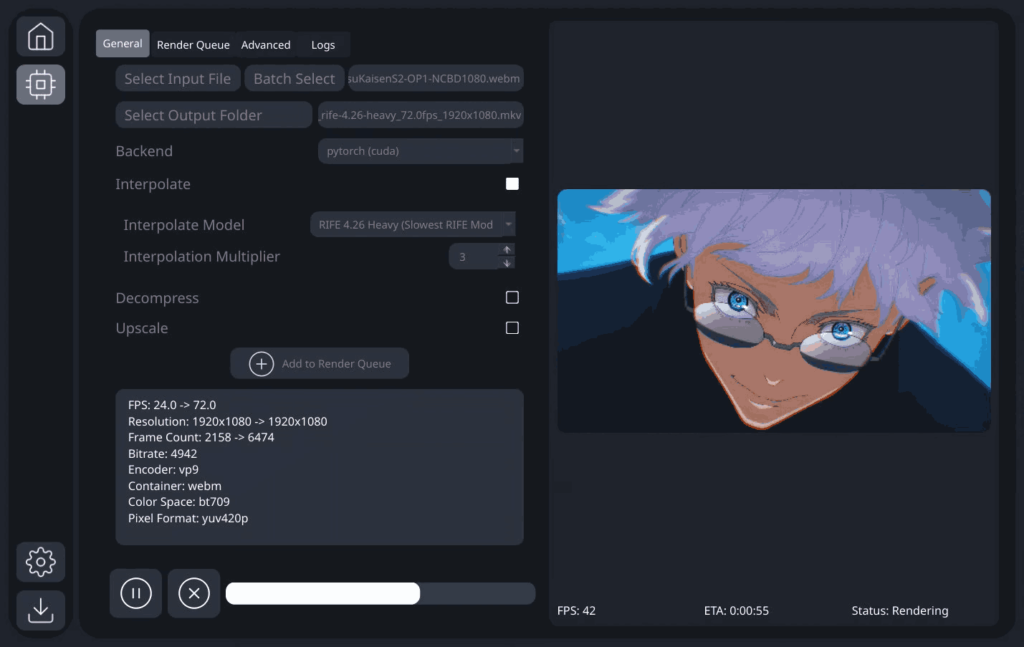
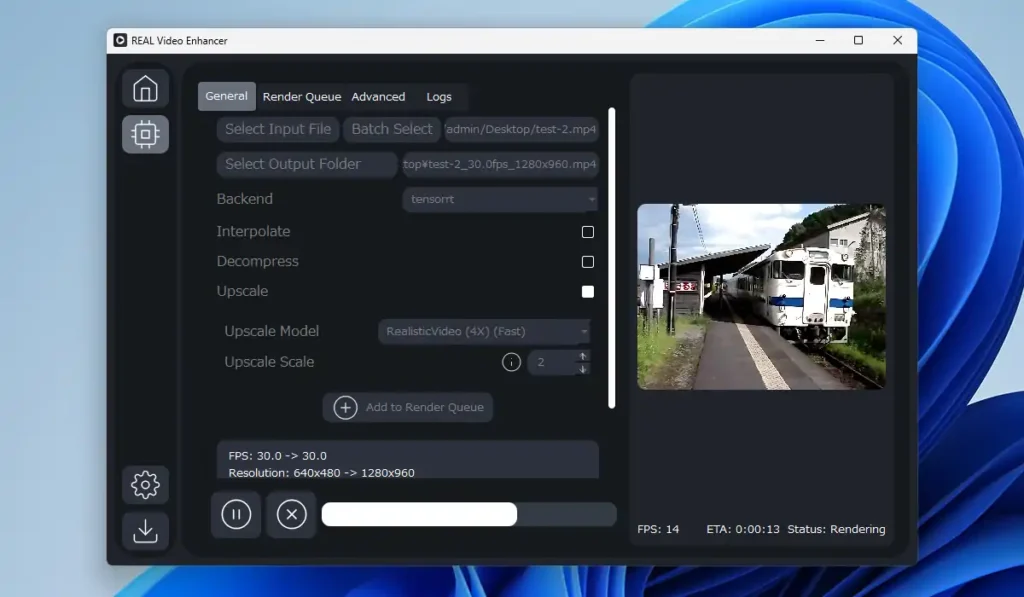
| Intuitive Interface | Easy drag-and-drop functionality with live preview. |
Screenshots
System Requirements
| Property | Details |
|---|---|
| OS | Windows 10/11, macOS 12+, Linux (Ubuntu/Fedora/Debian) |
| Processor | Intel/AMD 64-bit CPU or Apple M1/M2 chip |
| RAM | Minimum 8 GB, Recommended 16 GB+ |
| GPU (Optional) | NVIDIA GTX 1060 / AMD RX 580 / Apple M1 or higher |
| Storage | 1 GB free space for app + temporary storage for video files |
| Internet | Not required (AI models run locally) |
How to Install REAL Video Enhancer??
Windows (Installer)
- Download
REAL-Video-Enhancer-2.3.7-Windows-Setup_x86_64.exe. - Double-click the
.exefile to launch the installer. - Select your installation path or leave it default .
- Click Install, wait for setup to complete.
- Once installed, launch from the Start Menu or desktop shortcut.
- On First Launch it will download dependencies like python , FFmpeg, Pytorch and Backend
- Then you can use it offline , Unlimited Times! 😉
macOS (Intel & Apple Silicon)
- Identify your Mac chip:
- M1/M2/M3 → Download
REAL-Video-Enhancer-2.3.7-MacOS_arm64.zip - Intel → Download
REAL-Video-Enhancer-2.3.7-MacOS_x86_64.zip
- M1/M2/M3 → Download
- Extract the ZIP file.
- Open the folder and run:
chmod +x Real-Video-Enhancer
./Real-Video-Enhancer - If macOS blocks it as an “unidentified developer”:
Go to System Settings → Privacy & Security → Open Anyway.
Linux (x86_64 / ARM64 Portable Versions)
- Download the appropriate ZIP:
REAL-Video-Enhancer-2.3.7-Linux-portable_x86_64.zip(most desktops)REAL-Video-Enhancer-2.3.7-Linux-portable_arm64.zip(ARM-based devices)
- Extract the ZIP:
unzip REAL-Video-Enhancer-2.3.7-Linux-portable_x86_64.zip - Enter the folder:
cd REAL-Video-Enhancer-2.3.7-Linux-portable_x86_64 chmod +x Real-Video-Enhancer ./Real-Video-Enhancer
How to Use REAL Video Enhancer: Quick Workflow (All Platforms)
While installation differs by OS, once running, the workflow is simple:
- Open the application (portable or installed version).
- Load your source video file(s).
- Choose interpolation / fps options (if boosting frame rate).
- Select upscaling or resolution multiplier (2×, 4×, etc.).
- Enable scene change detection, denoise or color enhancements if available.
- Start processing — the AI will do the heavy lifting.
- Review output and iterate settings as needed.
Download REAL Video Enhancer: Open Source AI Video Upscaler for Windows, macOS & Linux
Conclusion
REAL Video Enhancer stands out as one of the most efficient AI-powered video upscalers available across platforms. Unlike traditional filters or online converters, it performs local AI-based enhancement, ensuring maximum quality, privacy, and speed.
It’s the ideal tool for YouTubers, filmmakers, archivists, and enthusiasts who want to breathe new life into their videos, all with one simple app that works everywhere.