


File Information
| Software | Details |
|---|---|
| Name | OpenBoard |
| Version | 1.7.3 (Latest Stable) |
| License | Free & Open Source |
| File Types | .exe, .dmg, .deb |
| Platforms | Windows, macOS, Linux |
| Size | ~163MB Installer |
| Developer | OpenBoard Developers (Community Driven) |
| Official Site | https://openboard.ch |
Table of contents
Description
OpenBoard is a free & open-source interactive whiteboard designed for schools, universities, teachers & students. Built for ease of use, OpenBoard allows educators to present lessons, draw, annotate, insert multimedia content, and interact with digital material in real time. It’s a perfect blend of simplicity & performance, making teaching & learning more engaging.
The software works with touchscreens, pen tablets, & interactive projectors, giving educators the flexibility to use digital boards just like physical ones. You can import documents, embed images, play videos, annotate PDFs, or connect external resources all inside the same environment.
Because it’s open-source, OpenBoard comes with no license fees, no ads & no restrictions. Teachers & institutions worldwide choose it as a reliable classroom tool that works across Windows, macOS & Linux.
The Best Open-Source Alternative to Microsoft Whiteboard
OpenBoard stands out as the most reliable free and open-source alternative to Microsoft Whiteboard. While Microsoft’s tool ties users into its ecosystem, OpenBoard offers freedom, flexibility, and complete control:
- No Cost, No Lock-in – 100% free and open-source, available for Windows, macOS, and Linux.
- Cross-Platform Support – Works seamlessly across devices without requiring Microsoft accounts.
- Offline Ready – Fully functional even without an internet connection, unlike MS Whiteboard’s cloud dependency.
- Advanced Teaching Tools – Includes screen annotation, PDF import, interactive resources, and media integration.
- Data Privacy – Your notes and lessons stay under your control, with no forced cloud storage.
For educators, trainers, and professionals seeking a powerful and unrestricted digital whiteboard, OpenBoard is the clear choice over Microsoft Whiteboard.
Features
| Feature | Description |
|---|---|
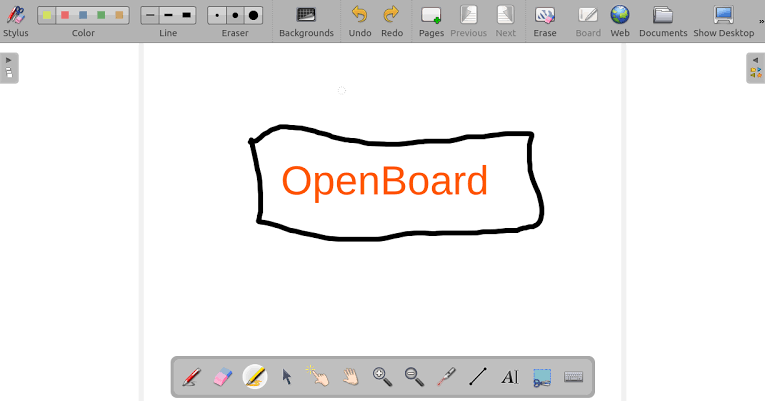
| Interactive Whiteboard | Draw, write & annotate using pens, markers & shapes with a smooth interface |
| PDF Annotation | Import PDF files & annotate them directly during lessons |
| Multimedia Support | Insert images, audio & video into your presentations with ease |
| Document Management | Organize lessons & notes in folders for quick access |
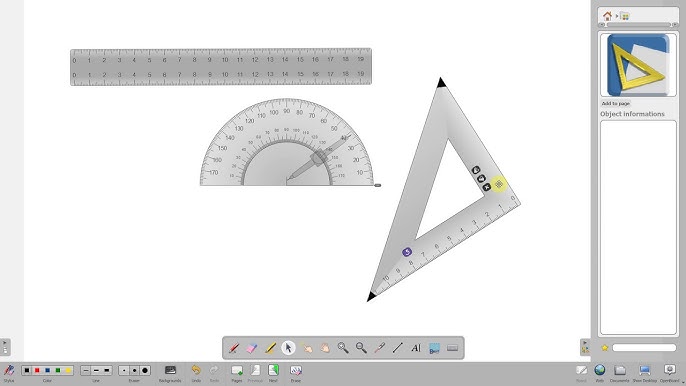
| Math Tools | Built-in compass, ruler & protractor for classroom demonstrations |
| Screen Recording | Record lessons & export them for students to review later |
| Web Integration | Access online resources & integrate them into your whiteboard |
| Cross-Platform | Works seamlessly on Windows, macOS & Linux |
| Touch & Pen Friendly | Fully compatible with stylus pens, touchscreens & interactive projectors |
| Free & Open Source | 100% free with no restrictions, constantly improved by the community |
Screenshots
System Requirements
| Platform | Operating System | RAM | Disk Space | Processor (CPU) | Additional Info |
|---|---|---|---|---|---|
| Windows | Windows 7 or later (64-bit) | 4GB (8GB recommended) | 500MB installation | Intel/AMD dual-core or better | .exe installer |
| macOS | macOS 10.12 or later | 4GB minimum | 500MB free | Intel 64-bit or Apple Silicon (Rosetta) | .dmg package |
| Linux | Any modern Debian/Ubuntu distro | 4GB | 500MB space | Dual-core or higher | .deb package for easy installation |
How to Install OpenBoard??
Before installation, scroll down to the download section & choose the correct file for your OS:
.exefor Windows.dmgfor macOS.debfor Linux
Windows Installation
- Download the
.exeinstaller. - Double-click the file & follow the setup wizard.
- Choose install location & complete installation.
- Launch OpenBoard from the Start Menu.
macOS Installation
- Download the
.dmgfile. - Open the installer & drag OpenBoard into Applications.
- If blocked, approve it in System Preferences > Security & Privacy.
- Launch from Launchpad or Spotlight.
Linux Installation (Debian/Ubuntu)
- Download the
.debpackage from below. - Open terminal & navigate to the download directory.
- Run:
sudo dpkg -i openboard.deb sudo apt-get install -f - Open from Applications menu or run
openboardin terminal.





