



File Information
| Name | Nora: Modern Open-Source Music Player |
|---|---|
| Version | v3.1.0 (latest stable release) |
| File Size | Windows: ~117MB (.exe) • macOS: ~155MB (.dmg) • Linux: ~155MB (.AppImage) |
| Platforms | Windows • macOS • Linux |
| License | Open Source (MIT License) |
| Official Repository | GitHub Nora |
| Official Site | noramusic |
Table of contents
Description
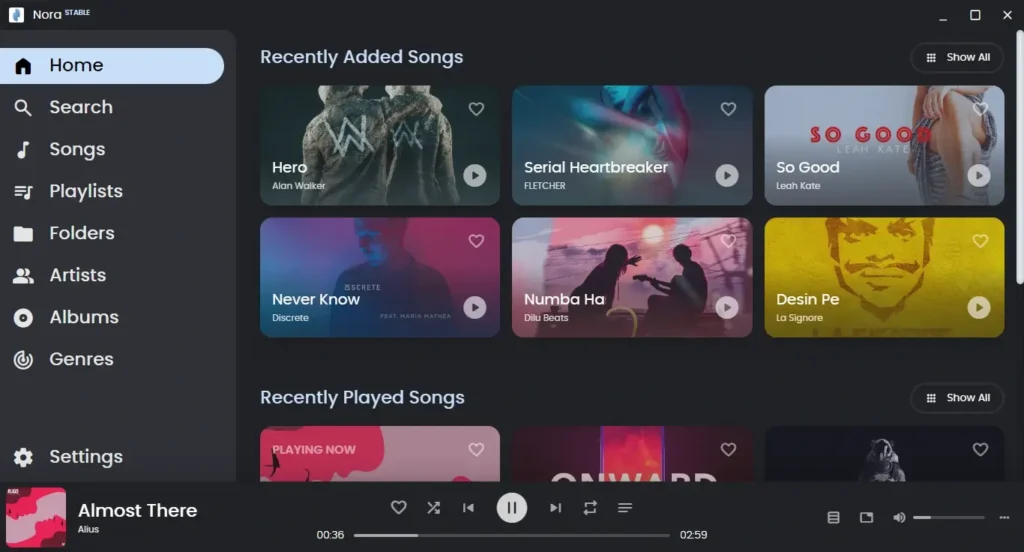
Nora is a modern, cross-platform music player designed to deliver everything a music player should have. Built using Electron and React, Nora focuses on elegant design, powerful library management, and essential music features that are often missing from default system players.
Inspired by Oto Music (Android) by Piyush Mamidwar, Nora provides a refined desktop listening experience with support for lossless audio formats, synced lyrics, metadata editing, and smart library organization. It is ideal for users who maintain large local music collections and want full control over their audio files.
It prioritizes usability and performance while remaining lightweight and open-source. Its consistent experience across Windows, macOS, and Linux makes it a reliable choice for music lovers on any platform.
Screenshots
Features of Nora Music Player
| Feature | Description |
|---|---|
| Wide Audio Format Support | Supports MP3, FLAC, WAV, AAC, OGG, and M4R formats. |
| Lossless Audio Playback | Full support for FLAC and WAV for high-quality listening. |
| Synced & Online Lyrics | Supports online lyrics and enhanced synced lyrics for real-time sing-along. |
| Metadata Editing | Edit song title, artist, album, artwork, and more with ease. |
| Smart Library Suggestions | Automated suggestions to help organize and clean your music library. |
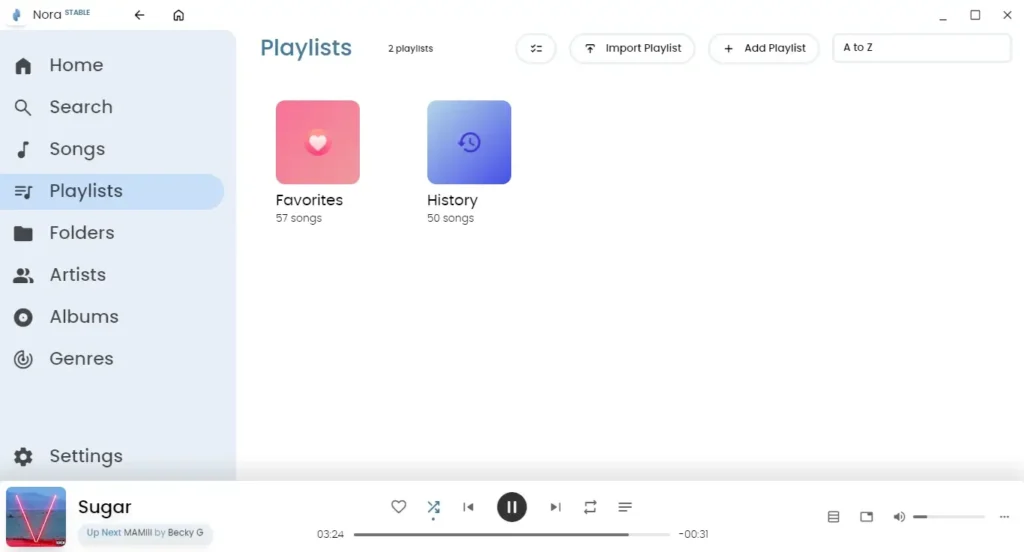
| Light & Dark Themes | Instantly switch themes for comfortable listening day or night. |
| Mini Player Mode | Focus-friendly mini player for uninterrupted listening. |
| Playlist Management | Create, manage, and organize playlists effortlessly. |
| Artist Information | View artist biographies and related metadata. |
| Last.fm Scrobbling | Track your listening history via Last.fm integration. |
| Cross-Platform Support | Identical experience across Windows, macOS, and Linux. |
System Requirements
| Platform | Minimum Specification |
|---|---|
| Windows | Windows 10 or newer, 64-bit processor, 4 GB RAM, 300 MB free disk space |
| macOS | macOS 10.13 or newer, Intel or Apple Silicon, 4 GB RAM |
| Linux | Modern Linux distro, 64-bit CPU, 4 GB RAM, AppImage support |
How to Install Nora Music Player??
Before installing, scroll down to the Download Section and choose the correct installer for your operating system.
Windows (.exe)
- Download the Nora
.exeinstaller for Windows. - Double-click the downloaded file to start the installer.
- Follow the on-screen installation wizard.
- Once installation completes, launch Nora from the Start Menu.
- Add your music folder and start listening.
macOS (.dmg)
- Download the Nora
.dmgfile. - Open the
.dmgpackage. - Drag Nora into the Applications folder.
- Open Nora from Applications.
- If macOS Gatekeeper blocks the app:
- Right-click Nora → Open → Confirm.
- Grant media and file permissions if prompted.
Linux (.AppImage)
- Download the Nora
.AppImagefile. - Make the file executable:
chmod +x Nora-x.x.AppImage
Run the application:
./Nora-x.x.AppImage
No installation required, the app runs directly.
Optionally, move it to /Applications or pin it to your dock/menu.
Download Nora Music Player: Open-Source Desktop Music Player
Conclusion
Nora Music Player is a thoughtfully designed solution for anyone who wants a powerful yet simple desktop music player. If you’re organizing a massive music library, enjoying lossless audio, or singing along with synced lyrics, Nora delivers a complete experience.
Nora is an excellent choice for those looking for a modern, open-source alternative to default music players on their operating system.




