
File Information
| File Name | LibreOffice Setup |
|---|---|
| Version | Latest Stable Release |
| License | Free & Open Source (MPL & LGPL) |
| Supported OS | Windows, macOS, Linux |
| Size | 202MB (may vary according to OS) |
| Available Formats | .exe, .dmg, .tar.gz |
| Category | Office Suite |
Table of contents
Description
LibreOffice is one of the most trusted names in the world of office software. It is a free & open source productivity suite that has become the preferred choice for students, professionals, educators & even businesses who want complete control of their tools without paying expensive subscription fees. Unlike other office programs that tie you down with limitations, LibreOffice is built around freedom & flexibility. You can create, edit & share documents, spreadsheets, presentations & more without worrying about compatibility problems.
The suite includes powerful applications that cover nearly every office need. Writer is the word processor where you can draft essays, reports & even books with advanced formatting features. Calc is the spreadsheet tool designed for everything from simple budgets to complex data analysis with charts & formulas. Impress helps you build presentations that stand out in meetings & classrooms. Draw is the go-to app for vector graphics & diagrams, making it easy to design posters, flowcharts & illustrations. Base serves as a database management tool, while Math lets you write formulas & equations inside your documents. Together, these apps make LibreOffice one of the most complete free office suites in existence.
One of the biggest strengths of LibreOffice is its compatibility. You can open & save files in Microsoft Office formats such as DOCX, XLSX & PPTX while also using open formats like ODT & ODS. This means you can work with colleagues & friends without worrying about which program they use. LibreOffice is also cross-platform, running smoothly on Windows, macOS & Linux so you can use the same tools across all your devices.
Being open source also means LibreOffice is continuously improved by a global community of developers & contributors. You can enhance it further with extensions, templates & integrations to fit your exact needs. Whether you are writing your thesis, preparing a presentation, managing finances or just need reliable tools for everyday work, LibreOffice delivers speed, stability, flexibility & complete freedom
Features of LibreOffice
| Feature | Description | Benefit |
|---|---|---|
| Writer | Full-featured word processor supporting DOCX & ODT. | Create professional documents & reports. |
| Calc | Advanced spreadsheet editor with XLSX & ODS support. | Manage data, perform calculations & create charts. |
| Impress | Create stunning presentations with PPTX support. | Ideal for business, education & personal use. |
| Draw | Vector graphics editor & flowchart maker. | Useful for diagrams, illustrations & posters. |
| Base | Database management system. | Build & manage relational databases with ease. |
| Math | Formula editor for scientific & technical documents. | Insert complex equations in documents & slides. |
| Cross-Platform | Runs on Windows, macOS & Linux. | One suite for all operating systems. |
| File Compatibility | Opens & saves MS Office & Open Document formats. | Smooth transition from other office suites. |
| Extensions & Templates | Add extra features & ready-to-use templates. | Customize LibreOffice for your workflow. |
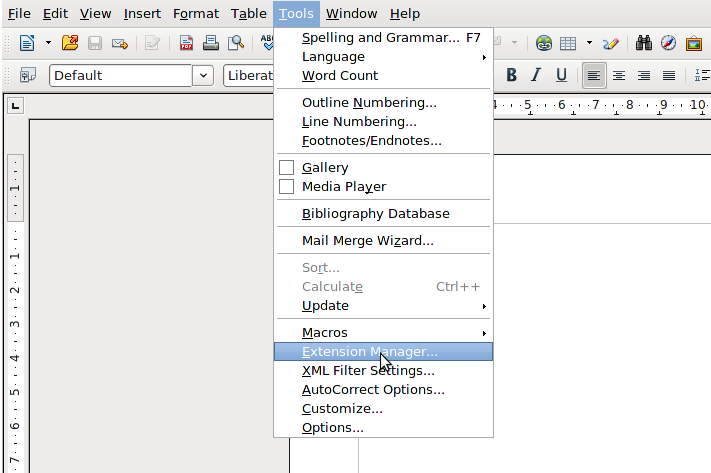
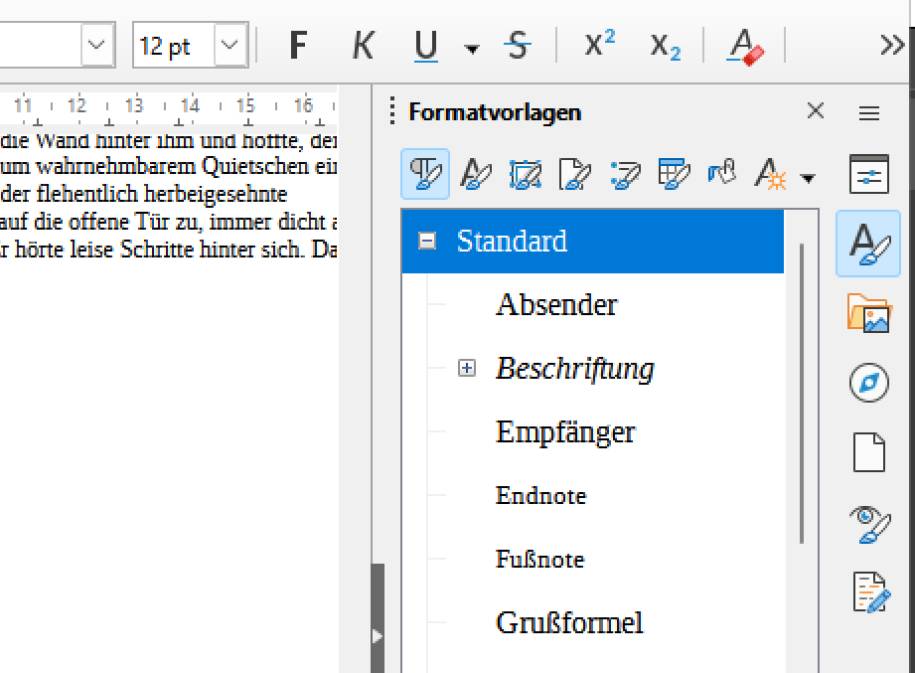
Screenshots
System Requirements
| Component | Minimum Requirement |
|---|---|
| Operating System | Windows 7 or later, macOS 10.14 or later, Linux (x86/x64) |
| Processor | Dual-core CPU |
| Memory (RAM) | 2 GB minimum, 4 GB recommended |
| Storage | 1.5 GB free disk space |
| Display | 1024×768 resolution or higher |
| Additional | Java Runtime Environment (optional for some features) |
How to Install LibreOffice??
Before starting the installation, make sure you download the correct file for your operating system by scrolling down to the Download Section of this post. Once the file is saved, follow the steps below.
Install on Windows (.exe)
- Locate the downloaded LibreOffice
.exeinstaller. - Double-click the file to launch the setup wizard.
- Choose Next to continue, then select Typical installation for default settings (recommended for most users).
- Wait while the files are copied & installed.
- Once installation completes, click Finish to close the wizard.
- LibreOffice is now ready to use from your Start Menu.
Install on macOS (.dmg)
- Open the downloaded LibreOffice
.dmgfile. - Drag the LibreOffice icon into the Applications folder.
- If prompted, enter your macOS admin password to confirm.
- Once copied, eject the
.dmgfrom Finder. - Open Applications, find LibreOffice & launch it.
- If macOS shows a security prompt, click Open to allow it.
Install on Linux (.tar.gz)
- Download the
.tar.gzarchive from the download section. - Open a terminal & navigate to your Downloads folder.
cd ~/DownloadsExtract the package:
tar -xvzf LibreOffice*.tar.gzNavigate into the extracted directory.
Run the installation command (example for Debian/Ubuntu based systems):
sudo dpkg -i DEBS/*.debOnce complete, launch LibreOffice from your app menu.
LibreOffice Free & Best Open Source Office Suite
Support the LibreOffice Community
LibreOffice is developed by The Document Foundation, a non-profit community that works tirelessly to provide a powerful, free & open source office suite for everyone. If LibreOffice helps you in your work, studies or daily tasks, consider supporting the community with a donation. Your contribution ensures continuous development, stability updates & innovation, while keeping LibreOffice accessible to millions worldwide. Visit the official LibreOffice Donation Page