


File Information
| File | Details |
|---|---|
| Name | KnowNote: Local-First AI Knowledge Notebook |
| Version | v1.1.0 |
| File Size | Windows: 124MB (.exe) • macOS (Intel): 153MB (.dmg) • macOS (Apple Silicon): 147MB (.zip) |
| Platforms | Windows • macOS (Intel & Apple Silicon) |
| License | Open Source (GNU GPL-3.0) |
| Official Repository | GitHub KnowNote |
Table of contents
Description
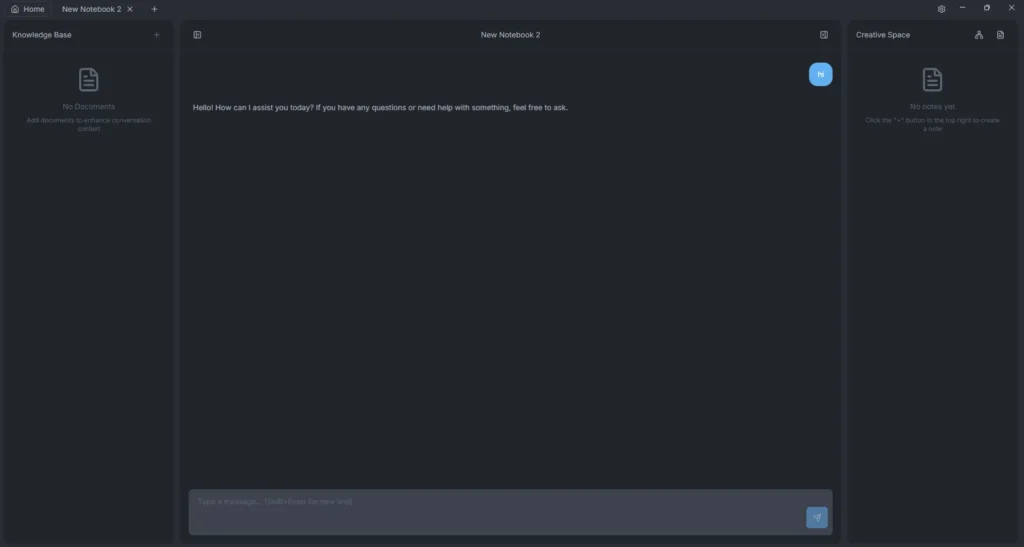
KnowNote is a local-first, open-source desktop app that lets you turn your documents into an intelligent, conversational knowledge base, similar to Google NotebookLM
It’s built for learners, researchers, and developers who want full control over their data and prefer using their own LLM APIs instead of uploading documents to external servers. Everything runs locally on your machine, and there’s no Docker, no backend setup, and no complicated deployment involved.
KnowNote takes a simple idea, chat with your documents & makes it accessible through a clean desktop app. Upload PDFs, Word files, presentations, or web pages, then ask questions, summarize content, and reason over your notes using Retrieval-Augmented Generation (RAG).
If you like the concept behind NotebookLM but want privacy, flexibility, and ownership, KnowNote is a good open-source alternative.
Use Cases
- Studying from PDFs, slides, and research papers
- Building a personal knowledge base from documents
- Summarizing long reports or articles using AI
- Learning technical topics with source-aware answers
- Research workflows without cloud dependency
Screenshots

Features of KnowNote
| Feature | Description |
|---|---|
| Document-Based Knowledge Base | Import PDFs, Word files (.docx), PowerPoint presentations (.pptx), and web pages to build a local knowledge library. |
| AI-Powered Q&A (RAG) | Chat with your documents using Retrieval-Augmented Generation, with answers linked to exact source references. |
| Multiple LLM Providers | Supports different LLM APIs such as OpenAI, DeepSeek, Ollama, and others through a provider-based design. |
| Local-First & Privacy-Friendly | All documents, embeddings, and notes are stored locally on your system with no mandatory cloud usage. |
| Semantic Vector Search | Uses sqlite-vec for fast and accurate semantic search across large document collections. |
| Desktop App | Electron-based desktop application, no Docker, no backend server, no complex setup required. |
| Structured Notes & Mind Maps | Generate organized notes and visual mind maps directly from your documents. |
| Cross-Platform Support | Available for Windows and macOS (Intel & Apple Silicon). |
System Requirements
| Platform | Minimum Specification |
|---|---|
| Windows | Windows 10 or newer, 64-bit, 4 GB RAM |
| macOS | macOS 11 or newer (Intel or Apple Silicon), 4 GB RAM |
How to Install KnowNote?
Before installation, scroll down to the Download Section and choose the correct installer for your system.
Windows (.exe)
- Download the KnowNote Setup (.exe) file
- Double-click the installer
- Follow the setup instructions
- Launch KnowNote from the Start Menu
macOS (Intel)
- Download the macOS Intel (.dmg) file
- Open it and drag KnowNote into the Applications folder
- Launch KnowNote from Applications
- If blocked, right-click → Open
macOS (Apple Silicon)
- Download the macOS ARM64 (.zip) file
- Extract the archive
- Drag KnowNote into the Applications folder
- Launch the app normally
After Launching the application, go to settings and connect with any Provider including local OLLAMA and done!
Download KnowNote Open Source Alternative to Google NotebookLM
Conclusion
KnowNote proves that powerful AI-assisted research tools don’t need to live in the cloud. By keeping everything local, flexible, and open-source, it offers a refreshing alternative to closed platforms like NotebookLM.
If you value privacy, control, and simplicity & want to turn your documents into something you can truly think with, KnowNote is well worth trying.




