
File Information
| Property | Details |
|---|---|
| Software Name | Everywhere AI |
| Version | v0.5.3 |
| License | Apache 2.0 License |
| File Size | 61.5MB (varies by platform) |
| Developer / Publisher | DearVa, AuroraZiling, feast107 |
| GitHub Repository | Everywhere |
| Supported Platforms | Windows (10+), macOS (Coming Soon), Linux (Coming Soon) |
| Category | AI Desktop Assistant / Productivity Tool |
Table of contents
Description
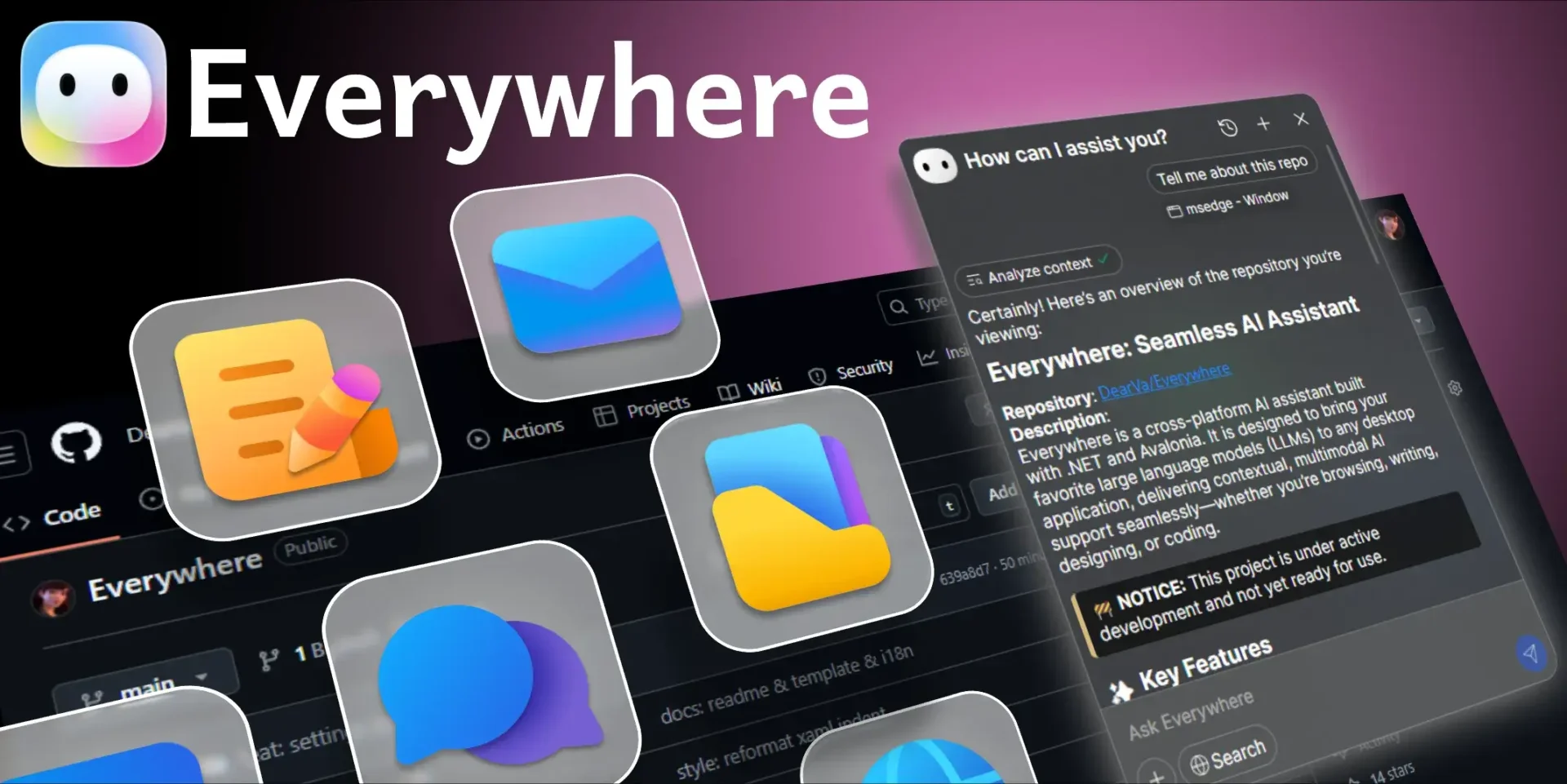
Everywhere is a next-generation context-aware AI assistant that integrates seamlessly across your desktop environment. Unlike traditional chatbots, it understands what’s happening on your screen in real-time, no screenshots, no switching tabs, just pure instant intelligence.
Whether you’re writing an email, reading an article, debugging code, or translating text, Everywhere AI provides relevant help exactly where you are.
Features of Everywhere AI
| Category | Currently Supported |
|---|---|
| LLM Support | OpenAI (ChatGPT), Anthropic (Claude), Google (Gemini), DeepSeek, Moonshot (Kimi), OpenRouter, SiliconFlow, Ollama |
| Tool Integration | Web Search, System APIs, MCP Tools |
| Interface | Modern Frosted Glass UI, Context-Aware Invocation, Keyboard Shortcuts, Markdown Rendering |
| Platform Support | Windows (macOS & Linux Coming Soon) |
| Language Support | English, 简体中文, Español, Deutsch, Français, Italiano, 日本語, 한국어, Русский, 中文 (繁體) |
Screenshots
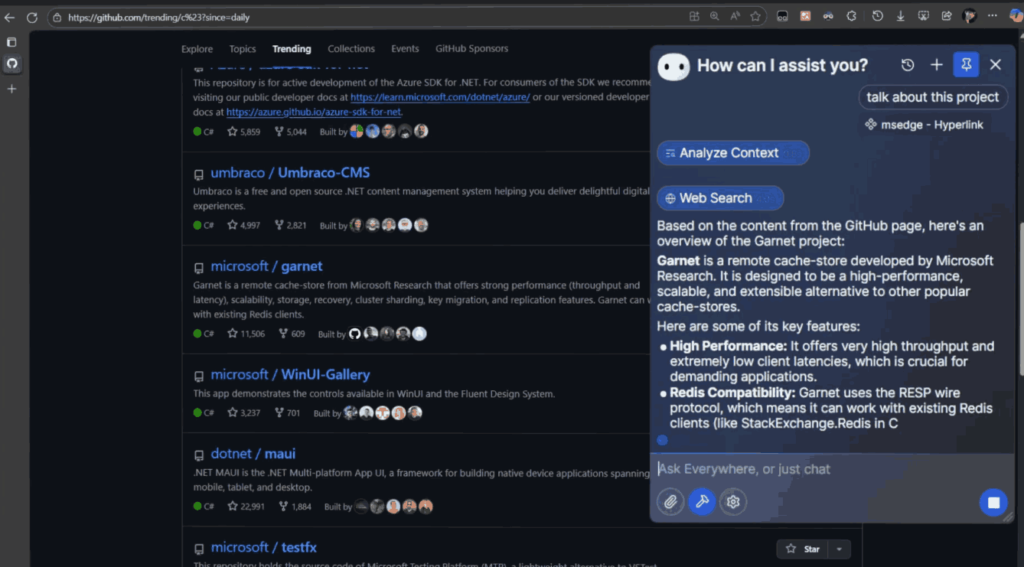

Everywhere AI Use Case Scenarios
| Use Case | Command Example | Result |
|---|---|---|
| Troubleshooting Expert | “What is this error? How to solve it?” | Instantly analyzes on-screen errors and provides solutions. |
| Web Summarization | “Give me a 3-point summary of this article.” | Extracts key points from long articles. |
| Instant Translation | “Translate this to English.” | Instantly translates selected text on your screen. |
| Email Assistance | “Make this sound more professional.” | Refines your text for tone and clarity. |
System Requirements
| Platform | Minimum Version / Requirement |
|---|---|
| Windows | Windows 10 (Build 19041.0) or higher |
| macOS | Coming Soon |
| Linux | Coming Soon |
| RAM | 4 GB (8 GB recommended) |
| Disk Space | 500 MB minimum |
| Internet Connection | Required for AI model access |
| Offline Support | Can Run Offline On Using Custom AI Model |
How to Install Everywhere AI Assistant??
Windows
- Download
Everywhere-Windows-x64-v0.5.3.zip(Portable). - Run or extract the package.
- Launch the app and follow on-screen setup instructions.
- Press your shortcut key to invoke Everywhere AI instantly.
macOS (Coming Soon)
- macOS
.dmgand.arm64.dmgpackages under development. - Expected support: macOS 12+.
Linux (Coming Soon)
.AppImageand.debbuilds planned.- Dependencies:
libomp5,xdg-utils.
Download Everywhere AI – The Ultimate Context-Aware AI Assistant Tool
Conclusion
Everywhere AI is redefining how users interact with artificial intelligence on desktop platforms. Instead of juggling between windows, copying text, or taking screenshots, you can now summon an AI assistant that understands your screen context instantly. From translating content and summarizing articles to debugging code and refining emails, Everywhere acts as your always-available, intelligent copilot right where you need it.
With support for top-tier AI models like ChatGPT, Claude, and Gemini, plus a modern, elegant interface and cross-platform roadmap (Windows, macOS, and Linux), Everywhere AI bridges convenience and capability seamlessly. It also supports custom AI models.
If you’re seeking a smart, on-screen assistant that boosts productivity, saves time, and feels like the next evolution of personal AI tools, Everywhere AI is your best choice.