



File Information
| File | Details |
|---|---|
| Name | Dyad |
| Version | v0.16.0 (Latest Release) |
| Developer | Community Driven Open Source |
| License | Free & Open Source |
| Platforms | Windows (.exe), macOS (.zip), Linux (.deb) |
| Category | AI Website & App Builder |
| GitHub Repo | dyad |
| Size | 140MB |
Table of contents
Description
If you are searching for the best free AI website builder or looking for a powerful open source alternative to v0, Replit & Bolt, then Dyad is the perfect choice. Dyad is a local AI app builder that allows you to create AI-powered apps on your own computer without worrying about vendor lock-in, privacy issues, or heavy cloud costs.
Dyad is completely local, meaning all your work stays on your machine, giving you speed, privacy & complete control. It is designed for developers, students, startups & creators who want to experiment, build & launch AI apps without limitations.
Dyad comes with cross-platform support, so you can run it smoothly on Windows, macOS & Linux. It allows you to bring your own AI API keys, giving you freedom from subscription traps & hidden restrictions. Whether you are looking for a v0 free alternative, Bolt free alternative or simply want a lightweight, open source solution to build apps faster, Dyad is the answer.
With Dyad, you get a tool that is not only simple & fast but also future-proof. It is built by the open source community, so you can expect transparency, flexibility & a rapidly growing ecosystem. If you are tired of being locked into cloud-only solutions, this is your chance to switch to a local AI builder that is 100% free & open source.
Scroll down to the Download section to grab the files for your operating system & start building with Dyad today.
Features of Dyad AI Website Builder
- Local First: Run everything on your machine. Fast, private & reliable with no internet lock-in.
- Bring Your Own Keys: Use your own AI API keys to keep full control.
- Cross-Platform Support: Works on Windows, macOS & Linux.
- Free & Open Source: No subscriptions, no hidden charges.
- Fast Prototyping: Build AI apps in minutes, test locally, refine & deploy.
- Privacy Focused: Your data never leaves your system.
- Community Driven: Built by developers for developers with open contributions.
- Best Alternatives: Designed as the perfect replacement for v0, Replit, Bolt, Lovable AI, and other paid platforms.
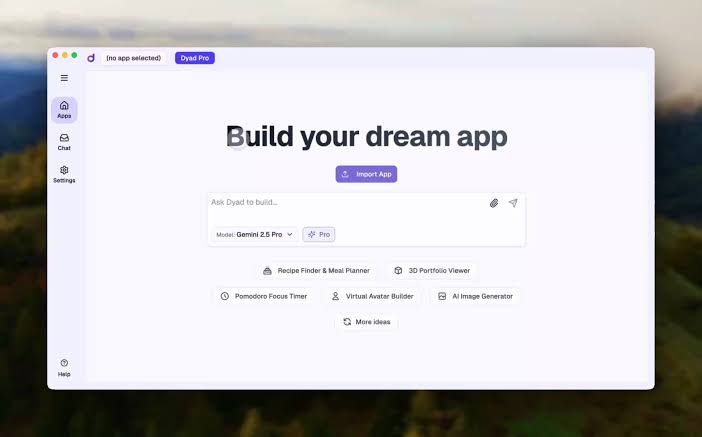
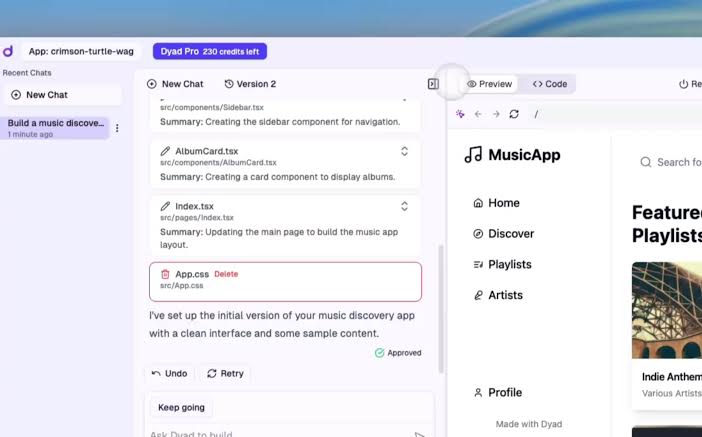
Screenshots
System Requirements
| Component | Minimum Requirement | Recommended Requirement |
|---|---|---|
| Operating System | Windows 10 & above (64-bit), macOS 11 & above, Linux (Debian-based for .deb package) | Latest version of Windows 11, macOS Ventura & Ubuntu 22.04 |
| Processor | Intel i3 / AMD Ryzen 3 or equivalent | Intel i5 / i7, AMD Ryzen 5 & above |
| RAM | 4 GB | 8 GB or more for smoother usage |
| Storage | 500 MB free disk space | 2 GB SSD space for faster performance |
| Graphics | Integrated Graphics | Dedicated GPU for faster rendering |
| Internet | Required for API integration & updates | Stable broadband for best performance |
How to Install Dyad??
Before starting the installation, scroll down to the Download section & download the correct file for your system.
Installation on Windows
- Download the
.exefile. - Run the installer & follow on-screen instructions.
- Launch Dyad from the desktop shortcut.
Installation on macOS
- Download the
.zipfile. - Extract the archive & move Dyad to Applications.
- Open the app from Launchpad.
Installation on Linux
- Download the
.debfile. - Open Terminal & run:
sudo dpkg -i dyad.deb - Start Dyad from Applications menu.




