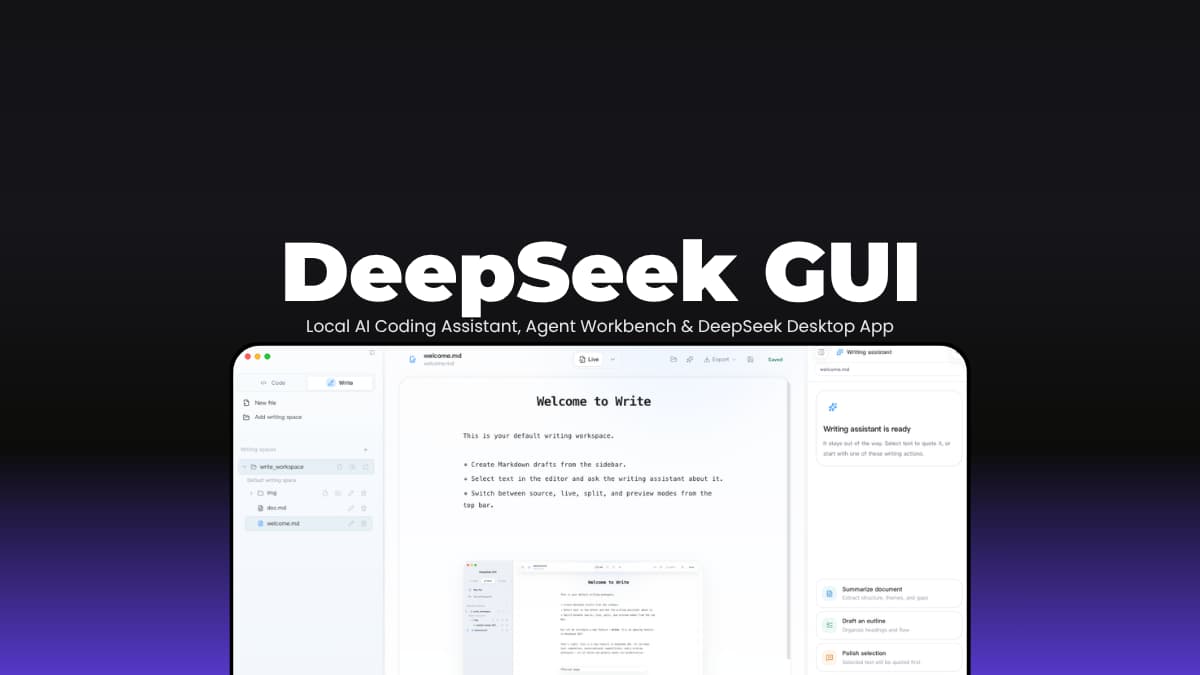

File Info
| File | Details |
|---|---|
| Name | DeepSeek GUI |
| Version | v0.2.6 |
| Type | Local AI Agent Desktop Application |
| Developer | DeepSeek GUI Contributors |
| License | MIT License (Open Source) |
| Size | 115 – 150MB (may vary by OS) |
| Platform | macOS • windows |
| Github Repository | XingYu-Zhong/DeepSeek-GUI |
| Official Site | deepseek-gui |
Table of Contents
Description
DeepSeek has become one of the most popular AI models for coding and technical work, but using it often means juggling browser tabs, API keys, terminals, and separate tools.
DeepSeek GUI is made to solve this problem. Instead of treating DeepSeek like a chatbot in a browser, it turns it into a desktop workspace. You can work on code, write documents, create implementation plans, review changes, manage long-running goals, and even run background tasks without bouncing between half a dozen applications.
Under the hood is Kun, a local runtime designed to keep agent sessions organized and make better use of context. It focuses on reducing wasted tokens, reusing cached prompts, and exposing tools only when they’re actually needed.
The result feels like having a dedicated workspace built around DeepSeek. Projects, plans, reviews, writing, and automation all stay connected.
Use Cases
- Building software projects with an AI agent that can understand repositories and execute multi-step tasks.
- Writing documentation, technical articles, specifications, and long-form content without constantly switching tools.
- Creating requirements, generating implementation plans, and tracking progress from planning to execution.
- Running background workflows connected to messaging platforms, webhooks, or scheduled tasks.
- Managing long-running AI projects where goals, plans, reviews, and conversations need to stay connected.
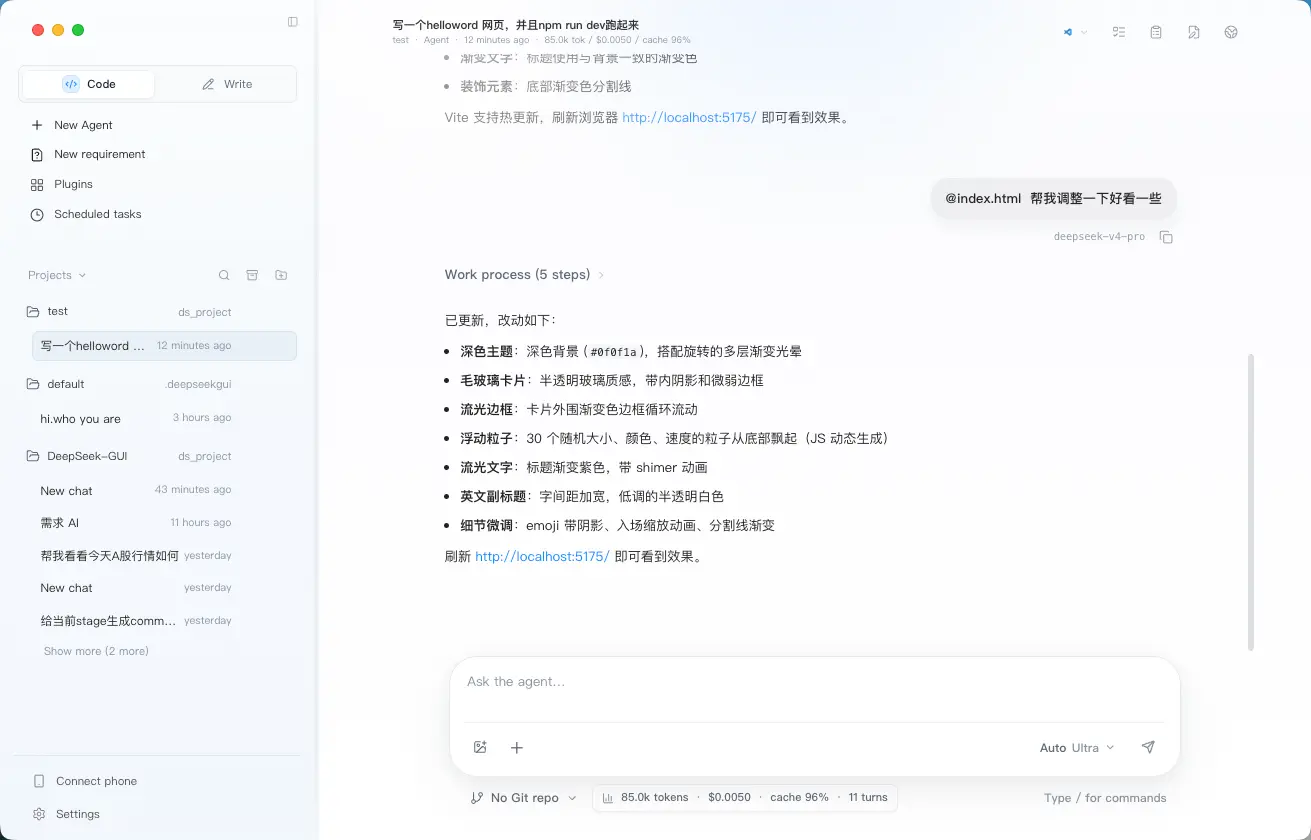
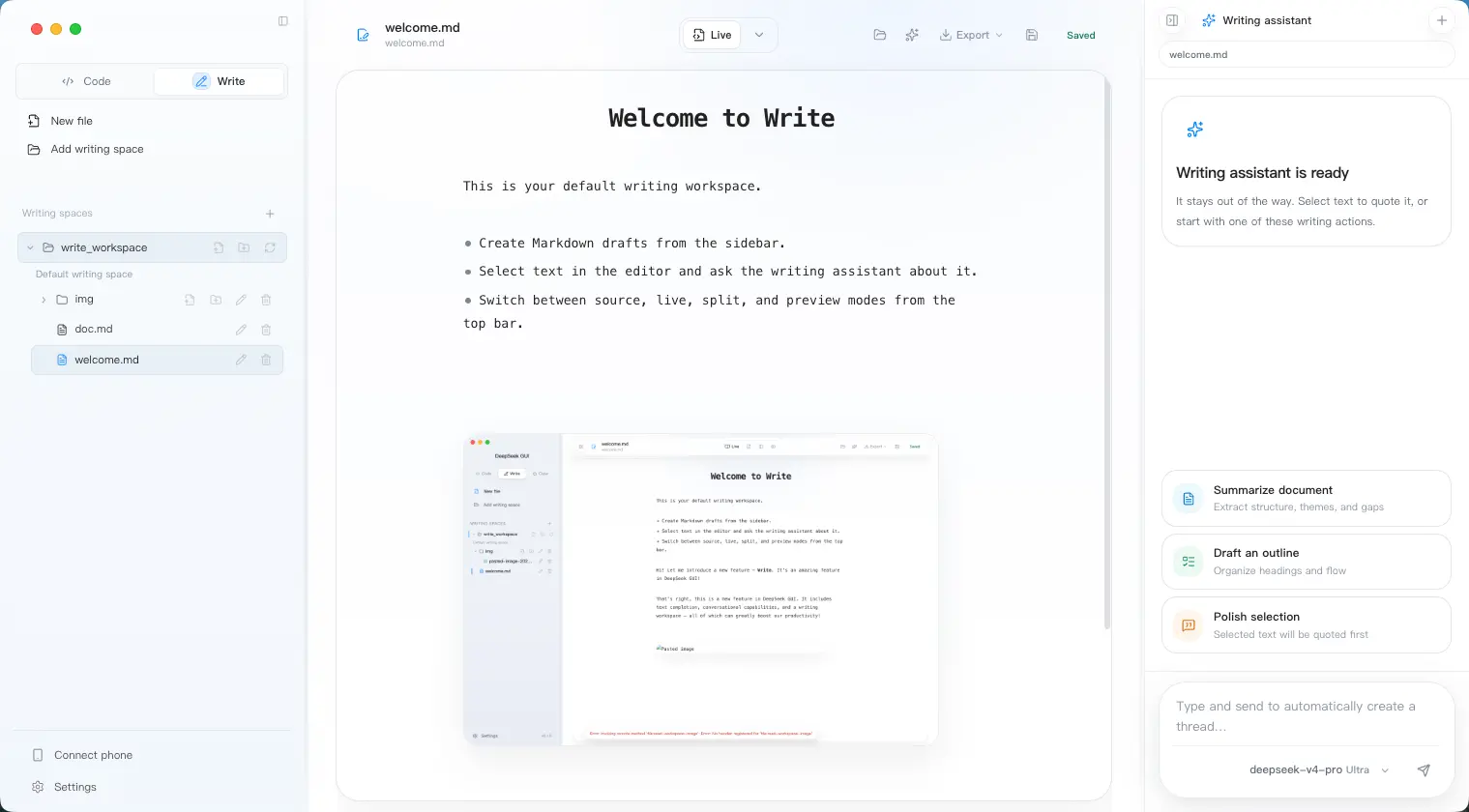
Screenshots
Features of DeepSeek GUI
| Feature | Description |
|---|---|
| Kun Runtime | Local agent runtime managing threads, tools, approvals, and execution |
| Code Mode | Work with repositories, code reviews, debugging, and project tasks |
| Write Mode | Markdown editor with AI-assisted drafting and content generation |
| SDD Workflow | Turn requirements into implementation plans and execution tasks |
| Goals & Plans | Persistent goals, synchronized plans, and task tracking |
| Review System | Review changes and generate findings before deployment |
| MCP Support | Progressive tool discovery for large MCP environments |
| Cache Optimization | DeepSeek cache telemetry and token-saving workflows |
| Connect Phone | Integrate messaging platforms and scheduled workflows |
| Tool Approvals | Approve actions before execution |
| Workspace Management | Separate projects and working environments |
| Local-First Design | Settings, logs, plans, and session data stay on your machine |
You May Like: Goose: Open Source Local AI Coding Agent for Developers
System Requirements
| Component | Requirement |
|---|---|
| Operating System | macOS 13 Ventura or newer |
| Processor | Apple Silicon (M1, M2, M3, M4) |
| RAM | 8 GB minimum |
| Storage | 500 MB+ available space |
| Internet | Required for DeepSeek API access |
| API Key | DeepSeek API Key or compatible endpoint |
How to Install DeepSeek GUI?
Windows
- Download DeepSeek-GUI exe.
- Run the installer.
- Follow the setup wizard.
- Launch DeepSeek GUI from the Start Menu or desktop shortcut.
- Enter your DeepSeek API key.
- Create or select a workspace and begin using the application.
macOS
- Download the dmg.
- Open the DMG file.
- Drag DeepSeek GUI into the Applications folder.
- Launch the application.
- Enter your DeepSeek API key during onboarding.
- Choose a workspace and start using Code, Write, or Connect Phone mode.
Download DeepSeek GUI
The Missing Desktop App for DeepSeek
DeepSeek is powerful, but many users still interact with it through a browser tab or a collection of separate tools.
DeepSeek GUI brings those pieces together in a single desktop application. Coding projects, documentation, requirements, plans, reviews, and automation workflows all run through the same interface.
If you’re already using DeepSeek for development or technical work, DeepSeek GUI offers a more structured way to work with it. Rather than opening another chat window, you’re working inside a dedicated environment built around projects and outcomes.