

File Information
| Name | Bulk Crap Uninstaller (BCUninstaller / BCU) |
|---|---|
| Version | Latest Stable Release |
| File Size | Windows: ~8MB (.exe) |
| Platforms | Windows (Vista, 7, 8, 10, 11) |
| License | Open Source (Apache License 2.0) |
| Official Repository | GitHub / BCUninstaller Repository |
| Official Site | bcuninstaller |
Table of contents
Description
Bulk Crap Uninstaller (BCUninstaller or BCU) is a powerful, free, open-source tool designed to uninstall large numbers of programs effortlessly, with minimal or even zero user input. Built for everyone from everyday users to power users, IT admins, and system technicians. BCU automates application removal in a way that is both safe and extremely efficient.
Unlike basic uninstallers, BCU scans deeper, detects applications that other tools miss (including portable apps, store apps, damaged installers, and even games), and ensures a clean, complete removal with optional leftover cleanup.
If you’ve ever wanted a tool that removes dozens of unnecessary programs in minutes, BCUninstaller is the most reliable and automation-friendly choice available today.
Screenshots
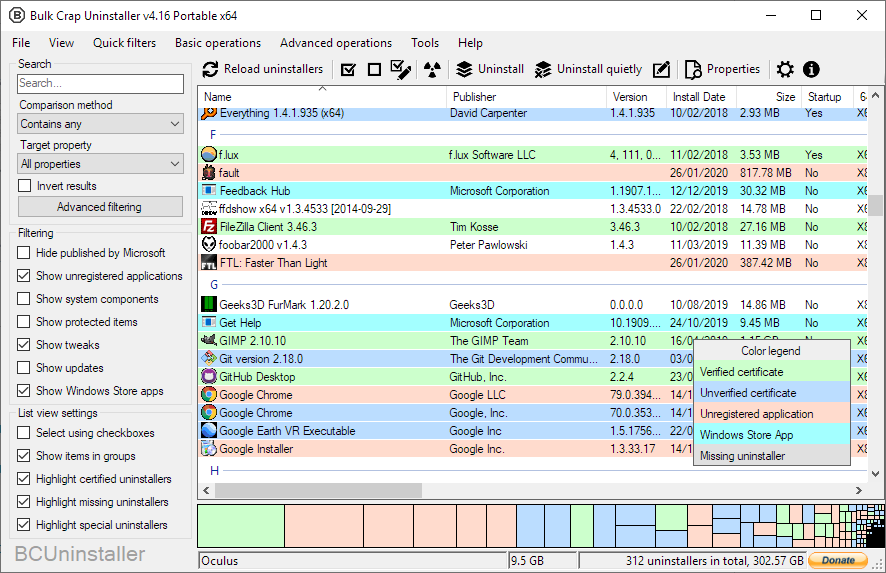
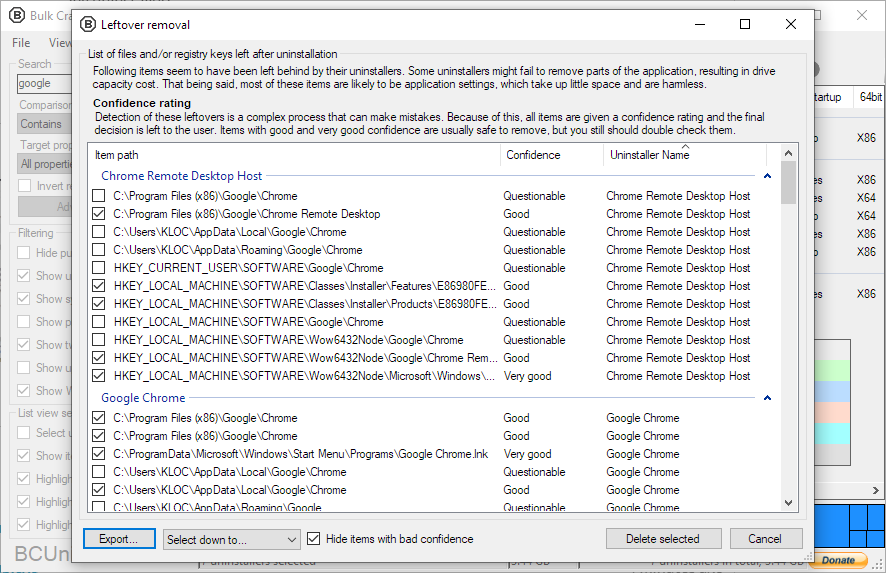
Features of BulkCrapUninstaller
| Feature | Description |
|---|---|
| Advanced Application Detection | Detects registered apps, hidden apps, portable software, Steam/Oculus games, Windows Store apps, Chocolatey packages, Windows Features, and more. |
| Bulk Automatic Uninstallation | Uninstall hundreds of programs in a batch with little to no user interaction. |
| Force Uninstall | Remove apps with broken or missing uninstallers. |
| Leftover Cleanup | Cleans files, folders, registry entries, Program Files directories, and more. |
| Quiet/Silent Uninstallation | Uninstalls most apps silently even if they don’t officially support silent mode. |
| Uninstall by Target | Remove apps by selecting a window, shortcut, or folder. |
| Crash-Resistant Engine | Handles hanging and crashing uninstallers automatically. |
| Automation & Console Mode | Automatically uninstall apps based on conditions—perfect for sysadmins. |
| Startup Manager | View, edit, or disable startup entries from one interface. |
| Plugin-like Rules & Filters | Filter with presets, custom rules, and Regex. |
| Portable Version Available | Runs without installation; all settings stored in one file. |
| Extensive App Metadata | Displays detailed app information with export options. |
| Multi-Language Support | Supports over a dozen languages with ongoing translation contributions. |
Detailed Feature Highlights
1. Extremely Thorough Detection
BCU goes beyond standard uninstall tools by detecting:
- Registered programs
- Protected/hidden apps
- Broken installers
- Portable applications (including USB devices)
- Steam & Oculus games
- Windows Store/UWP apps
- Windows Updates
- Windows Features
- Chocolatey packages
Everything is treated uniformly: searchable, filterable, and removable in batches.
2. Fully Automated Uninstallation
BCUninstaller uses original uninstallers to preserve system stability, while automating inputs silently.
Automation includes:
- Batch uninstall of unlimited programs
- Silent or quiet mode
- Parallel uninstalling with collision avoidance
- Console mode scripting
- Automatic cleanup after uninstall
Perfect for IT professionals, repair shops, or anyone cleaning bloatware.
3. Leftovers & Cleanup Tools
After programs are uninstalled, BCU can:
- Remove leftover files & registry keys
- Clean empty folders in Program Files
- Review unregistered apps manually
- Provide in-depth uninstall logs
4. Useful Tools for Power Users
- Force Uninstall (bypass the app’s uninstaller)
- Startup Manager
- Certificate verification
- Export lists and reports
- Commands before/after uninstall
- High configurability
System Requirements
| Requirement | Details |
|---|---|
| OS | Windows Vista or newer recommended. Works on XP/2003 with reduced features. Supports 32-bit & 64-bit. |
| .NET | .NET 4.0+ recommended; works on .NET 3.5 with reduced functionality. |
| RAM | ~300MB or more |
| CPU | Any CPU |
| Free Disk Space | 50MB+ |
| Storage Drive | HDD or SSD (HDD may slow scans) |
How to Install BulkCrapUninstaller??
- Download the BCUninstaller Windows Installer (.exe).
- Run the installer and follow the on-screen steps.
- Launch BCUninstaller from your desktop or Start Menu.
- Optional: Use the portable version to run BCU without installation.
Download Bulk Crap Uninstaller (BCUninstaller) For Windows
Conclusion
Bulk Crap Uninstaller stands out as one of the most powerful and automated uninstall tools ever built for Windows. It’s fast, safe, open source, and capable of removing even the most stubborn applications, bloatware, and leftovers in massive batches. Whether you’re a regular user cleaning your PC or a system administrator managing hundreds of machines, BCUninstaller delivers unmatched speed and automation.
Streamline your PC cleanup process today with BCU—the gold standard for bulk software removal.