
File Information
| Name | AltSendMe – Secure Cross-Platform File Transfer App |
|---|---|
| Version | v0.3.2 (Stable) |
| File Size | Windows (.exe): ~7.6MB • macOS (.dmg): ~26.1 MB • Linux (.AppImage/.deb): ~86MB |
| Platforms | Windows • macOS (Intel & Apple Silicon) • Linux |
| License | Open Source (AGPL-3.0 license) |
| Official Repository | GitHub – tonyantony300/alt-sendme |
Table of contents
Description
AltSendMe is a modern, open-source, peer-to-peer (P2P) file transfer application designed to make sharing files frictionless, fast, private, and unlimited. Built with powerful networking technologies, it allows you to send files directly between devices, no servers, no accounts, no upload limits.
All transfers are end-to-end encrypted using QUIC + TLS 1.3, ensuring that only you and the recipient can access the shared files. Whether you’re sending large media files, documents, or directories, AltSendMe delivers unparalleled privacy and speed — for Windows, macOS, and Linux users.
This makes it an excellent open-source alternative to commercial file transfer tools like SendAnywhere or Snapdrop, offering complete privacy and transparency for everyone.
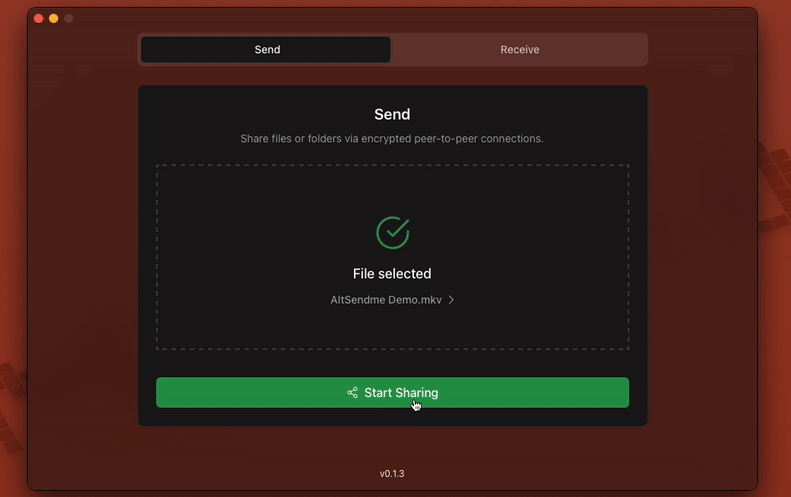
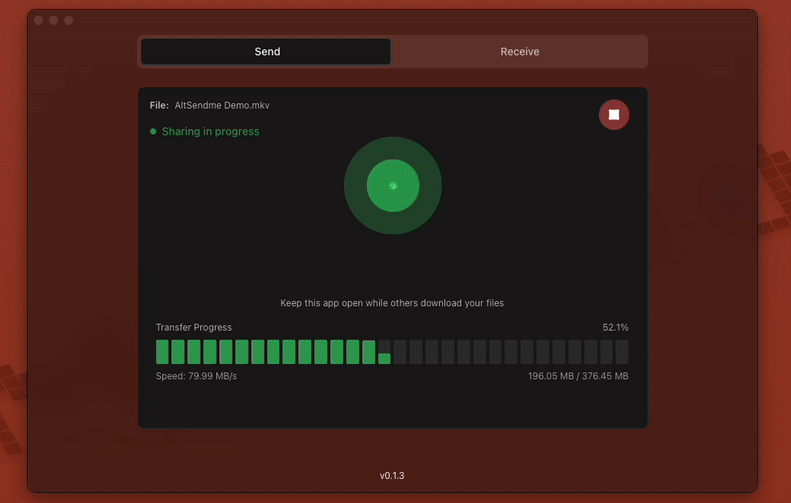
Screenshots

Features of AltSendMe
| Category | Highlights |
|---|---|
| Frictionless Sharing | Send files and folders instantly between any two devices. |
| End-to-End Encryption | All data is secured with QUIC + TLS 1.3 encryption. |
| Cross-Platform | Available for Windows, macOS, and Linux. |
| NAT Hole Punching | Iroh automatically manages NAT traversal; no complex configuration required. |
| Resumable Transfers | Interrupted transfers can be resumed seamlessly. |
| Modern UI | Built using React, offering a sleek, fast, and intuitive interface. |
| Verified Streaming | Ensures data integrity using Blake3 verification. |
| CLI Compatible | Works smoothly with the SendMe CLI tool. |
| Private by Design | No accounts, no cloud storage just peer-to-peer direct sharing. |
| Multilingual Support | Available in multiple languages including French, German, Japanese, and more. |
File Transfer Process
Step 1: Prepare Your File
- Open the AltSendme application
- Drag and drop the file or folder you want to send
- The app automatically generates a unique one-time share code (ticket)
Step 2: Share the Transfer Ticket
- Copy the generated ticket
- Send the ticket to your recipient through:
- Chat apps
- Text message
- Any communication method you prefer
Step 3: Recipient Receives the File
- Your friend opens AltSendme on their computer
- Paste the ticket into the application
- The file transfer begins immediately and directly
System Requirements
| Component | Minimum Requirement |
|---|---|
| Operating System | Windows 10/11 • macOS 12+ • Linux (Ubuntu/Debian/Fedora) |
| Processor | Intel/AMD 64-bit or Apple Silicon |
| Memory (RAM) | 2 GB minimum (4 GB recommended) |
| Disk Space | 150 MB free space |
How to Install AltSendME??
Windows (.exe)
- Download AltSendMe.exe from the download section below.
- Run the installer and follow the setup instructions.
- If Windows SmartScreen appears, click More Info → Run Anyway.
This is normal for new and unsigned open-source apps, so you can proceed safely. - Once installed, open AltSendMe from the Start Menu or desktop shortcut.
- Begin sending and receiving files instantly, no login or setup required.
macOS (.dmg)
- Download
AltSendme.dmgfrom the download section. - Open the
.dmgfile and dragAltSendme.appinto your Applications folder. - Open AltSendme from your Applications folder.
- If macOS blocks it, continue to the next step.
- Go to System Settings → Privacy & Security and click “Open Anyway.”
- Confirm by clicking “Open” when the macOS warning appears.
- AltSendme will now launch normally, Enjoy!
Linux (.deb / .AppImage)
Option 1 – Install using .deb (Ubuntu/Debian):
sudo dpkg -i AltSendme*.deb
Option 2 – Run directly using AppImage:
chmod +x AltSendme*.AppImage
./AltSendme.AppImage
AltSendMe works perfect on major Linux distributions, no dependencies required.
Download AltSendMe: Frictionless, Fast, Private, Unlimited File Sharing Tools
Conclusion
AltSendMe is redefining the way we share files , offering a truly private, cross-platform, and open-source experience.
With end-to-end encryption, no upload limits, and zero account requirements, it empowers users to share files effortlessly and securely.
Whether you’re transferring between your own devices or collaborating with others, AltSendMe delivers speed, privacy, and freedom, all in one app.