

File Info
| Name | AutoClip |
|---|---|
| Version | v1.3.1 |
| Type | AI Video Clipper |
| Developer | zhouxiaoka |
| Size | 233MB (may vary by OS) |
| License | MIT License |
| Platforms | Windows • macOS |
| Input | Local videos, YouTube, Bilibili |
| GitHub | zhouxiaoka/autoclip |
Table of Contents
Description
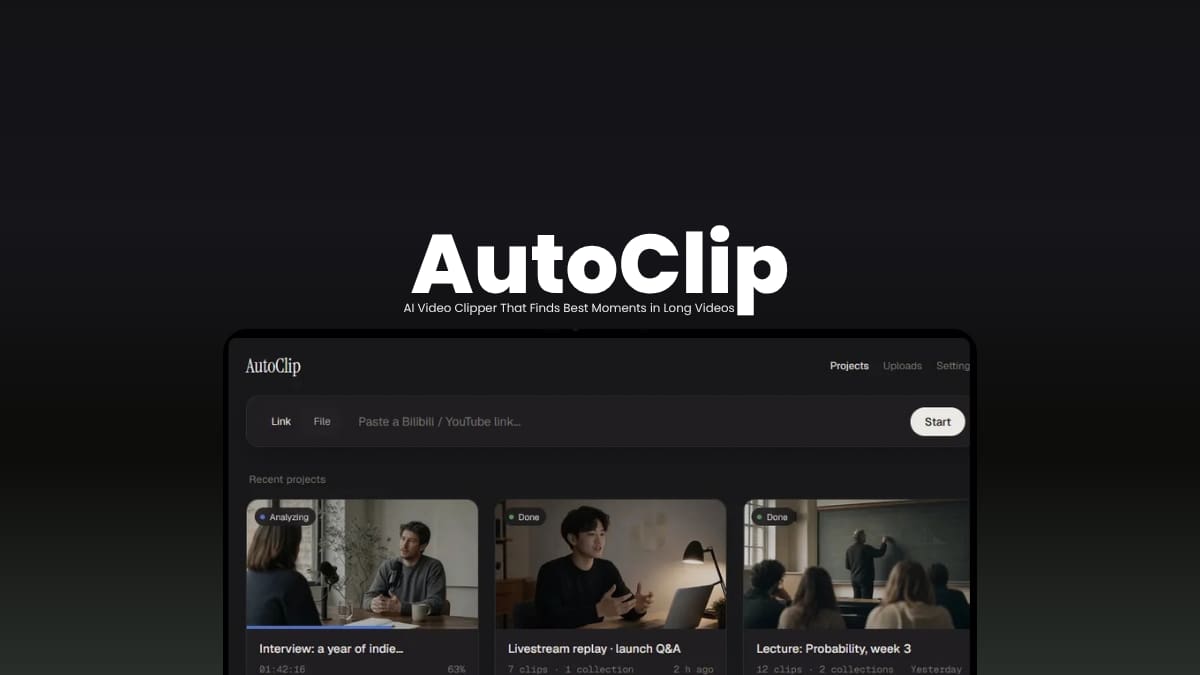
AutoClip is built around a simple idea, you shouldn’t have to watch a two hour recording from beginning to end just to find five minutes worth turning into short-form content.
Import a video, provide subtitles or let AutoClip transcribe it, and the app analyzes the content to understand its topics and structure. It then identifies potential highlights, scores them, generates titles, and creates clips that you can review and arrange into collections.
You can work with local video files or paste links from supported platforms such as YouTube and Bilibili. The project also supports several AI providers, including Qwen, Gemini, OpenAI-compatible APIs, SiliconFlow, Ollama, and LM Studio.
One particularly useful part is that the actual video processing happens locally. When you use a cloud model, AutoClip sends subtitle or transcript text to the model you choose rather than uploading the video itself.
Use Cases
- Find interesting moments in long conversations and turn them into short clips.
- Extract highlights from long livestream recordings without manually searching through the entire video.
- Break educational recordings into shorter, topic-focused clips.
- Repurpose long-form videos into multiple Shorts and other short-form content.
- Turn existing videos into a collection of clips for different platforms.
Screenshots
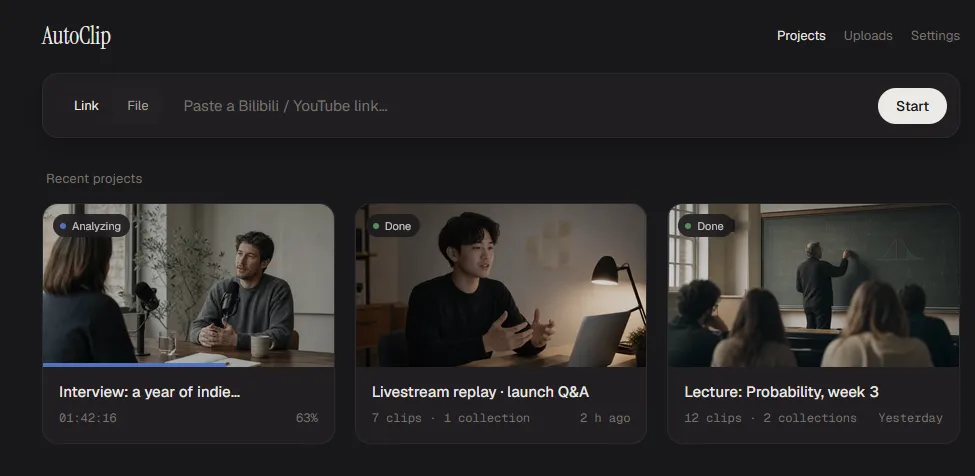
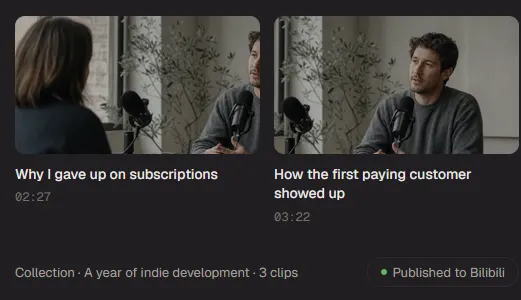
Features of AutoClip
| Feature | What it does |
|---|---|
| AI Highlight Detection | Analyzes video transcripts to identify interesting moments and rank potential highlights. |
| Automatic Clip Creation | Turns selected highlights into short video clips without requiring you to find and cut each section manually. |
| AI-Generated Titles | Creates titles for detected highlights so you can quickly understand what each clip is about. |
| YouTube & Bilibili Import | Import videos directly from YouTube or Bilibili instead of downloading them separately first. |
| Local Video Processing | Downloads, transcribes, cuts and renders videos on your own machine rather than sending the video files to a cloud service. |
| Local Transcription | Uses Whisper to generate subtitles when a video doesn’t already have a subtitle file. |
| Multiple AI Providers | Supports Qwen, Gemini, OpenAI-compatible APIs, SiliconFlow and other configurable model providers. |
| Local AI Models | Connects to local models through Ollama or LM Studio for users who want to keep AI analysis on their own machine. |
| Clip Collections | Organize multiple highlights into collections instead of managing every generated clip separately. |
| Platform Presets | Prepare clips for platforms such as Douyin, Xiaohongshu, YouTube Shorts, and Bilibili. |
| Subtitles & Title Cards | Add burned-in subtitles and title cards to generated clips before exporting them. |
| CLI & MCP Support | Automate AutoClip workflows or connect its video-processing capabilities to other AI tools and workflows. |
| Multilingual Interface | Provides the interface in multiple languages, including English, Chinese, Japanese, Korean, Spanish, Portuguese, Russian, and French. |
System Requirements
| Requirement | Details |
|---|---|
| Operating System | Windows 10/11 (64-bit) or macOS 13+ |
| Mac Support | Apple Silicon Macs |
| Windows Support | x64 systems |
| Storage | Enough free space for source videos, generated clips, subtitles and temporary files |
| Internet Connection | Required for cloud-based AI model APIs and online video imports, local models can run without cloud APIs |
| AI Models | Cloud APIs such as Qwen, Gemini, OpenAI-compatible providers, or local models through Ollama/LM Studio |
You May Like: Open-Source AI Tools You Probably Haven’t Tried Yet
Installation Process
- Download the installer for your OS.
- On Windows, run the .exe installer and follow the setup instructions.
- On an Apple Silicon Mac, open the .dmg file and move AutoClip to your Applications folder.
- Launch AutoClip and choose your preferred AI model provider.
- Add your API key if you’re using a cloud model, or connect Ollama or LM Studio if you want to use a local model.
- Import a local video or provide a YouTube or Bilibili link to start creating clips.
Download AutoClip
Visit the official github release page of AutoClip for more versions
Find the moments without watching everything
Turning a long podcast, interview, livestream, or course into useful short clips can involve hours of watching, scrubbing and editing. AutoClip takes over the tedious part by analyzing the content, finding potential highlights, and turning them into ready-to-edit clips.
What makes it more useful is the flexibility behind it. You can use cloud AI models or connect local ones, while the actual video processing stays on your machine.
It won’t replace the creative decisions behind what you publish, but it can make finding the raw material a lot faster.