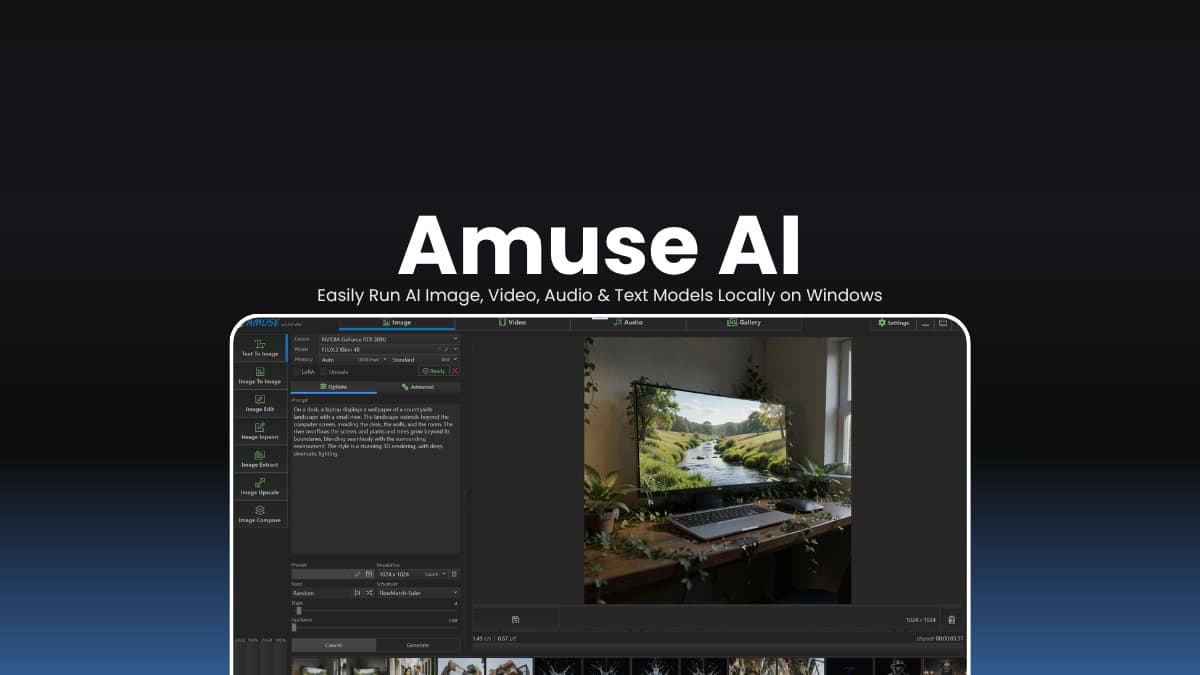

File Info
| File | Details |
|---|---|
| Name | Amuse AI |
| Version | v3.6.3 |
| Type | Local AI Generation Studio |
| Developer | TensorStack AI |
| License | AmuseAI License Version 2.0 |
| Size | 340MB |
| Platform | Windows |
| GPU Support | NVIDIA RTX (Recommended), AMD Radeon 7000 Series |
| Github Repository | TensorStack-AI/AmuseAI |
Table of Contents
Description
Running AI models locally usually means dealing with Python environments, dependency conflicts, model downloads, and complex tools like ComfyUI.
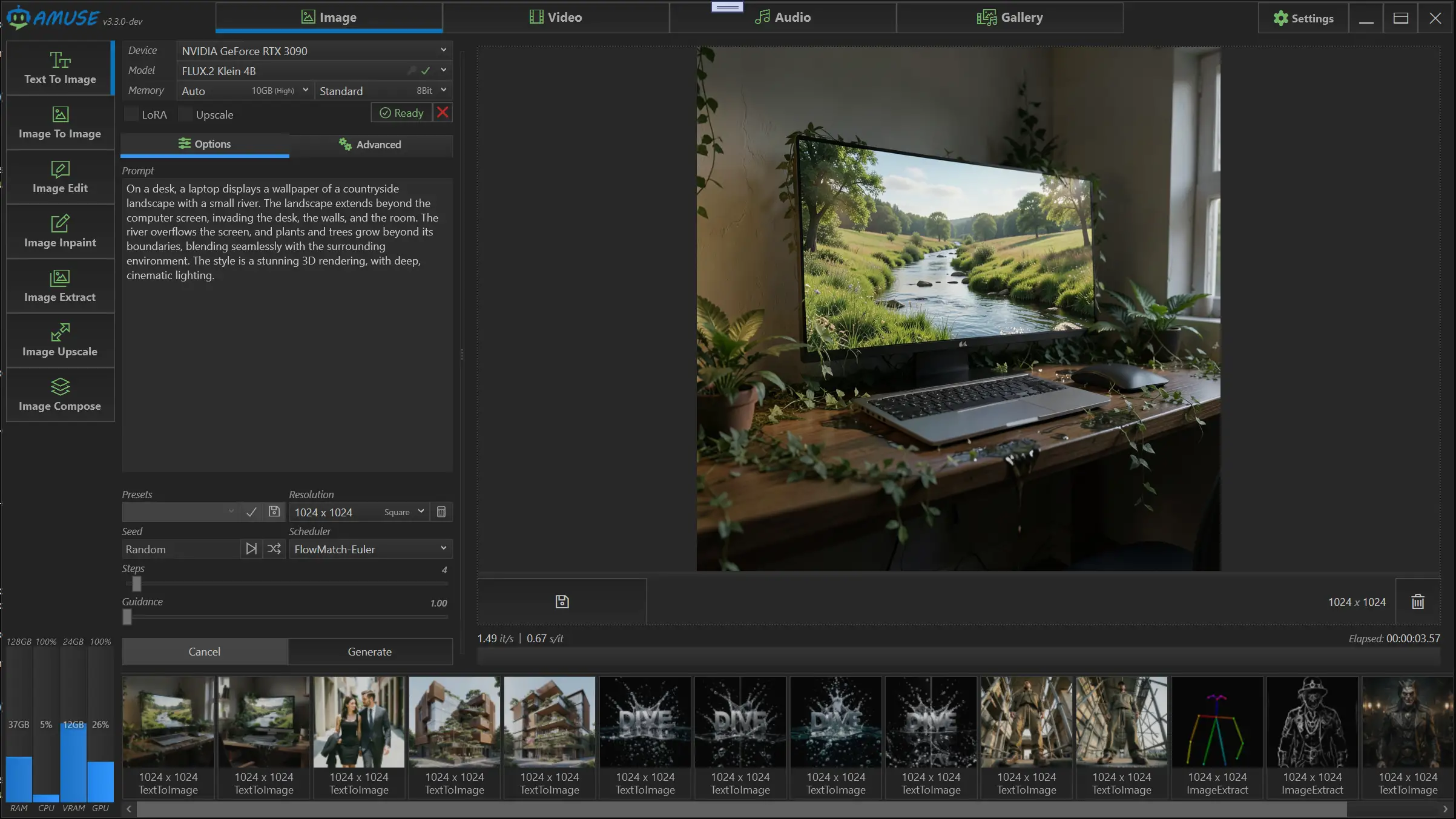
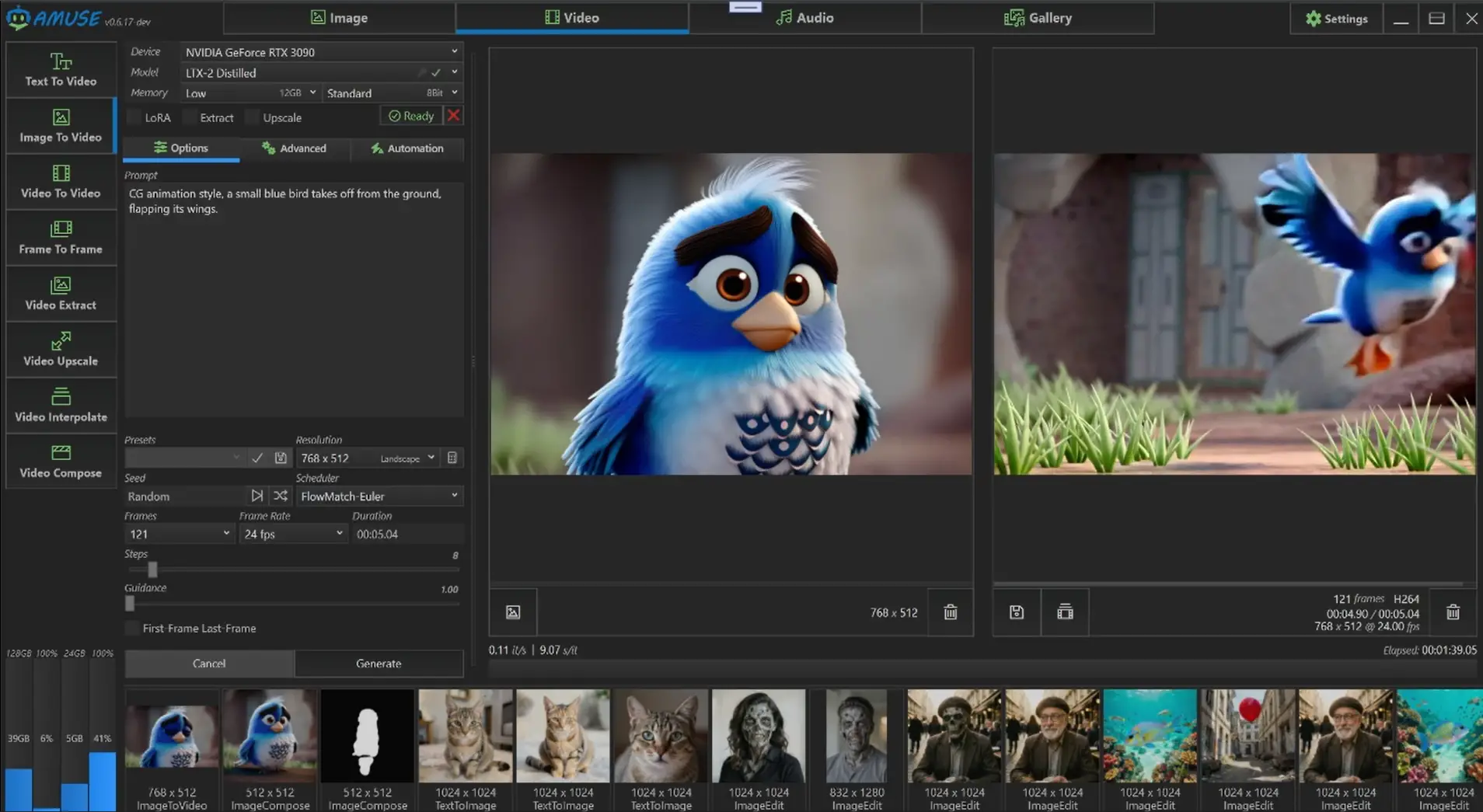
Amuse got you covered if you don’t want any hurdle of spending hours configuring workflows, you install the app, pick a model, and start generating. The software automatically handles its own isolated Python environment while providing a clean desktop interface for image generation, video creation, speech recognition, voice synthesis, upscaling, interpolation, and AI-powered editing.
It acts more like a local AI studio, bringing together popular image, video, audio, and text models under one interface.
For users who find ComfyUI overwhelming or simply want a faster way to run AI models on their own hardware, Amuse offers a much more approachable starting point.
Use Cases
- Generate AI images without learning complex node-based workflows
- Create videos locally using modern open-source video models
- Enhance old images and videos with AI upscaling
- Convert speech recordings into text using Whisper
- Generate voiceovers and synthetic narration
- Experiment with multiple AI models from one desktop application
Screenshots
Features of Amuse AI
| Feature | Description |
|---|---|
| One-Click Setup | Automatically configures an isolated Python environment |
| AI Image Generation | Create images using FLUX, SDXL, SD3, Qwen, and more |
| AI Video Generation | Generate videos using Wan, LTX, CogVideoX, Helios, and other models |
| Voice Generation | Generate realistic speech with Supertonic |
| Speech Recognition | Convert speech to text using Whisper |
| Image Editing | Inpainting, masking, and object removal tools |
| Video Editor | Edit generated and imported videos |
| AI Upscaling | Improve image and video quality |
| Video Interpolation | Create smoother frame rates and slow-motion clips |
| LoRA Support | Customize model behavior with LoRA adapters |
| ControlNet Support | Greater control over image generation |
| Media Gallery | Organize generated content in one place |
| Multiple Model Formats | Supports Safetensors, GGUF, and ONNX models |
Supported AI Models
| AI Category | Models |
|---|---|
| Image Generation | FLUX.1, FLUX.2, Qwen, Chroma, Kandinsky 5, Stable Diffusion XL, Stable Diffusion 3 |
| Video Generation | Wan 2.2, LTX, LTX-2, CogVideoX, SkyReels-V2, Helios, Kandinsky 5 |
| Audio & Speech | Whisper, Supertonic, ACE-Step XL |
Related: DeepSeek GUI: Local AI Coding Assistant, Agent Workbench & DeepSeek Desktop App
System Requirements
| Component | Requirement |
|---|---|
| Operating System | Windows 10 / Windows 11 |
| Processor | Modern x64 CPU |
| RAM | 16 GB minimum (32 GB recommended) |
| GPU | NVIDIA RTX GPU recommended |
| NVIDIA Driver | 527.41 or newer |
| Storage | 20 GB+ free space recommended |
| Internet | Required for downloading models |
How to Install Amuse AI?
- Download the Windows installer.
- Run the setup file and complete installation.
- Launch Amuse.
- Allow the application to configure its isolated AI environment.
- Download your preferred AI models.
- Load the model by clicking on load button.
- Start generating images, videos, audio, or text locally.
You May Like: MiniCPM Desk Pet: Open Source AI Desktop Companion That Runs Locally
Download Amuse AI
Easier way to run AI models locally
Many local AI tools focus on power users. Amuse focuses on accessibility.
You still get support for popular open-source models and advanced features, but without requiring users to build workflows, manage Python packages, or spend hours troubleshooting installations. For creators, hobbyists, and anyone curious about running AI locally, it offers one of the easiest ways to get started.