
File Info
| File | Details |
|---|---|
| Name | Codex CLI |
| Version | 0.125.0 |
| Type | AI Coding Agent (CLI Tool) |
| Developer | OpenAI |
| License | Apache 2.0 (Open Source) |
| Platforms | macOS • Linux • Windows (WSL2) |
| Size | Varies by platform (80 MB – 210 MB) |
| File Formats | .exe • .dmg • .tar.gz |
| Primary Use | Code generation, debugging, automation, code review |
| Github Repository | OpenAI/Codex |
Table of Contents
Description
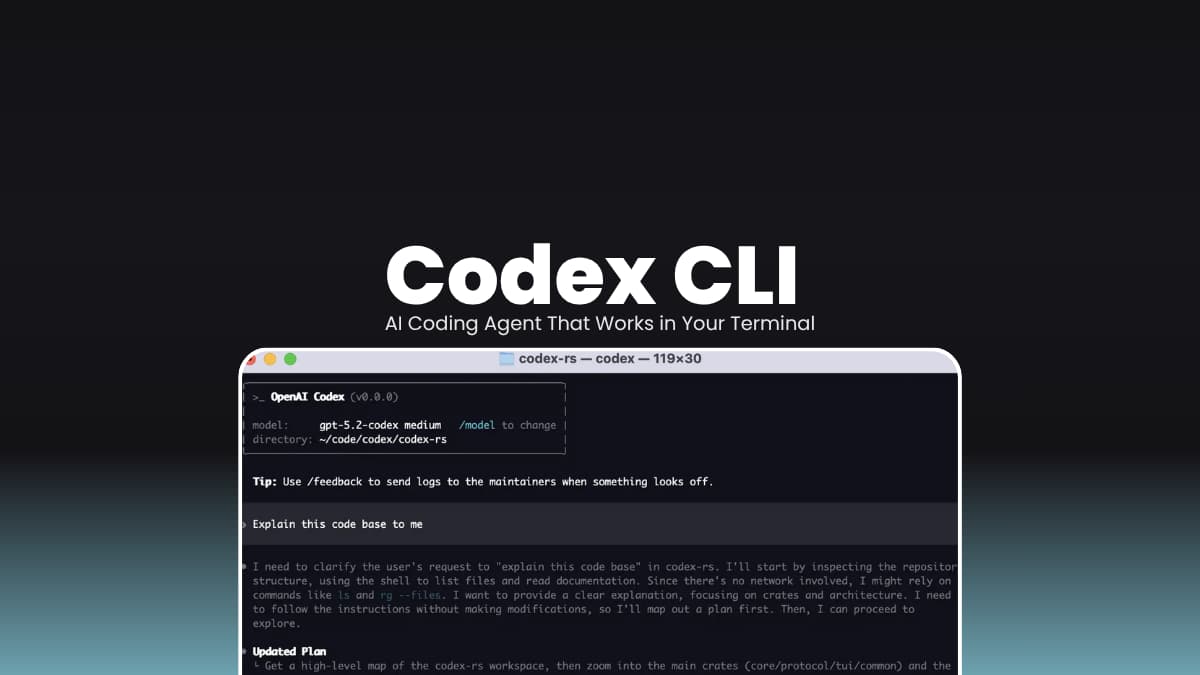
Most AI coding tools stay in your editor or somewhere in the cloud. You type something, they autocomplete, and that’s the whole story. Codex CLI is closer to having a coding assistant in your terminal.
You install it, run codex, and that’s it. It just works where you already are.
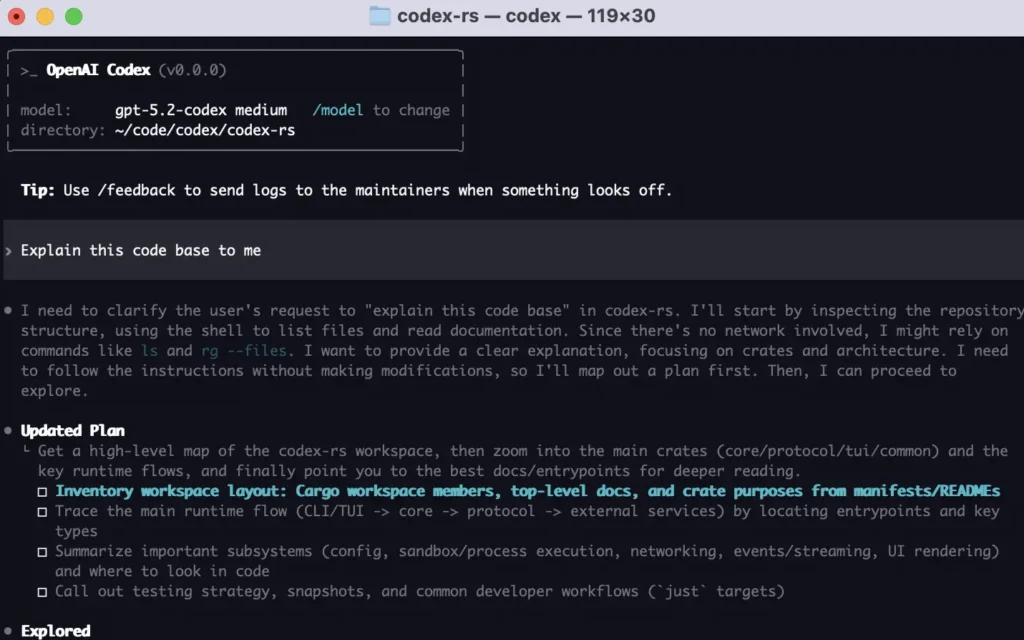
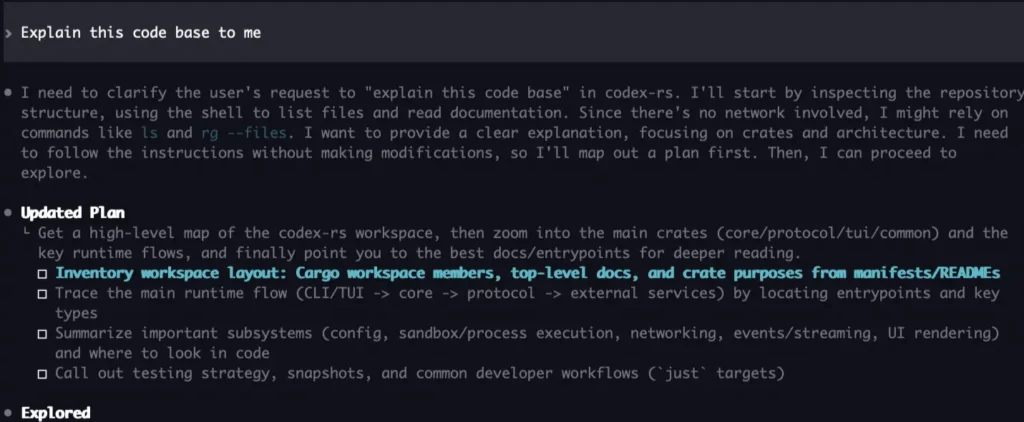
Yeah, it can generate code. Every tool does that now. What I found more useful was throwing it into an existing project and asking ‘what is going on here?’ It actually traced files, explained stuff, and pointed me in the right direction. Not perfectly, but good enough to save time.
It’s also decent at the annoying work. Renaming things, cleaning up code, small refactors. The kind of stuff you keep postponing.
That said, don’t blindly trust it. It will give you answers that look right and still be wrong. You still need to think. I wouldn’t use it as a build my whole app tool. But as something that sits in your terminal and helps you move faster? Yeah, that part works.
Use cases
- Generate code from simple prompts
- Understand unfamiliar or large codebases
- Review pull requests and catch issues early
- Debug errors and trace root causes
- Automate repetitive development workflows
- Refactor legacy code without breaking structure
Screenshots
Related: Goose: Open Source Local AI Coding Agent for Developers
Features of Codex CLI
| Feature | Description |
|---|---|
| Code Generation | Generate clean code based on natural language prompts |
| Code Understanding | Explain complex files and project structures |
| Debugging | Identify issues and suggest fixes |
| Code Review | Catch bugs, edge cases, and logic errors |
| Automation | Handle repetitive dev tasks like refactoring or setup |
| Local Execution | Runs on your machine |
| Flexible Install | Works via npm, Homebrew, or standalone binaries |
System Requirements
| Component | Requirement |
|---|---|
| Operating System | macOS 12+ • Ubuntu 20.04+/Debian 10+ • Windows 11 (WSL2) |
| RAM | 4 GB minimum (8 GB recommended) |
| Git (Optional) | 2.23+ |
| Internet | Required for API / ChatGPT integration |
How to Install & Use Codex CLI?
Install using one of the methods below:
npm install -g @openai/codex
codex
On macOS type the below command:
brew install --cask codex
Then:
- Run
codexin your terminal - Sign in with your ChatGPT account
- Start giving prompts (generate code, debug, review, etc.)
Binaries Installation
Windows
- Download the
.exefile - Double-click to run. That’s it for basic use.
If you want to run it from anywhere, follow the below steps.
- Move the
.exeto a folder (e.g.C:\codex) - Add that folder to Environment Variables -> PATH
- Now you can open CMD and type: codex
macOS
- Download the
.dmgfile (Apple Silicon or Intel based on your Mac) - Open the
.dmg - Drag Codex into Applications
- Launch it once from Applications
Linux
- Download the
.tar.gzfile (glibc version for Ubuntu/Debian) - Extract it
- Go into the folder
- Make it executable for eg.
chmod +x codex - Run it
./codex
Download Codex CLI
You can download the Codex CLI app through multiple ways. Install via npm (recommended for developers), Install via Homebrew (macOS users) Or download prebuilt binaries for your operating system.
Why use Codex CLI?
Think of it as a really capable coding companion from one of the biggest AI companies.
It’s not going to be the best tool in every situation. And you still need to double-check what it gives you.
But if you already work in the terminal, it can save you a lot of time. Especially compared to setting up your own assistant or jumping between tools.