

If you’ve been reading me for a while, you probably remember our last deep dive into HeartMuLa. That one caught a lot of people off guard. Honestly, it caught me off guard too. A fully open-source music generator that actually sounded usable, ran locally & didn’t ask you to sign up for anything? That felt like an early crack in a wall that’s been solid for years.
Not long after that, another name kept popping up in my notes: ACE Step 1.5.
At first, I didn’t think much of it. Open-source music models show up all the time, most of them impressive on paper and underwhelming the moment you hit “generate.” But this one stuck. The more I looked into it, the harder it became to ignore. ACE Step 1.5 doesn’t feel like a demo or a research. It’s trying, very openly, to compete with tools like SUNO AI while running entirely on your own system.
That alone makes it worth paying attention to. You install it, you run it, and the music is generated right there on your machine.
What surprised me even more is how little hardware it needs for what it delivers. ACE Step 1.5 can run locally with under 4GB of VRAM, yet its output quality lands close to commercial models. On standard benchmarks, it sits right between recent versions of SUNO, while generating full songs in seconds on consumer GPUs. That’s not a claim you see lightly in this space.
What is ACE Step 1.5 ?? (In a Nutshell)
ACE Step 1.5 is a local-first AI music generation model built for creators who want full control over how their music is generated. It runs directly on your machine, uses your GPU if present or uses CPU, and doesn’t rely on cloud servers.
It is designed to generate full tracks, experiment with styles, edit outputs, and iterate freely without usage limits.
Think of it less as an app and more as a foundation: a music generation engine you own, customize, and build workflows around.
You can try it online on Ace Step 1.5 Hugging Face Spaces
What ACE Step 1.5 Brings to the Table
So let’s step away from the comparisons for a moment and look at what it actually brings to the table
| Area | Why It Matters |
|---|---|
| Runs fully offline | Music is generated directly on your system. No cloud, no uploads, no accounts. |
| Fast generation | Full songs generate in seconds on consumer GPUs, not minutes. |
| Long-form support | Create anything from short clips to full 10-minute tracks. |
| Strong audio quality | Output quality sits close to commercial tools like SUNO. |
| Style & instrument range | Supports a huge variety of instruments, genres, and sound textures. |
| Multilingual lyrics | Generate structured songs with lyrics in 50+ languages. |
| Reference audio | Use an existing track to guide style or vibe. |
| Editing & rework | Modify or regenerate specific parts instead of starting over. |
| Multi-track layers | Build richer songs by stacking vocals, instruments, or stems. |
| Creator-level control | Control BPM, key, duration, and structure when needed — or keep it simple. |
In short, It isn’t just a music generator, Its is a local music studio powered by AI, designed for people who want control without giving up speed or privacy.
How to Install & Run ACE Step 1.5 Locally (Offline)
ACE Step 1.5 is designed to run fully on your own system. The setup takes a bit of effort, but once it’s running, you’re completely free from cloud limits.
What You’ll Need
Before starting, make sure your system roughly meets these requirements:
- OS: Windows, Linux, or macOS (Apple Silicon supported with limitations)
- GPU: NVIDIA GPU recommended (CUDA support)
- VRAM: 4GB minimum (8GB+ recommended for longer tracks)
- RAM: 16GB preferred
- Python: Python 3.10+
- Disk Space: ~15–20GB (models + cache)
If you’ve run local LLMs or diffusion models before, this will feel familiar.
Windows Installation (Portable Package Recommended)
If you’re on Windows, this is the easiest and most reliable way to get started.
System Requirements
- Windows 10 / 11
- NVIDIA GPU recommended (CUDA)
- CUDA 12.8
- No separate Python install needed
Step 1: Download & Extract
- Download
ACE-Step-1.5.7z
- Extract it to any folder
That’s it. No installer, no setup wizard.
Step 2: Launch ACE Step
Run the Gradio Web UI (Recommended)
Open Command Prompt in the folder you extracted ACE-Step-1.5 in & run the below command.
python_embeded\python acestep\acestep_v15_pipeline.py
This launches a local web interface in your browser where you can generate music, tweak prompts, and experiment interactively.
Run as a REST API Server
python_embeded\python acestep\api_server.py
Use this if you want to integrate ACE Step into your own apps, workflows, or automation.
Also Read: HeartMuLa: An Open-Source Suno-Style AI Music Generator You Can Run Locally with ComfyUI
Standard Installation (All Platforms)
This method works on Windows, macOS, and Linux, but it’s more hands-on. Recommended only if you’re comfortable with developer tooling.
Step 1: Install uv (Python Package Manager)
macOS / Linux
curl -LsSf https://astral.sh/uv/install.sh | sh
Windows (PowerShell)
powershell -ExecutionPolicy ByPass -c "irm https://astral.sh/uv/install.ps1 | iex"
Step 2: Clone the Repository & Install Dependencies
git clone https://github.com/ACE-Step/ACE-Step-1.5.git
cd ACE-Step-1.5
uv sync
Step 3: Launch ACE Step
Gradio Web UI
uv run acestep
Open http://localhost:7860 in your browser.
Models will download automatically on the first run.
Model Downloads (Automatic by Default)
You don’t need to manually download models in most cases.
On first launch, ACE Step will:
Automatically download missing models from Hugging Face or ModelScope
Check for required models in ./checkpoints
Which Model Should You Use?
By default, ACE Step automatically selects a model that fits your GPU memory. For most users, this just works.
If you want to fine-tune quality or performance, here’s a simple rule of thumb:
| Your GPU | What to Expect |
|---|---|
| 6–8 GB VRAM | Fast generation, slightly simpler structure |
| 10–12 GB VRAM | Best balance of speed and musical detail |
| 16 GB+ VRAM | Richer arrangements, better lyrics & structure |
You can switch models later from the interface or startup options once you’re comfortable.
How to Use Ace Step 1.5??
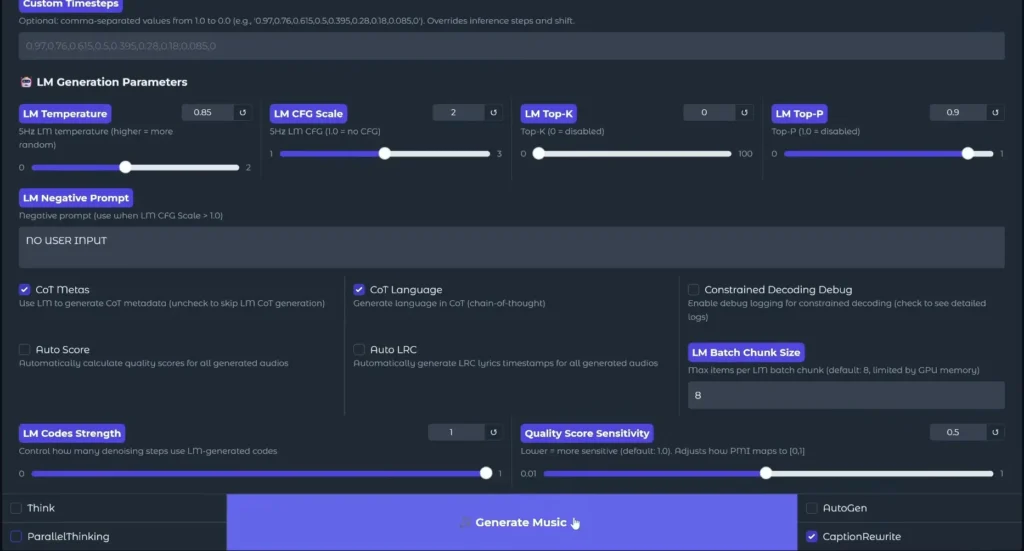
After finishing installation , you can launch the gradio app via command prompt & in first launch it may take some time to load because it will download all the models & then one launched you can generate music as according to your style.
All you need to provide the lyrics of the song you wanna generate & play with styles & settings to generate your desired music & then save it all while being offline.
You can also see some music generation examples on their official page
Also Read: 7 Next-Gen AI Models Powering Video, Audio & World-Scale Creative Generation in 2026
Wrapping Up
Thanks to the open-source community, studio-level AI music generators are no longer locked behind paywalls or cloud subscriptions. Tools like ACE Step 1.5 put serious creative power directly into the hands of creators, letting us go beyond imagination and turn raw ideas into real music, on our own machines, on our own terms.