



File Information
| File | Details |
|---|---|
| Name | QuickLook |
| Version | v4.4.0 |
| File Format Provided | .exe • .zip |
| Platform | Windows |
| License | Open Source (GPL v3.0) |
| Size | 57.2MB (exe) • 109MB (portable zip) |
| Official Repository | GitHub QuickLook |
| Category | File Preview • Productivity |
Table of contents
Description
One of the most loved features on macOS is Quick Look, the ability to instantly preview a file just by pressing the Spacebar, without opening it in a separate app.
Windows doesn’t offer this natively until QuickLook.
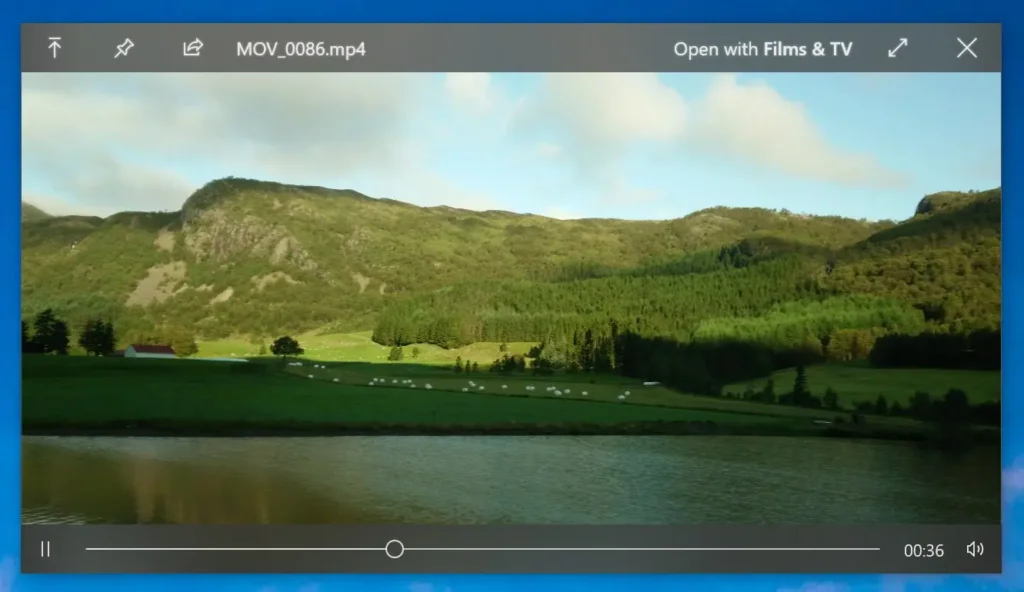
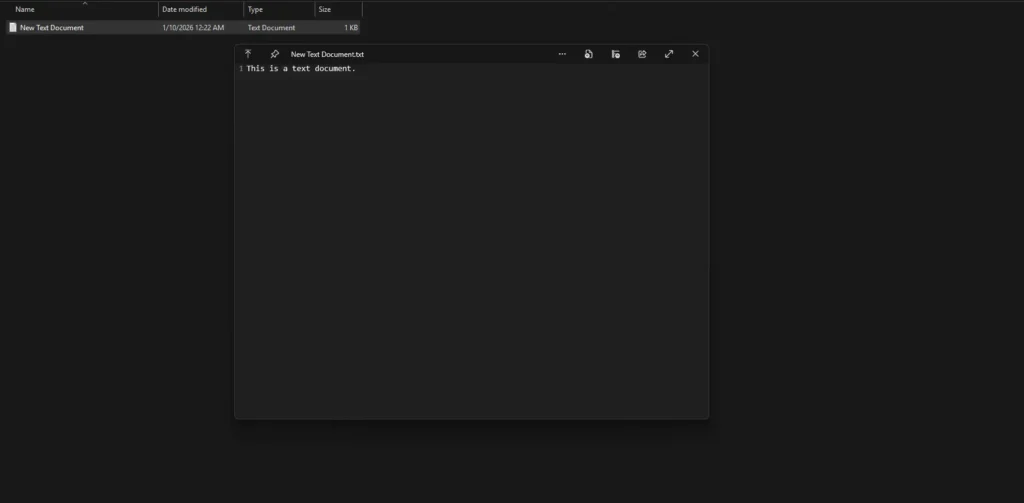
It is an open-source Windows app that brings macOS-style instant file previews directly to File Explorer, Open/Save dialogs, and even third-party file managers. Select a file, press Space, and preview its contents instantly, whether it’s a document, image, video, archive, or code file.
It supports a massive variety of formats, and can be extended with plugins, all while staying lightweight and fast.
Use Cases
- Preview files instantly without opening full apps
- Quickly inspect images, documents, videos, or archives
- Browse code, markdown, and config files safely
- Speed up file navigation and productivity
- macOS users switching to Windows
Screenshots
Features of QuickLook
| Feature | Description |
|---|---|
| Instant File Preview | Preview files instantly using the Spacebar |
| Huge Format Support | Supports text, images, media, archives, code, and more |
| Fluent Windows UI | Modern Fluent Design with HiDPI support |
| Explorer Integration | Works in File Explorer and Open/Save dialogs |
| Plugin System | Extend support for Office, PDFs, fonts, CAD files, and more |
| Touch-Friendly | Works well with touchscreens |
| GPL v3.0 License | Free and open-source forever |
How to Use QuickLook
- Make sure QuickLook is Running in Background
- Select any file or folder
- Press Spacebar
- Preview the file instantly
- Navigate between files using arrow keys
- Press Spacebar or Esc to close
No file is opened in its original application.
System Requirements
| Platform | Minimum Requirements |
|---|---|
| Windows | Windows 10 or newer • 64-bit • 4 GB RAM |
How to Install QuickLook??
Option 1: Installer (.exe)
- Download the QuickLook
.exeinstaller - Double-click to install
- Launch QuickLook (auto-start enabled by default)
- Start previewing files using Spacebar
Option 2: Portable (.zip)
- Download the QuickLook
.zipfile - Extract the archive using any file archiver (7-Zip Recommended)
- Launch QuickLook App (auto-start enabled by default)
- Preview files using Spacebar
Download QuickLook: macOS-Style Instant File Preview for Windows
Keyboard & Mouse Controls
| Action | Shortcut |
|---|---|
| Show / Hide Preview | Spacebar |
| Close Preview | Esc |
| Open File | Enter |
| Switch Files | Arrow Keys |
| Zoom Images | Mouse Wheel |
| Zoom PDFs | Ctrl + Mouse Wheel |
| Rotate 3D Models | Left Mouse |
| Pan 3D Models | Middle Mouse |
Conclusion
QuickLook is one of those tools that completely changes how Windows feels once installed. It saves time, and brings a macOS-level productivity feature to Windows without compromising on openness or control.
If you work with files all day and value speed, QuickLook is an absolute must-have for productivity.




