


File Information
| Name | File Converter – Fast & Simple Offline File Conversion Tool |
|---|---|
| Version | v2.2 |
| File Size | Windows: 57MB (.msi Installer) |
| Platform | Windows |
| License | Open Source (GPLv3) |
| Official Repository | GitHub File Converter |
| Official Site | file-converter |
Table of contents
Description
File Converter is a lightweight, open-source utility that allows you to convert and compress files directly from the Windows Explorer right-click menu.
Built for simplicity, speed, and offline use, it supports images, videos, audio files, documents, PDFs, GIFs, and more, making it one of the most convenient conversion tools available for Windows users.
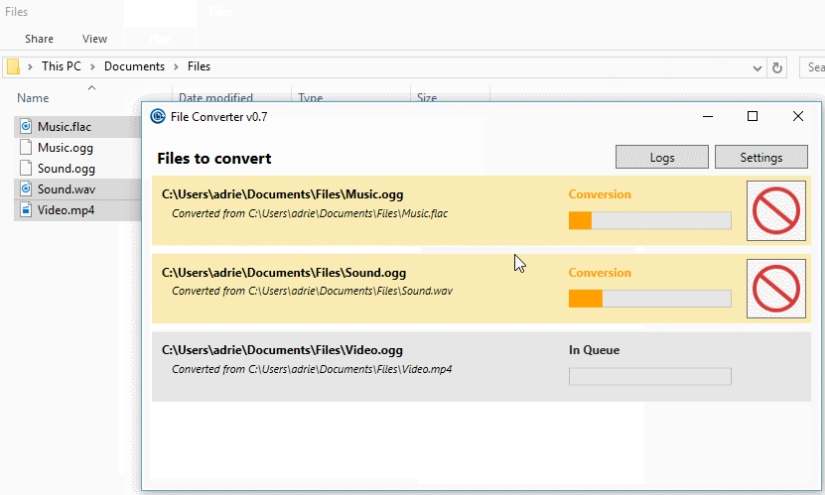
Just right-click, Convert and the tool instantly processes your files using powerful open-source engines like FFmpeg, ImageMagick, and Ghostscript.
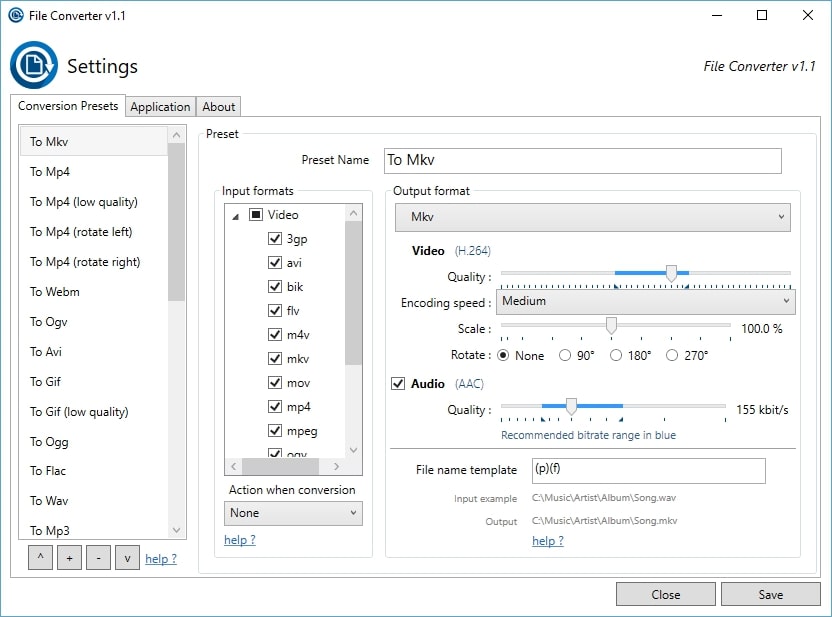
Screenshots
Features of File Converter
| Feature | Description |
|---|---|
| Right-Click Conversions | Convert and compress files directly from Windows Explorer via context menu. |
| Batch Processing | Convert one or multiple files at once — ideal for bulk workflows. |
| Offline Processing | 100% offline conversions ensure privacy and fast performance. |
| Wide Format Support | Convert audio, video, images, PDFs, documents, GIFs, and more. |
| Powered by Industry-Leading Engines | Uses FFmpeg, ImageMagick, and Ghostscript for highly accurate conversions. |
| Fast Compression | Reduce file size without needing third-party tools or cloud services. |
| Custom Presets | Create, edit, and manage your own conversion profiles. |
| Extremely Lightweight | Minimal system usage and no bloat — perfect for all Windows PCs. |
| Open Source & Free | Fully open source under GPLv3 with active community contributions. |
| Multi-language Support | Available in numerous languages thanks to community localization. |
System Requirements
| Platform | Minimum Specification |
|---|---|
| Windows | Windows 7 or newer • .NET 4.0+ recommended • 2–4 GB RAM • 100 MB free disk space • Works on 32-bit & 64-bit |
How to Install File Converter??
Before installation, scroll to the Download Section and choose the .msi installer.
Windows (Installer)
- Download the File Converter
.msiinstaller. - Double-click the FileConverterSetup.msi file.
- Follow the on-screen installation wizard.
- After installation, right-click any file in Explorer, the File Converter menu will appear.
- Select your desired conversion format and the tool will process instantly.
Download File Converter For Windows
Support File Converter Team
Support the File Converter team by contributing, donating, or sharing feedback. Your support helps keep this powerful open-source tool updated, reliable, and free for everyone.
Advantages of Using File Converter
- One-Click Convenience: Convert files directly from the context menu — no extra UI required.
- All-in-One Converter: Images, audio, video, PDFs and more supported.
- Fully Offline & Private: No cloud uploads or dependencies.
- Ultra Fast: Uses FFmpeg and ImageMagick for high-speed, professional-quality results.
- Beginner Friendly: No learning curve — right-click and convert.
- Open Source: Transparent, safe, and free for all users.
- Highly Configurable: Power users can customize presets and conversion behaviors.




