



File Information
| Property | Details |
|---|---|
| Name | FileZilla |
| Version | 3.53.0 |
| License | GNU General Public License (GPL v2) |
| Platform | Windows, macOS (Intel & Apple Silicon), Linux |
| File Type | .exe (Windows), .tar.bz2 (macOS Intel & Apple Silicon), .tar.xz (Linux) |
| File Size | Windows: ~12 MB, macOS: ~15 MB, Linux: ~14 MB |
| Developer | FileZilla Project |
| Official Site | filezilla-project |
Table of contents
Description
FileZilla is a fast, reliable & cross-platform FTP client designed for both beginners & professionals. Whether you’re a web developer, server administrator, or content manager, FileZilla gives you a simple & secure way to connect to your web server and manage files efficiently.
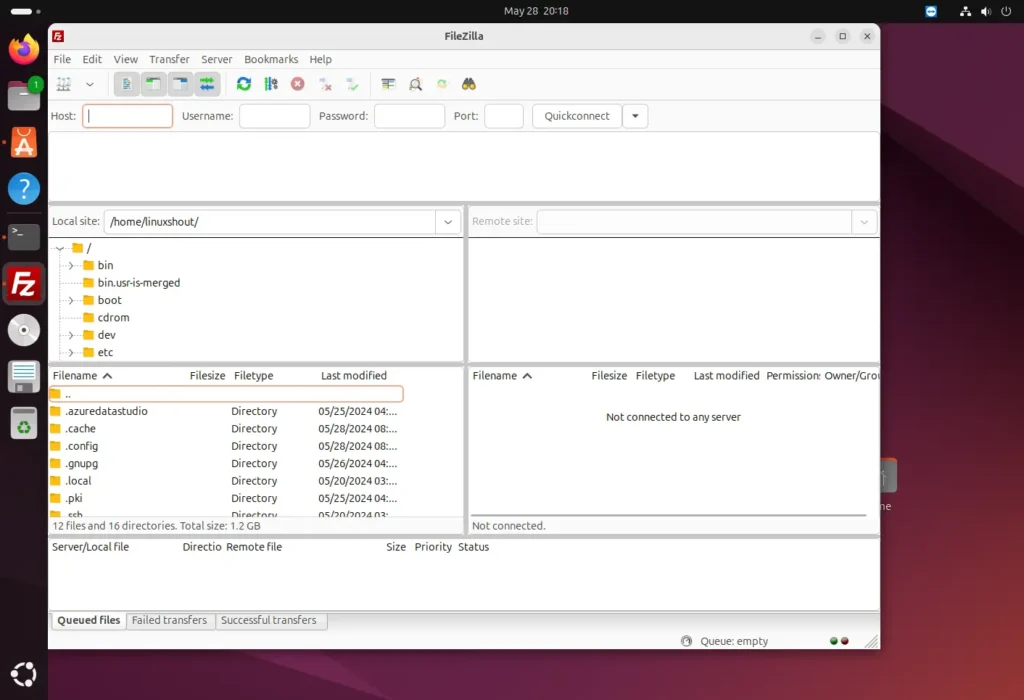
The interface is clean & intuitive, featuring drag-and-drop support, real-time transfer queue monitoring, site management, and even resume functionality for interrupted transfers. FileZilla also supports IPv6, proxy servers, firewall compatibility, and remote file search, making it one of the most feature-complete FTP tools available.
Built in C++ and backed by an active open-source community, FileZilla continues to evolve, providing modern security protocols like FTPS and SFTP for encrypted transfers without compromising speed or usability.
Built with simplicity & performance in mind, FileZilla makes uploading and downloading files easy, fast & reliable whether you’re managing your personal website or working on enterprise-grade hosting.
Available for Windows, macOS (Intel & Apple Silicon) & Linux, FileZilla offers advanced features like drag & drop support, remote file editing, bookmarks, directory comparison, and much more, all under the GNU General Public License.
Features of FileZilla
| Feature | Description |
|---|---|
| Cross-Platform | Available for Windows, macOS & Linux with consistent performance. |
| Secure Transfers | Supports FTP, FTPS (SSL/TLS), and SFTP (SSH) protocols for encrypted connections. |
| Drag & Drop Interface | Quickly upload & download files with simple drag-and-drop gestures. |
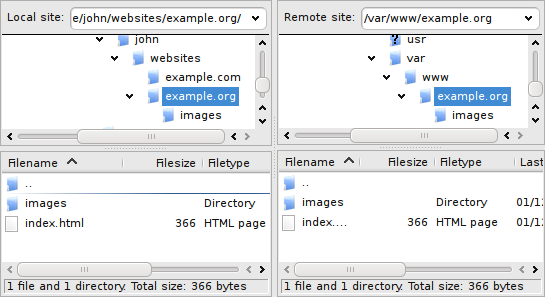
| Directory Comparison | Compare local & remote directories to keep files in sync. |
| Transfer Queue Management | Monitor, pause, and resume multiple file transfers simultaneously. |
| Remote File Editing | Open and edit files directly on the remote server. |
| Bookmark & Site Manager | Save multiple server credentials for fast access. |
| Speed Limits | Set upload & download speed caps for efficient bandwidth use. |
| Large File Support | Supports file sizes larger than 4GB. |
| Multilingual Interface | Available in more than 40 languages. |
Screenshots
System Requirements
| Platform | Minimum Requirements |
|---|---|
| Windows | Windows 7 or higher, 2 GB RAM, 50 MB free disk space |
| macOS (Intel & Apple Silicon) | macOS 10.13 or later, 2 GB RAM, 50 MB free disk space |
| Linux | 64-bit distribution, GTK+ 3.0 or later, 2 GB RAM, 50 MB free disk space |
How to Install FileZilla??
Windows (.exe)
- Download the FileZilla
.exesetup file. - Double-click the installer and choose “Run”.
- Follow the setup wizard to select installation location & components.
- Once installed, launch FileZilla from the Start menu.
- Enter your FTP server credentials to start managing files instantly.
macOS (.tar.bz2 for Intel & Apple Silicon)
- Download the
.tar.bz2package suitable for your Mac’s processor. - Extract the file using Archive Utility or
tar -xjf filezilla.tar.bz2. - Move the extracted FileZilla folder to Applications.
- Double-click FileZilla.app to open the client.
- Add your FTP server details & begin transferring files securely.
Linux Installation
Step 1: Download the Package
Choose the correct version of FileZilla for your Linux system:
filezilla-<version>-x86_64.tar.bz2→ For 64-bit systemsfilezilla-<version>-i686.tar.bz2→ For 32-bit systems
To check your architecture, run: uname -m
If the output is x86_64, download the 64-bit package.
Step 2: Extract the Archive
Navigate to your Downloads directory & extract the file:
cd ~/Downloads
tar -xvjf FileZilla_<version>_linux_x86_64.tar.bz2
The -xvjf flags tell tar to extract a .tar.bz2 file with verbose output.
⚙️Step 3: Move to the Directory
Go inside the extracted folder:
cd FileZilla3/bin
Step 4: Run FileZilla
Launch FileZilla directly from the terminal:
./filezilla
Alternatively, create a shortcut by moving the folder to /opt and linking it:
sudo mv ~/Downloads/FileZilla3 /opt/
sudo ln -s /opt/FileZilla3/bin/filezilla /usr/local/bin/filezilla
Now, you can run it from anywhere simply by typing:
filezillaDownload FileZilla For Windows, macOS & Linux
FileZilla stands as one of the most trusted FTP tools in the world because of its stability, open-source nature, & unmatched flexibility. It supports all major protocols, integrates seamlessly with firewalls, & provides a reliable way to move data between systems with ease.
For developers, it’s a must-have for managing web servers. For businesses, it’s a secure, transparent alternative to proprietary FTP tools. And for individuals, it’s completely free — forever.