


File Info
| File | Details |
|---|---|
| Name | Jan |
| Version | v0.7.7 (Stable) |
| License | Apache 2.0 License (Open Source) |
| Size | 50MB (.exe) • 81MB (.dmg) • 144MB (AppImage) • 77.8MB (.deb) |
| Supported OS | Windows • macOS • Linux |
| File Types | .exe (Windows), .dmg (macOS), .AppImage & .deb (Linux) |
| Github Repository | Github/jan |
| Official Site | Jan |
Table of contents
Description
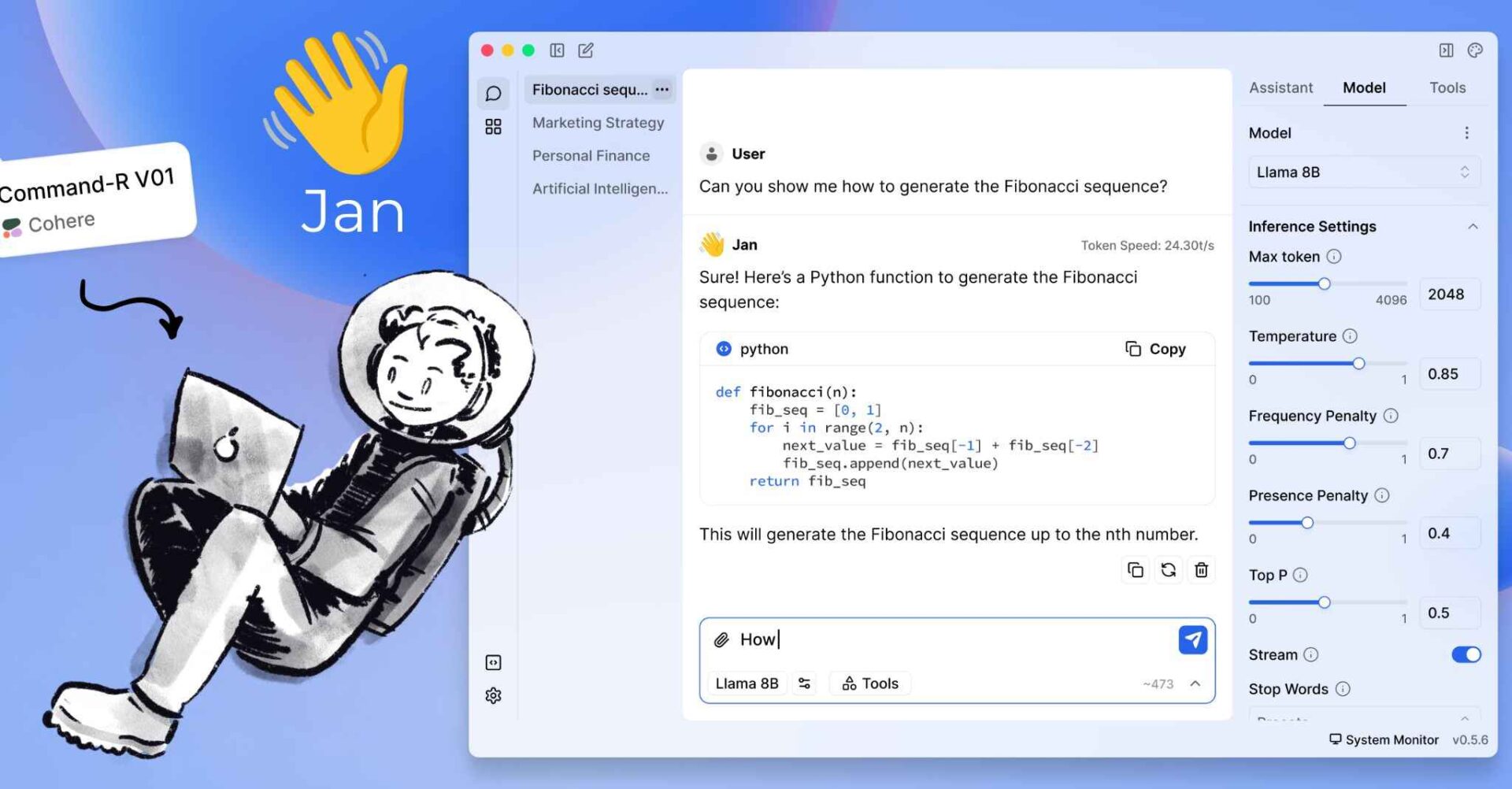
Jan is a fully offline, local-first AI companion designed to put control, privacy & performance back in your hand. Jan makes it incredibly simple to download, run, and interact with Local LLMs like Llama (by Meta), Gemma (by Google) , Qwen and more, all without sending a single byte to the cloud unless you choose to.
Features of Jan AI
| Feature | What It Does |
|---|---|
| Local AI Models | Download and run LLMs like Llama, Gemma, Qwen, GPT-OSS and others directly from HuggingFace on your own machine. |
| Cloud Integration | Connect to hosted models from providers like OpenAI (GPT), Anthropic (Claude), Mistral, Groq, and more. |
| Custom Assistants | Create task-specific AI assistants tailored to writing, coding, research, or automation. |
| OpenAI-Compatible API | Runs a local API server at localhost:1337, allowing other apps to interact with your local models. |
| Model Context Protocol (MCP) | Supports MCP for advanced agent-style workflows and tool integrations. |
| Privacy-First Design | Operates fully locally when preferred, giving you full control over data and model usage. |
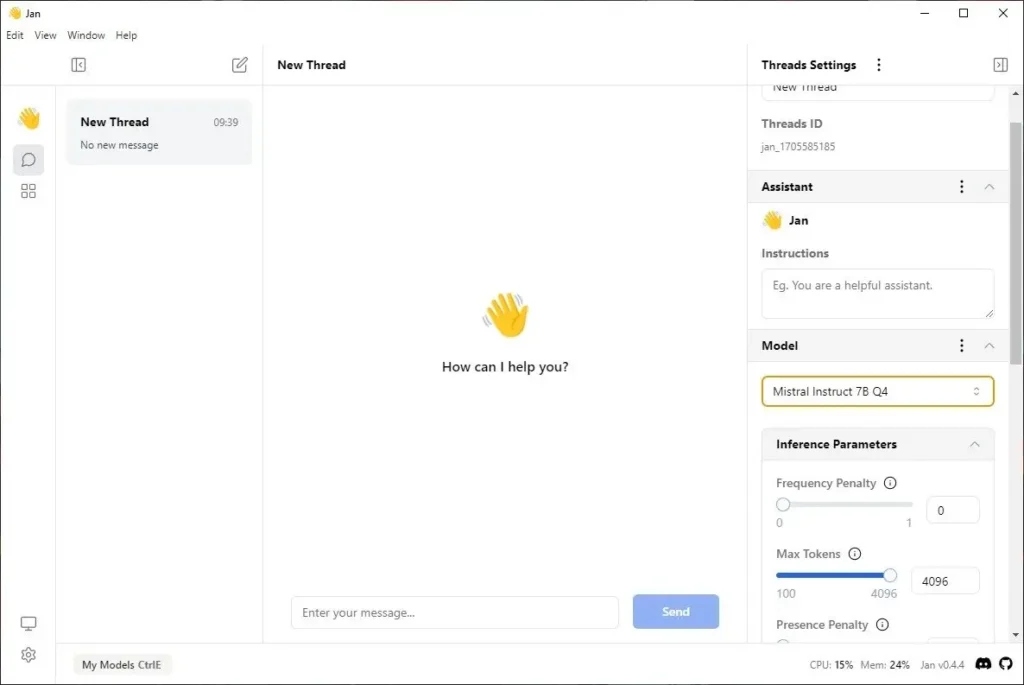
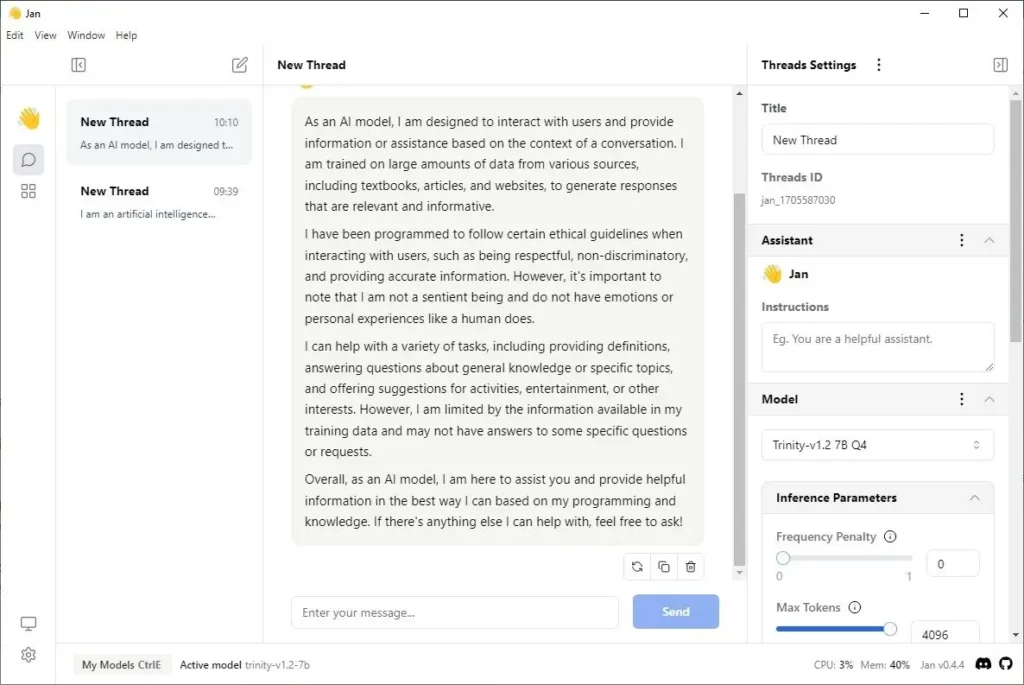
Screenshots
System Requirements
Below are the recommended system requirements to run this software in your system.
| OS | Min RAM | Disk Space | GPU Recommendation |
|---|---|---|---|
| Windows | 8GB | 5GB+ | NVIDIA RTX 20 or higher series |
| macOS | 8GB | 5GB+ | Apple Silicon or Intel i5+ |
| Linux | 8GB | 5GB+ | Any GPU with CUDA/ROCm/XPU |
How to Install??
Scroll down to the Download Section & grab the appropriate file for your system — .exe for Windows, .dmg for macOS, .AppImage or .deb for Linux. Once you’ve downloaded the installer, follow the step-by-step instructions below based on your platform.
Windows (.exe)
- Download the
.exeinstaller from the section below. - Double-click to launch the installer.
- Follow the on-screen setup instructions.
- After installation, launch Jan AI from your desktop or Start menu.
- Choose a local model or connect to an online API, you’re ready to go!
macOS (.dmg)
- Download the
.dmgfile. - Double-click to mount the disk image.
- Drag the Jan AI app to your Applications folder.
- Open the app (You may need to allow it in System Settings > Security & Privacy).
- Start your private AI journey online or offline.
Linux (.AppImage)
- Download the .AppImage file.
- Right-click the file and open Properties.
- Enable Allow executing file as program.
- Double-click the AppImage to launch it.
- Install the AI model of your Choice from Model hub & start Chatting!
Linux (.deb)
- Download the .deb file
- Open the file
- It will open in your system’s Software Install application, Install it.
- After Installation, Launch the app from your Applications Menu.
Jan AI: Best Open Source ChatGPT alternative Download
Why Choose Jan AI
If you want to run AI models Locally in your system without any terminal or python setup. Jan AI is a great option. It provides you with the Desktop app which can be easily isntalled and you can choose between any Online Provide like OpenAI, Claude, Gemini, OpenRouter or you can use Offline & open source AI models directly in the app.




