
After Effects is one of the most important tool in a daily life of a Video Editor, motion graphic designer, or animator. However its resource intensive thus it becomes challenging for a low end device to run such applications smoothly. And as a Video Editor, we want things to run smoothly, as we rely heavily on real-time previews and review our edits dozens of times to make sure we produce quality output.
If you’re dealing with laggy performance in After Effects or trying to run it on a low-end device, you’re not alone. In this post, we’ll explore practical ways to optimize the application for a smoother performance.
First lets take a look at minimum System requirements for After Effects to run on a device
Understanding the Minimum System Requirements
In order to run After Effects smoothly in your system, you need to understand if your system meets the minimum system requirements to run the application, below is the list of requirements:
- OS: Windows 10, macOS 10 or later.
- Processor: 64-bit.
- RAM: 8 GB. (Minimum)
- Graphics Card (GPU): GPU with at least 4GB VRAM and support for OpenCL. For Windows, this means a NVIDIA Maxwell generation or newer.
- HDD Storage: 8 GB of free space for installation, with additional space needed during installation.
But Does that Really mean we need a GPU for After Effects?
Not necessarily. After Effects runs mainly on your CPU and RAM but even a basic GPU helps the system with smoother previews and GPU-accelerated effects. If your Device lacks a GPU, don’t worry, It can still be optimized by following best practices.
Use Older Version of After Effects
Before going through optimization, the easiest way to get better performance on a low-end device is to use an older version of After Effects because new versions comes with advance features that require more resources of the system and older versions are better to run on older devices and get the work done.
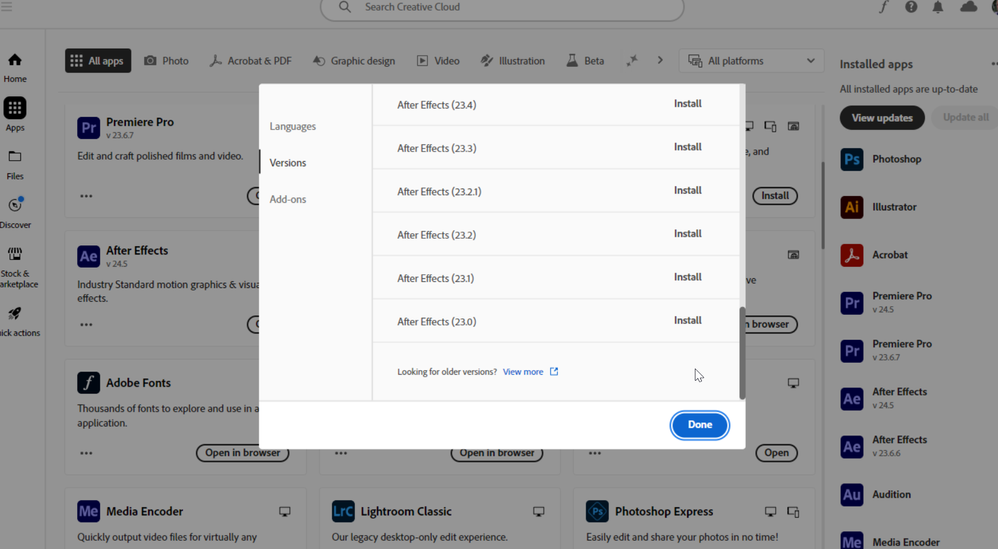
You can get older versions if you have an Adobe Creative Cloud subscription. Go to the Creative Cloud app > Click on All Apps -> Find After Effects -> Click the three dots -> Other Versions.
Optimize After Effects Settings
Step 1: Adjust Memory & Performance Preferences
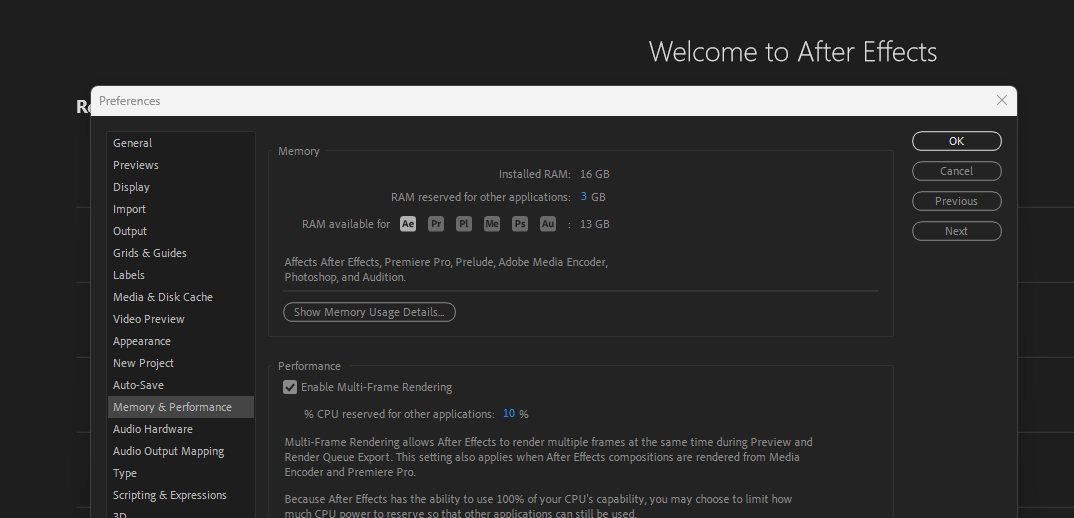
- Go to
Edit > Preferences > Memory & Performance - Allocate more RAM to After Effects by reducing RAM reserved for other applications, This will allow System to provide more RAM to After Effects when its running
Step 2: Lower Preview Resolution
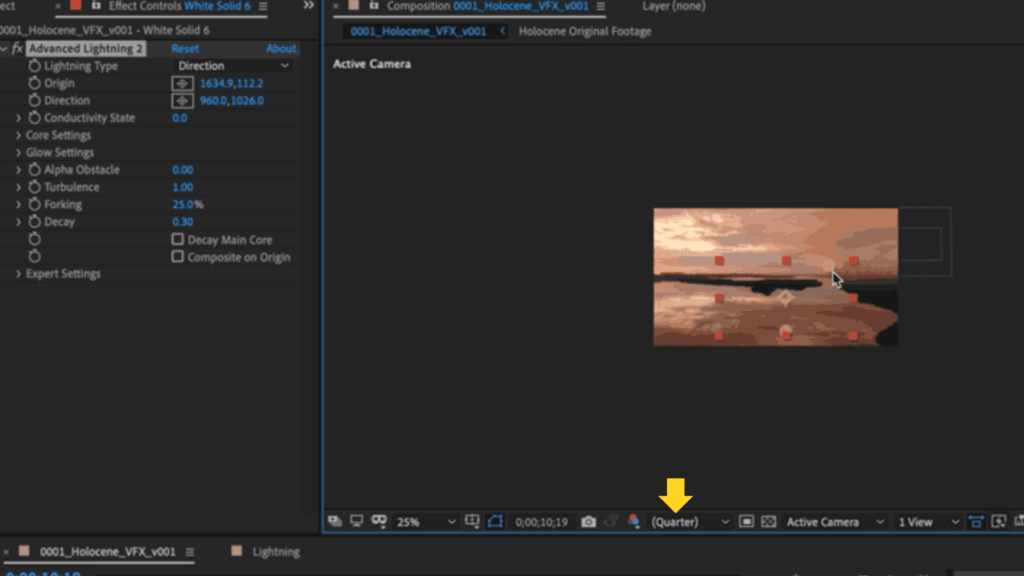
- Set preview to Quarter or Third in the Preview panel
- This Reduces the Load on CPU and GPU while editing and previewing the video will be much smoother than before
Step 3: Purge Cache Regularly
Purging the cache will improve the performance of After Effects, its a helpful feature given by Adobe to reduce cache.
- Navigate to
Edit > Purge > All Memory & Disk Cache - This clears all the temporary files and can free up RAM for the better performance
Step 4: Disable Motion Blur and Effects During Editing
Effects like Motion Blur are too heavy and turning them off during editing can save more time and system performance.
- Use the global switches to temporarily turn off motion blur and heavy effects
- Toggle on them back on before final render
Use Smart Project Practices
1. Work with Proxies
One of the most effective ways to boost performance is to use proxies these are low-resolution versions of your high-resolution media that make editing faster and less demanding on your hardware. All you need to do is to create a proxy of your media and replace them with original ones before rendering.
Tip: Right-click your footage -> Create Proxy -> Movie or File.
After Effects will automatically swap the proxy for the original file during the final export.
2. Pre-compose When Needed
Pre-composing is like grouping multiple layers into a single composition. It helps After Effects render complex sections more efficiently.
- Pre-composing complex layers simplifies the timeline.
- The overhead will be reduced by organizing the files and Pre compose what is required
If you’re animating text with multiple effects and keyframes, pre-compose them into a separate comp to reduce processing.
3. Avoid Excessive Nested Compositions
Too many nested comps increase RAM usage and slow down previews, so try not to create excessive comps. This will help the system render fast and the application will work smoothly.
4. Organize Project Files
- Clean up unused assets and layers
- Keep your project folder tidy and cache on an SSD if available
Tip: Go to Edit -> Purge -> All Memory & Disk Cache occasionally to free up resources while working.
Also Read: 7 Useful Plugins for After Effects
System Tweaks for Better Performance
Now that we’re done with After Effects Optimization. Here are some system level best practices that will help After Effects and other applications to work smoothly and can boost performance.
1. Disable Background Apps
Close all unnecessary apps running in the background before launching After Effects. It will save the RAM and CPU power so that AE can effectively utilize the resources and provides with better performance. You can use Task Manager (Ctrl + Shift + Esc) to identify and end high-memory processes and to close them.
2. Enable High-Performance Mode (Windows)
In Windows OS we can Set the power plan to High Performance to ensure the CPU runs at full speed. Navigate to Control Panel -> Power Options and Select High Performance as power plan to utilize CPU at its maximum capacity.
3. Adjust Virtual Memory (Pagefile)
Virtual Memory works as a saviour when it comes to excessive memory usage and you can utilize this to boost After Effects Performance. Virtual Memory acts as a backup RAM which use your hard disk. Increasing its size can help when the physical RAM is maxed out.
Steps to Adjust Virtual Memory in your system
- Right-click This PC > Properties
- Click Advanced System Settings
- Under Performance, click Settings > Advanced > Virtual Memory
- Set Custom Size (e.g., Initial: 4096 MB, Max: 8192 MB) Depending on your system
Conclusion
Running After Effects on a low-end Device is definitely possible with the right settings, smart editing habits, and a bit of patience. we also need to compromise new features in order to prioritize performance and as always, Producing a great output is more important than a feature that is negotiable. With all the strategies mentioned , you can achieve a better boost in the performance.