


File Info
| Software | Info |
|---|---|
| Name | WinSTT |
| Version | v0.1.3-alpha.9 |
| License | Open Source (MIT License) |
| Developer | Dahshury |
| Size | 30MB – 100MB (May Vary By OS) |
| Category | Productivity / Speech-to-Text |
| Platform | Windows, macOS, Linux |
| Github Repo | dahshury / WinSTT |
Table of Contents
Description
WinSTT is a free, local-first speech-to-text desktop app that turns your voice into text directly inside any application. Press a hotkey, speak, and the transcription appears wherever your cursor is without having to constantly switch between a transcription website and the app you’re working in.
What makes WinSTT particularly interesting is how much it packs around that core idea. It supports multiple recording modes, real-time transcription previews, a catalog of 70+ speech-to-text models, file transcription, dictionary corrections, snippets, searchable history, optional AI-powered cleanup, and text-to-speech.
Most importantly, on-device transcription is the default approach. WinSTT uses ONNX Runtime to run speech-to-text models locally, while still giving users the option to use local Ollama models or opt-in cloud providers for AI cleanup.
Use Cases
- Turn speech into text directly inside documents, editors, browsers, and other applications.
- Write emails, notes, messages, and code without continuously typing.
- Transcribe meetings, interviews, lectures, podcasts, and recorded audio files.
- Use local speech recognition when you don’t want recordings sent to a cloud transcription service.
- Build a faster voice-driven workflow using hotkeys, snippets, and dictionary corrections.
- Clean up rough transcriptions with local LLMs through Ollama.
- Experiment with different speech-to-text models to balance speed and accuracy.
Features of WinSTT
| Feature | Description |
|---|---|
| Local Speech-to-Text | Transcribe speech directly on your device using ONNX Runtime without relying on cloud transcription services. |
| Type Anywhere | Press a hotkey, speak, and insert the resulting transcription directly at your cursor in any application. |
| Four Recording Modes | Choose between push-to-talk, toggle, listen, and wake-word recording modes. |
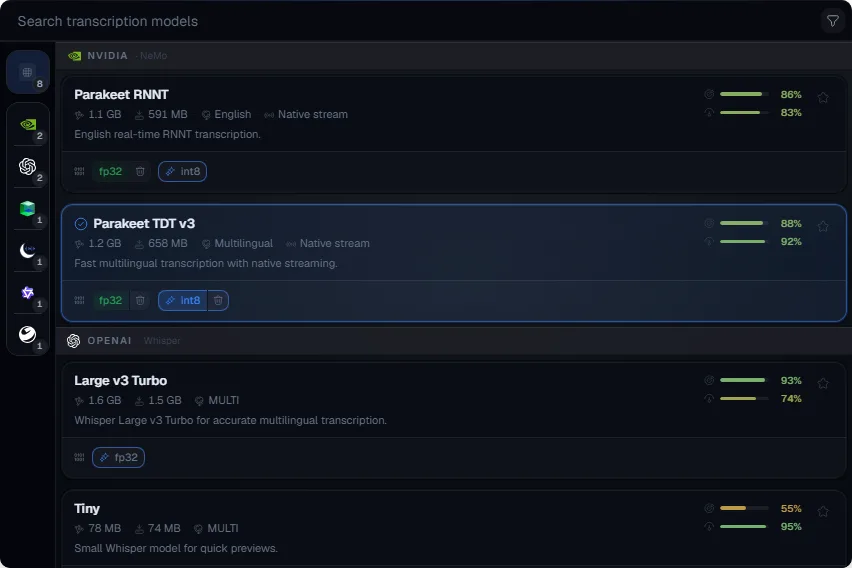
| 70+ STT Models | Browse a catalog covering Whisper, NeMo, Moonshine, GigaAM, Kaldi, and other speech-to-text models. |
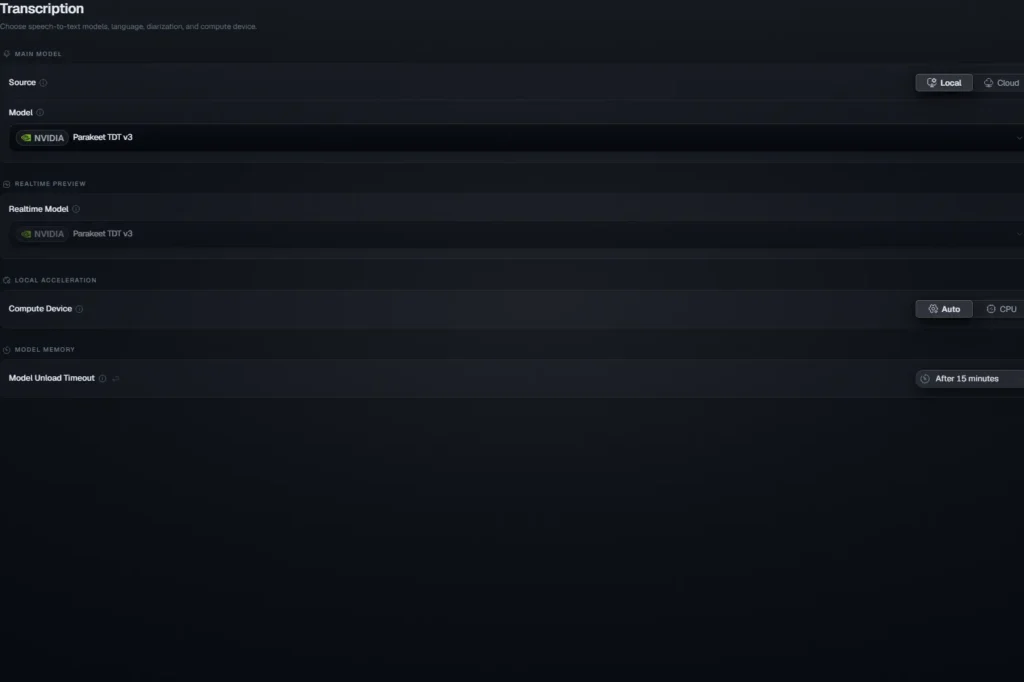
| Real-Time Preview | Preview speech transcription using a fast model while the primary model generates the final result. |
| File Transcription | Transcribe existing audio files instead of limiting the application to live recordings. |
| Dictionary Corrections | Create custom corrections for words and phrases that speech recognition frequently gets wrong. |
| Snippets | Use reusable text snippets as part of your voice-to-text workflow. |
| Searchable History | Keep and search previous transcriptions from within the application. |
| AI Text Cleanup | Optionally clean up transcriptions using local Ollama models or supported cloud AI providers. |
| Text-to-Speech | Convert generated text back into spoken audio. |
| CPU Fallback | Continue running STT models using the CPU when hardware acceleration isn’t available. |
| Hardware Acceleration | Supports platform-specific acceleration where available through ONNX Runtime. |
| Cross-Platform | Available for Windows, macOS, and Linux. |
| Open Source | WinSTT is released as an open-source desktop application. |
Screenshots
System Requirements
| Component | Requirement |
|---|---|
| Operating System | Windows, macOS, or Linux |
| Windows Architecture | x64 |
| Windows CPU | AVX2-capable processor required for Windows x64 builds |
| macOS | Apple Silicon build available |
| Linux | x64 AppImage and Debian/RPM packages available |
| Speech Processing | ONNX Runtime with CPU fallback |
| GPU | Optional; platform-specific hardware acceleration supported |
| Internet | Not required for local transcription. Only required for optional cloud AI providers or downloading models |
Related: Handy: Offline Open-Source Speech-to-Text AI App For Windows, macOS & Linux
Installation??
Windows
- Download the WinSTT.exe release.
- Run the executable.
- Choose your preferred speech-to-text model.
- Configure a recording hotkey.
- Press the hotkey and start speaking.
macOS
- Download the latest .dmg release.
- Open the downloaded disk image.
- Install WinSTT.
- Select your microphone and preferred STT model.
- Use the configured hotkey to begin transcription.
Linux
WinSTT provides Linux packages in multiple formats:
- AppImage for a portable Linux installation.
- Download the appropriate package for your distribution and launch WinSTT.
You May Like: The Best Open-Source Alternatives to Adobe Products for Creators
Download WinSTT
Why Choose WinSTT?
A lot of speech-to-text tools treat transcription as something that happens on a website: record your voice, upload it, wait for processing, then copy the result somewhere else.
WinSTT change that workflow around.
You press a hotkey, speak naturally, and the text appears where you’re already working. With local models, your speech can stay on your machine, while the 70+ model catalog gives you considerably more control over how transcription is performed.
Add real-time previews, custom dictionaries, snippets, searchable history, file transcription, optional LLM cleanup, and text-to-speech, and WinSTT starts looking less like a simple dictation tool and more like a complete local voice-to-text workflow for your desktop.




