


File Information
| Name | WinBoat |
|---|---|
| Version | 0.9.0 (Beta) |
| File Size | 95MB .deb, 95MB .rpm , 140MB .AppImage |
| Platforms | Linux (AppImage, Debian .deb, Fedora .rpm) |
| License | Open Source (MIT License) |
| Official Repository | GitHub WinBoat |
| Official Site | winboat |
Table of contents
Description
WinBoat is an innovative open-source solution designed to run Windows applications natively on Linux without the performance hit or complexity of traditional virtualization. It bridges the gap between Windows & Linux users by offering a seamless, visually elegant environment that makes Windows apps behave like native Linux software.
Unlike emulators that rely heavily on Wine or dual-boot setups, WinBoat uses a containerized virtualization approach powered by Docker & FreeRDP, enabling Windows to run in a lightweight, isolated environment inside Linux. This method delivers near-native speed, enhanced file sharing, & smoother integration.
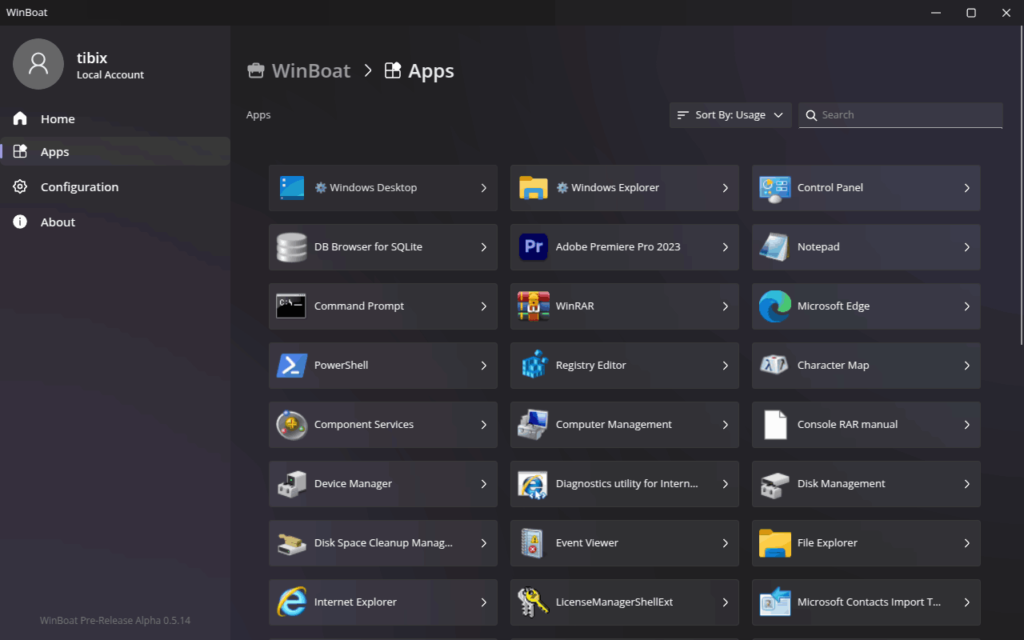
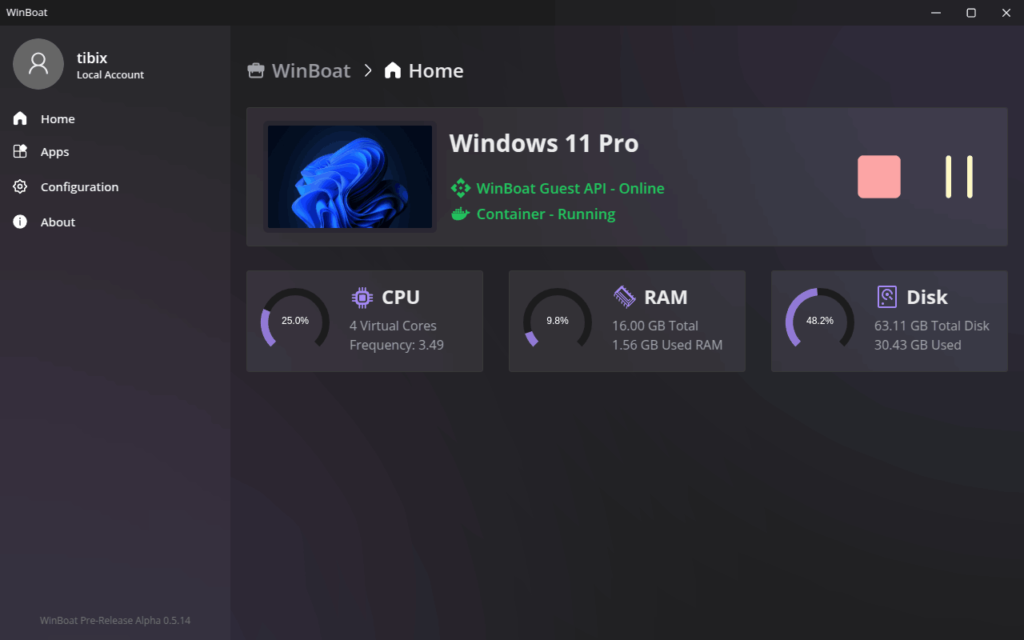
From productivity tools to creative suites & even games, WinBoat ensures your favorite Windows apps launch directly within your Linux desktop. Its sleek & intuitive dashboard simplifies app management, resource monitoring, & system configuration.
Built using Electron, WinBoat leverages the power of the Windows RemoteApp protocol to project Windows applications directly into your Linux session as if they were part of your native OS. This ensures crisp UI rendering, full audio support, & proper window behavior.
Currently in Beta, WinBoat is stable enough for daily use by developers, power users & Linux enthusiasts. It’s a game-changer for those who’ve always wanted the versatility of Linux & the software ecosystem of Windows without switching machines or using heavy VMs.
Features of WinBoat
| Feature | Description |
|---|---|
| Elegant Interface | Sleek, modern dashboard that feels native on every major Linux desktop environment. |
| Automated Installs | Choose your preferences & let WinBoat handle container setup, configuration & deployment automatically. |
| Run Any Windows App | Compatible with a wide range of Windows software — from tools to games — inside your Linux environment. |
| Full Windows Desktop Access | Launch individual apps or access a complete Windows desktop session whenever needed. |
| Filesystem Integration | Linux home directories are mounted in Windows, ensuring seamless file sharing between systems. |
| Smartcard & Peripheral Passthrough | Ideal for enterprise & advanced use cases requiring secure authentication. |
| Resource Monitoring | Monitor CPU, memory & disk usage directly from the WinBoat dashboard. |
| FreeRDP & RemoteApp Support | Delivers smooth rendering & sound-enabled remote display for real-time Windows app streaming. |
| Open Source Development | Fully transparent codebase for developers to audit, extend & contribute. |
| Regular Updates | Ongoing community-driven enhancements focusing on performance, compatibility & UI polish. |
Screenshots
System Requirements
| Component | Minimum Requirement |
|---|---|
| RAM | 4 GB or more recommended |
| CPU | Dual-core (2 threads minimum) |
| Storage | 32 GB free space on selected drive |
| Virtualization | KVM enabled in BIOS/UEFI |
| Software Dependencies | Docker, Docker Compose v2, FreeRDP (3.x with sound), optional kernel modules for performance |
| Unsupported Runtimes | Podman, Docker Desktop, rootless container solutions |
How to Install WinBoat??
Before installation, scroll down to the download section & choose your preferred build:
- AppImage – Portable format that works on most Linux distributions.
- Debian .deb – For Ubuntu & Debian-based systems.
- Fedora .rpm – For Fedora, RHEL & SUSE users.
Step-by-Step Installation
For AppImage
- Download the latest
.AppImagefile. - Open Terminal → Navigate to the folder containing the file.
- Run:
chmod +x winboat-x86_64.AppImage - Launch:
./winboat-x86_64.AppImage
For Debian/Ubuntu (.deb)
- Download the
.debpackage. - Open Terminal & run:
sudo dpkg -i winboat_x86_64.deb - If any dependency errors occur, fix them with:
sudo apt --fix-broken install - Launch WinBoat from the applications menu.
For Fedora (.rpm)
- Download the
.rpmpackage. - Install via:
sudo dnf install winboat-x86_64.rpm - Start from applications or by typing
winboatin the terminal.
Once installed, open WinBoat → follow the on-screen setup → ensure Docker & FreeRDP are properly configured → then simply select “Add App” & start running your favorite Windows programs natively.
Download WinBoat: Run Windows Apps on Linux with Native Integration
Conclusion
WinBoat redefines how Linux users experience Windows software. With seamless integration, modern UI, & container-based efficiency, it’s setting a new standard in cross-platform productivity. Whether you’re a Linux enthusiast seeking compatibility, or a Windows user transitioning to open systems, WinBoat gives you the best of both worlds fast, elegant, & secure.
Download the latest build today & explore how WinBoat lets you run Windows apps on Linux within minutes, not hours.




