


File Information
| Name | Tauon Music Player |
|---|---|
| Platforms | Windows 10/11, macOS (Intel & Apple Silicon), Linux (x64) |
| License | Open Source |
| Official Repository | Tauon Github |
| Official Website | Tauonmusicbox |
| Developer | Tauon Music Box Team |
| Size | 96MB (May Vary By OS) |
| Category | Desktop Music Player / Audio Library Manager |
Table of contents
Description
Tauon Music Player is a sleek, modern, feature-rich desktop music player created for people who want complete control over their music library.
Designed with a fast, responsive, and elegant UI, Tauon focuses on powerful performance, deep customization, and seamless library management without unnecessary complexity.
Tauon stands out as a true audiophile-friendly player, offering gapless playback, playlist power tools, high-resolution artwork, streaming integrations, and advanced sorting features, all packed inside a beautiful and lightweight interface.
Whether you have a massive local library or stream from Jellyfin, PLEX, Airsonic, or even Spotify, Tauon Music Player handles it all effortlessly.
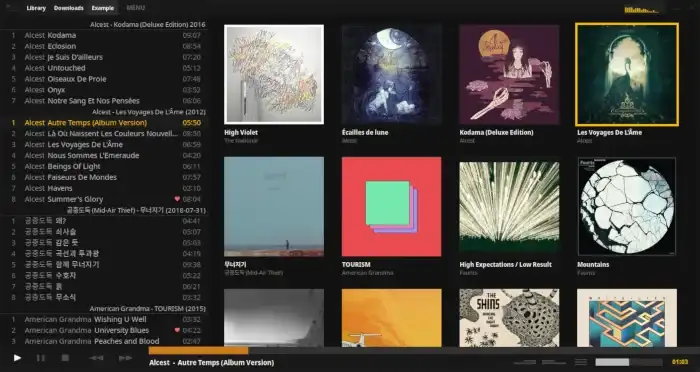
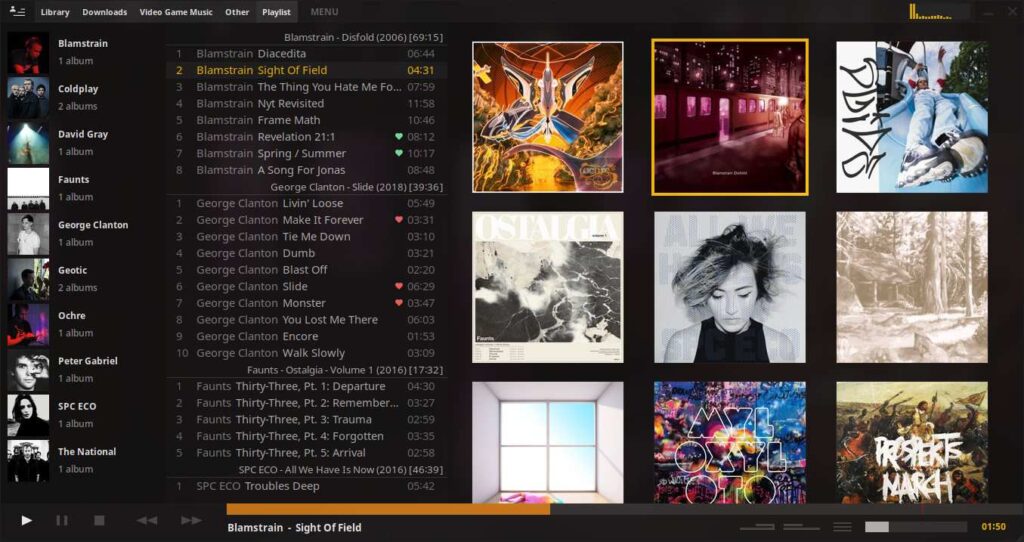
Screenshots
Features of Tauon Music Player
| Feature | Description |
|---|---|
| Ultra-fast modern UI | Responsive, smooth, and optimized even for large music libraries. |
| Gapless Playback | Plays albums seamlessly without pauses between tracks. |
| Drag & Drop Library Control | Import songs, folders, and create playlists instantly. |
| High Codec Support | Plays MP3, FLAC, OGG, AAC, OPUS, WAV, tracker formats & more. |
| CUE Sheet Support | Automatically recognizes and splits cue-based album files. |
| Plex/Jellyfin/Airsonic Streaming | Stream your online music server directly inside Tauon. |
| Spotify Library Import | Bring your entire Spotify library into Tauon for local playback. |
| Large Artwork Mode | Enjoy full-screen album art and gallery browsing. |
| Cover Art Downloader | Automatically fetch high-quality album covers. |
| Play Count Tracking | Know your top-played tracks with detailed visuals. |
| Lyrics Editor + Uploader | Create, edit, and sync lyrics for your entire library. |
| Quick Search Shortcuts | Search RateYourMusic & Genius in one click. |
| Topchart Generator | Generate personalized top charts from your listening history. |
| One-click Archive Import | Extract ZIP/RAR/7z music archives and auto-import them. |
| Playlist Power Tools | Sort, edit, manage, and export playlists with ease. |
System Requirements
| Platform | Minimum Requirements |
|---|---|
| Windows | Windows 10/11, 4GB RAM, x64 CPU |
| macOS | macOS 10.14+, Intel or Apple Silicon |
| Linux | x64 CPU, 4GB RAM, GCC-compatible systems |
| Storage | ~300MB for app + music library space |
How to Install Tauon Music Player??
Windows Installation (.exe)
- Download
TauonMusicPlayer_Setup.exe. - Right-click → Run as Administrator.
- Follow the installer steps.
- Launch Tauon from Start Menu.
- Drag & drop your music folder to begin.
macOS Installation (.dmg)
- Download
TauonMusicPlayer.dmg. - Open the DMG file.
- Drag Tauon Music Player into the Applications folder.
- Open from Launchpad.
- Grant any system permissions if asked (music files access).
Linux Portable Installation (.7z)
- Download
TauonMusicPlayer_Linux_Portable.7z. - Extract using:
7z x TauonMusicPlayer_Linux_Portable.7z - Open the extracted folder.
- Run:
./tauon-music-player
Download Tauon Music Player For Windows, macOS & Linux
Conclusion
If you’re looking for a fast, customizable, open-source desktop music player, Tauon Music Player is easily one of the best tools you can install.
It combines minimalist design, audiophile-grade playback, streaming integrations, and powerful playlist tools, all while staying lightweight and fully free.
Whether you’re a casual listener or a music library perfectionist, Tauon Music Player delivers a premium, modern, and flexible listening experience on Windows, macOS, and Linux.




