



File Information
| Name | Insomnia REST & GraphQL Client |
|---|---|
| Version | Latest Release |
| License | Free & Open Source |
| Platforms | Windows, macOS, Linux |
| Version | v11.5.0 (Stable Release) |
| File Types | EXE, DMG, AppImage |
| Category | API Testing & Debugging Tool |
Table of contents
Description
When it comes to API testing, many developers instantly think of Postman. But did you know there’s a faster, simpler & open source alternative? Meet Insomnia, a powerful free API client that helps you design, debug & test REST, GraphQL & gRPC APIs with ease.
Insomnia provides developers with a clean & modern interface, advanced environment variables, code generation in multiple languages, and seamless collaboration capabilities. Unlike bloated tools, Insomnia is lightweight yet feature-rich, making it one of the best Postman alternatives available today.
With support for REST APIs, GraphQL queries & even gRPC, Insomnia ensures you don’t need multiple tools to work across different API protocols. It offers intuitive workspace management, plugin support, SSL certificates handling, environment syncing & automated testing, making it an all-in-one API powerhouse.
If you’re a solo developer building side projects or part of a large team managing enterprise APIs, Insomnia helps streamline workflows, improve debugging & save time. Since it is open source, you get the freedom & transparency that proprietary tools can’t offer.
Scroll down to the download section, grab the installer for your system & start experiencing why thousands of developers worldwide are switching from Postman to Insomnia.
Features of Insomnia
- Free & open source API testing tool
- Supports REST, GraphQL & gRPC protocols
- Intuitive & clean interface for faster development
- Manage environments & variables with ease
- Plugin ecosystem to extend functionality
- Generate code snippets in multiple programming languages
- SSL certificate management & secure authentication
- Organize requests into workspaces & folders
- Import & export collections effortlessly
- Automated testing support for CI/CD pipelines
- Cross-platform, works on Windows, macOS & Linux
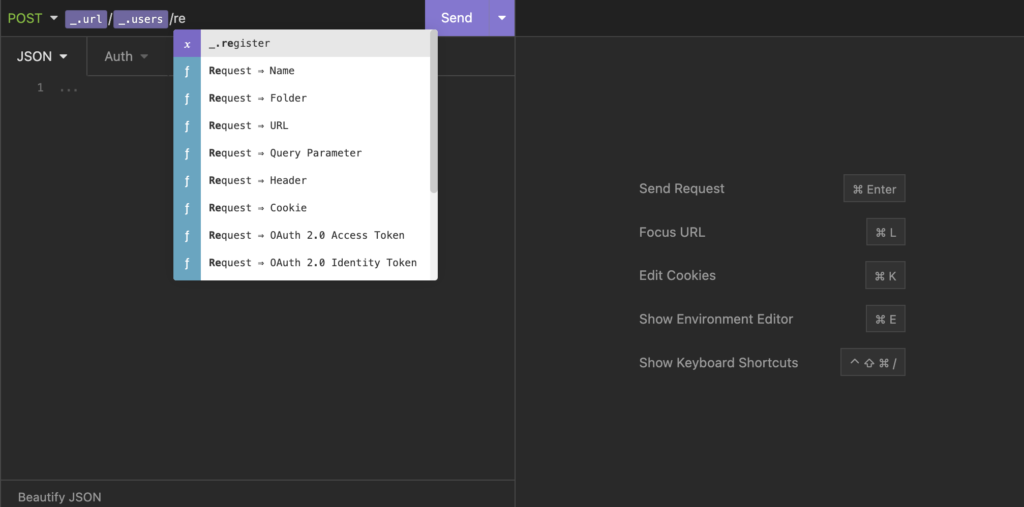
Screenshots

System Requirements
| Operating System | Minimum Requirement |
|---|---|
| Windows | Windows 7 or later, 4GB RAM, 200MB disk space |
| macOS | macOS 10.12 or later, 4GB RAM, 200MB disk space |
| Linux | Modern 64-bit distro, AppImage supported, 4GB RAM |
How to Install Insomnia??
Before installation, scroll down to the Download section & get the file suitable for your operating system.
Windows Installation Steps
- Download the
.exeinstaller. - Double-click the file to launch the setup wizard.
- Follow the on-screen instructions & choose the installation folder.
- Once finished, launch Insomnia from the Start Menu.
- Create or import your first API request to get started.
macOS Installation Steps
- Download the
.dmgfile. - Open the downloaded disk image.
- Drag & drop Insomnia into the Applications folder.
- Open Launchpad & start Insomnia.
- If you see a security prompt, go to System Preferences > Security & Privacy & click “Open Anyway.”
Linux Installation Steps (AppImage)
- Download the
.AppImagefile. - Right-click the file > Properties > Permissions & enable “Allow executing file as program.”
Or run in terminal:chmod +x Insomnia-*.AppImage - Double-click the file to launch Insomnia.




