
File Information
| File | Details |
|---|---|
| Name | Hermes Desktop |
| Version | v0.7.6 |
| Type | AI Agent Desktop App |
| Developer | Nous Research (Open Source Contributors) |
| License | MIT License (Open Source) |
| Platforms | macOS • Windows • Linux |
| Size | 90MB – 150MB (May Vary By OS) |
| Primary Use | Running and managing Hermes Agent with a UI |
| Github Repository | github/hermes-agent |
Table of Contents
Description
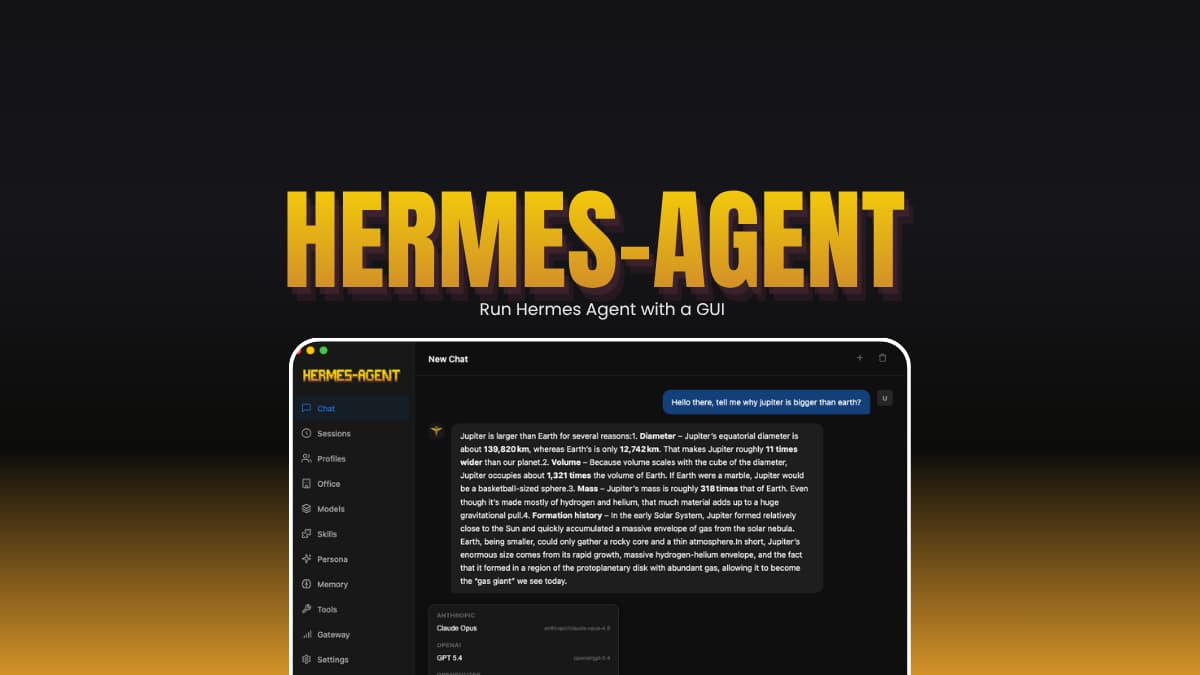
Hermes Desktop is what you use if you like the idea of Hermes Agent but not the setup.
Normally, you’d install it through the terminal, deal with configs, APIs, and hope nothing breaks. Here, you just install an app and open it. It sets things up, asks what provider you want to use, and drops you into a working interface.
You still get all the agent stuff, tools, memory, integrations, but without the usual issues. It’s not fully perfect yet. It’s still under active development, so expect a few minor bugs. You’ll also need API keys for most providers.
This is mainly for developers, builders, and anyone experimenting with AI agents who wants a simpler way to use them.
Use Cases
- Run an AI agent that can actually use tools
- Automate small tasks or workflows
- Test different AI providers in one place
- Connect your agent to apps like Discord or Telegram
- Try local models without complex setups
Screenshots
Features of Hermes Agent Desktop App
| Feature | What it feels like |
|---|---|
| Setup | You install it and it just works |
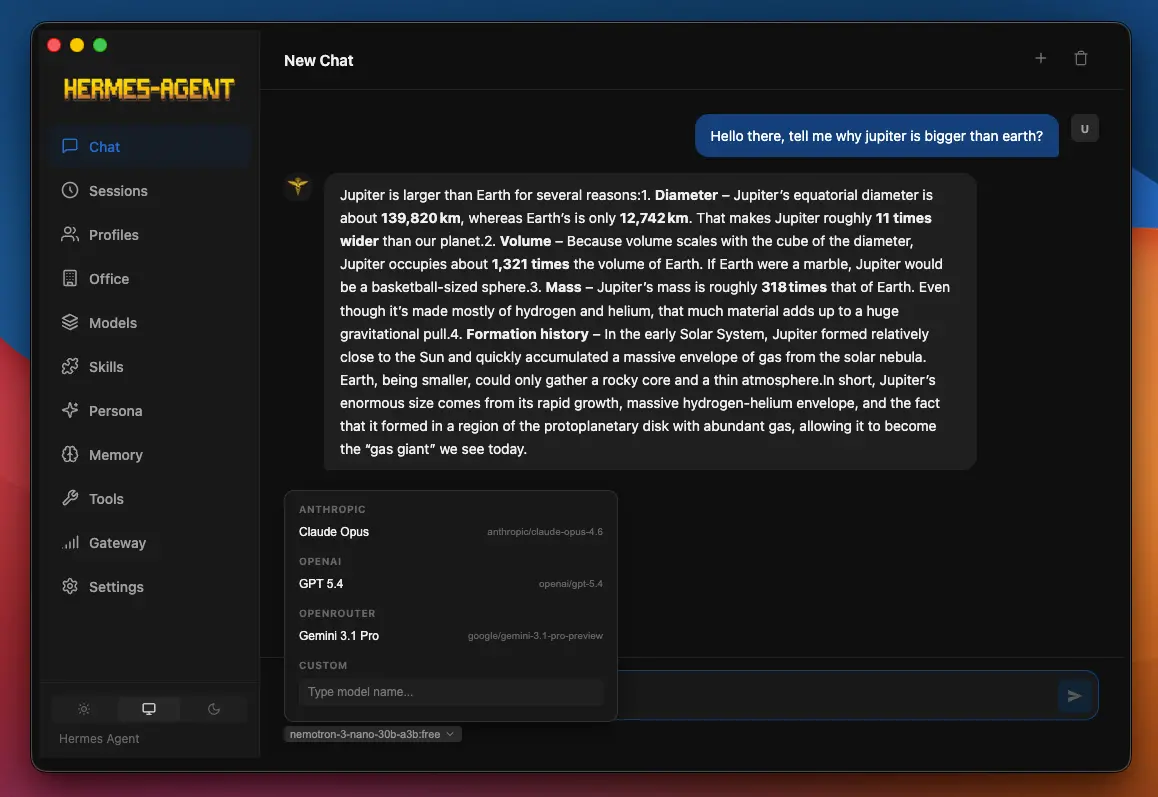
| Providers | Switch between OpenAI, Claude, Gemini, Grok, OpenRouter, and local models like Ollama |
| Chat | Feels like a normal chat app, but with tools |
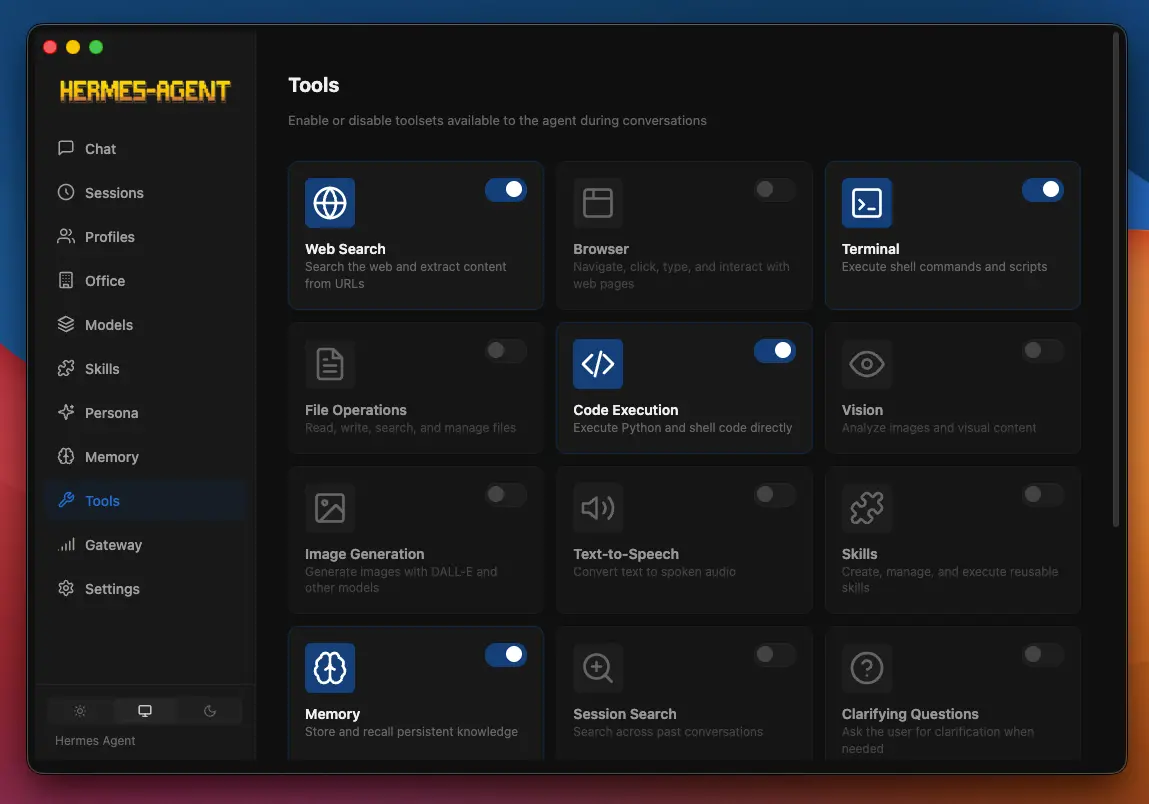
| Tools | Run browser, terminal, and file actions directly from chat |
| History | Your chats are saved and searchable |
| Profiles | Keep separate setups if you need them |
| Memory | The agent remembers context across sessions |
| Integrations | Works with messaging apps |
| Updates | App can update itself |
System Requirements
| Component | Requirement |
|---|---|
| OS | macOS / Windows / Linux |
| RAM | 8 GB recommended |
| Internet | Needed for most setups |
You May Like: Open Design: Open Source Claude Design Alternative
How to Install Hermes Agent Desktop App?
Windows
- Download the .exe file
- Double-click it to start installation
- Finish the install and open the app
The app is not signed so for Windows smartscreen click More info, Then click Run anyway.
macOS
- Download the
.dmgfile - Open it and drag the app into Applications
- Open the app
- If macOS blocks it (this happens sometimes). Right-click the app -> Open -> Open again
If it still doesn’t open, run this once in Terminal:
xattr -cr "/Applications/Hermes Agent.app"After that, it should open normally.
Linux
AppImage
- Download the
.AppImage - Right-click -> Properties -> Allow execution
- Double-click to run
Debian / Ubuntu (.deb)
sudo dpkg -i hermes-desktop-<version>.debFedora / RHEL (.rpm)
sudo dnf install ./hermes-desktop-<version>.rpmDownload Hermes Desktop App
Is Hermes Agent worth it?
If you just want a chatbot, no.
If you want something that can do things, browse, run commands, connect to apps, then yeah, it’s worth trying. Just don’t expect it to feel as smooth as something like Proprietary tools. Its really useful for you if you like Hermes Agent but don’t wanna deal with the setup.