

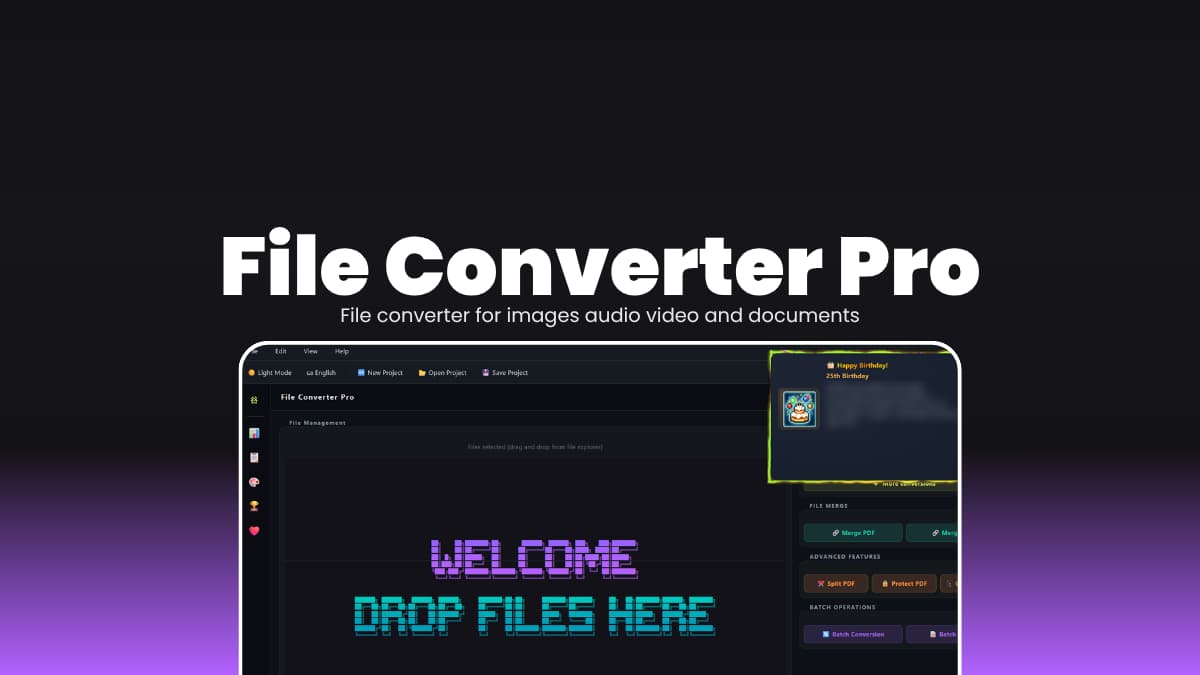

File Info
| File | Details |
|---|---|
| Name | File Converter Pro |
| Version | v1.0.2 |
| Developer | Prime Enterprises (Hyacinthe) |
| License | GNU GPL v3 (Open Source) |
| Platforms | Windows |
| File Formats | .exe |
| Size | 282MB |
| Primary Use | Convert documents, images, audio, and video offline |
| Github Repository | Github/File_Converter_Pro |
Table of Contents
Description
Most file converters still push you to upload your files somewhere. Even for basic stuff like changing a PDF or converting an image. It works, but it’s not something you feel great about, especially with random files.
File Converter Pro works like a simple offline converter. You drop files in, pick what you want, and it converts everything locally. No uploads or any server.
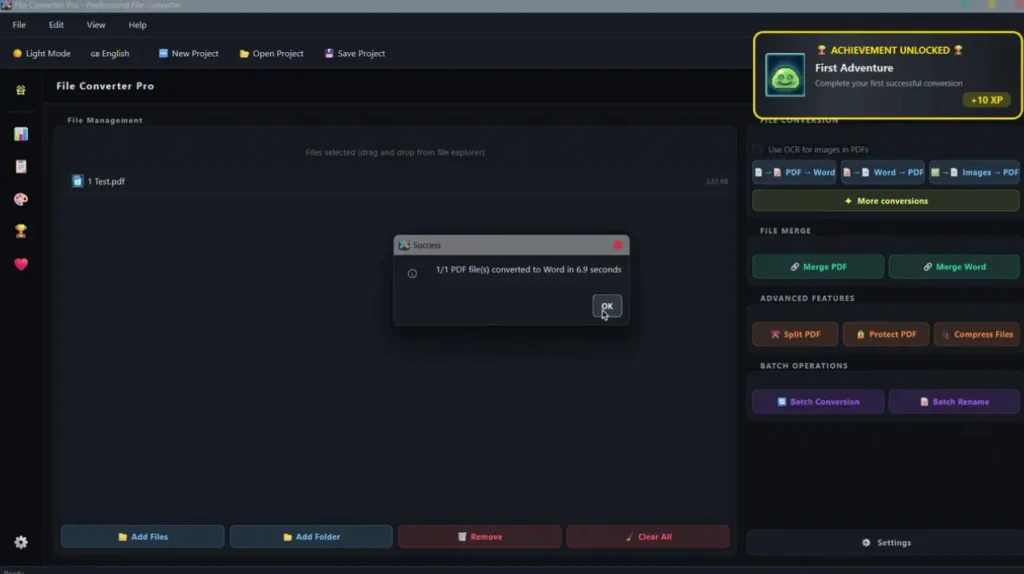
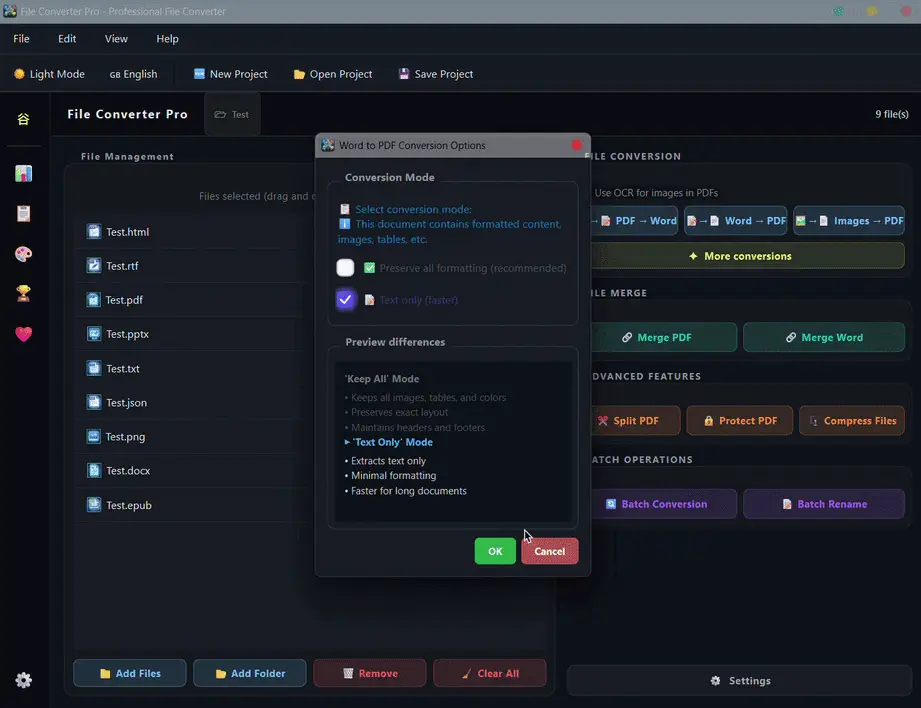
The UI isn’t just functional, it actually looks like someone cared. Smooth startup, proper dark mode, small touches that make it feel like a real app instead of a side project.
There’s also some extra stuff like stats and achievements. Sounds gimmicky, but it kind of works. You start noticing how often you use it. It’s not lightweight though. And if you want audio or video conversions, you’ll need FFmpeg. But once that’s sorted, you’re done setting things up.
Use Cases
- Convert documents like PDF, DOCX, TXT, and EPUB offline
- Batch convert images between formats like PNG, JPG, WebP
- Extract audio from video files or convert between formats
- Convert video files to MP4 for compatibility
- Work with files locally without uploading them anywhere
- Save conversion setups and reuse them later
Screenshots
Features of File Converter Pro
| Feature | Description |
|---|---|
| All-in-One Conversion | Handles documents, images, audio, and video in one app |
| Offline Processing | No uploads, everything stays on your machine |
| Batch Support | Convert multiple files at once |
| Clean UI | Dark/light mode with smooth transitions |
| Statistics Dashboard | Tracks conversions with charts and history |
| Achievements System | Unlock milestones based on usage |
| Project Files | Save and reopen conversion setups |
| Drag & Drop | Drop files directly into the app or onto the exe |
| Multi-language Support | Built-in English and French, more via JSON files |
| Encrypted Settings | Preferences stored securely on disk |
| Native Notifications | Alerts when conversions finish |
| Multi-engine Conversion | Uses different engines depending on quality and availability |
You May Like: Converseen – Batch Image Converter & Processor Tool
System Requirements
| Component | Requirement |
|---|---|
| Operating System | Windows 10 / 11 (64-bit) |
| Processor | 64-bit CPU |
| RAM | 4 GB minimum • 8 GB recommended |
| Storage | 500 MB free |
| Internet | Not required after installation |
How to Install File Converter Pro on Windows?
- Download the File Converter Pro
.exeinstaller - Double-click the installer file
- Follow the setup instructions
- Launch the app from Desktop or Start Menu
- (Optional) Install FFmpeg for audio/video conversions
Download File Converter Pro for Desktop
One Tool for All Your File Conversions
File Converter Pro replaces a bunch of small tools you probably already use. Instead of jumping between websites or apps, everything is in one place.
The offline part is what sticks. Once you get used to not uploading files for basic conversions, it’s hard to go back. It’s a bit heavy, sure. But if you deal with different file types often, this saves time in a very direct way.




