
File Information
| File | Details |
|---|---|
| Name | LTX-Desktop |
| Version | v1.0.1 |
| Category | AI Video Generation Software |
| License | Apache 2.0 License (Open Source) |
| Platforms | Windows • macOS |
| Size | 132MB (exe) • 371MB (dmg) |
| Generation Modes | Local GPU mode / API mode |
| Github Repository | Github/LTX-Desktop |
| Official Site | ltx |
Table of contents
Description
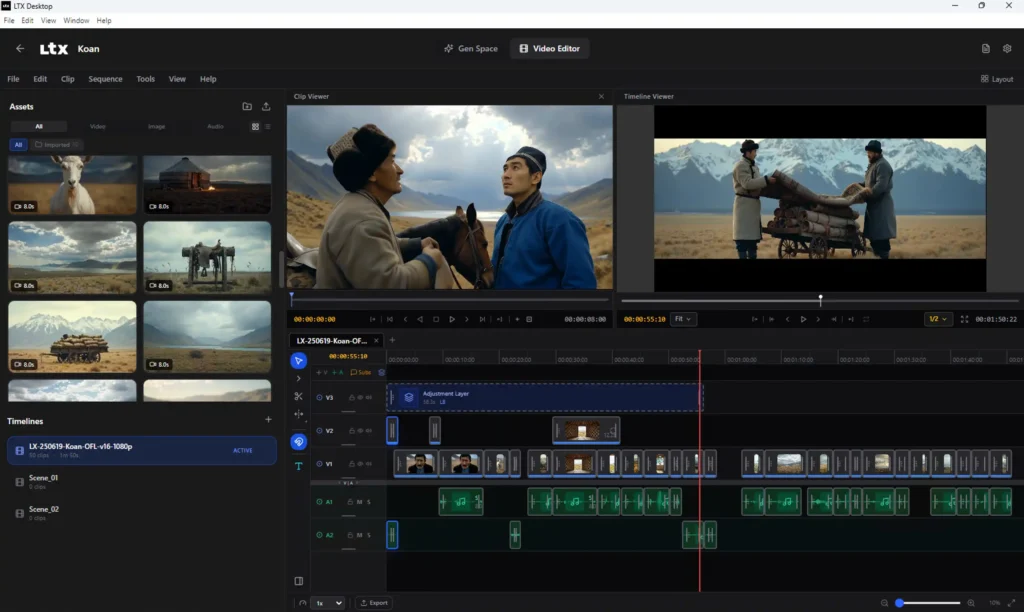
LTX Desktop is an open-source desktop application designed to generate and edit videos using LTX generative video models. It provides a modern editor interface where users can create videos from prompts, images, or audio while managing projects directly inside the app.
On systems with powerful NVIDIA GPUs, the software can download model weights and run video generation locally. On unsupported hardware or macOS, the application switches to an API-powered mode where generation happens through the LTX cloud service.
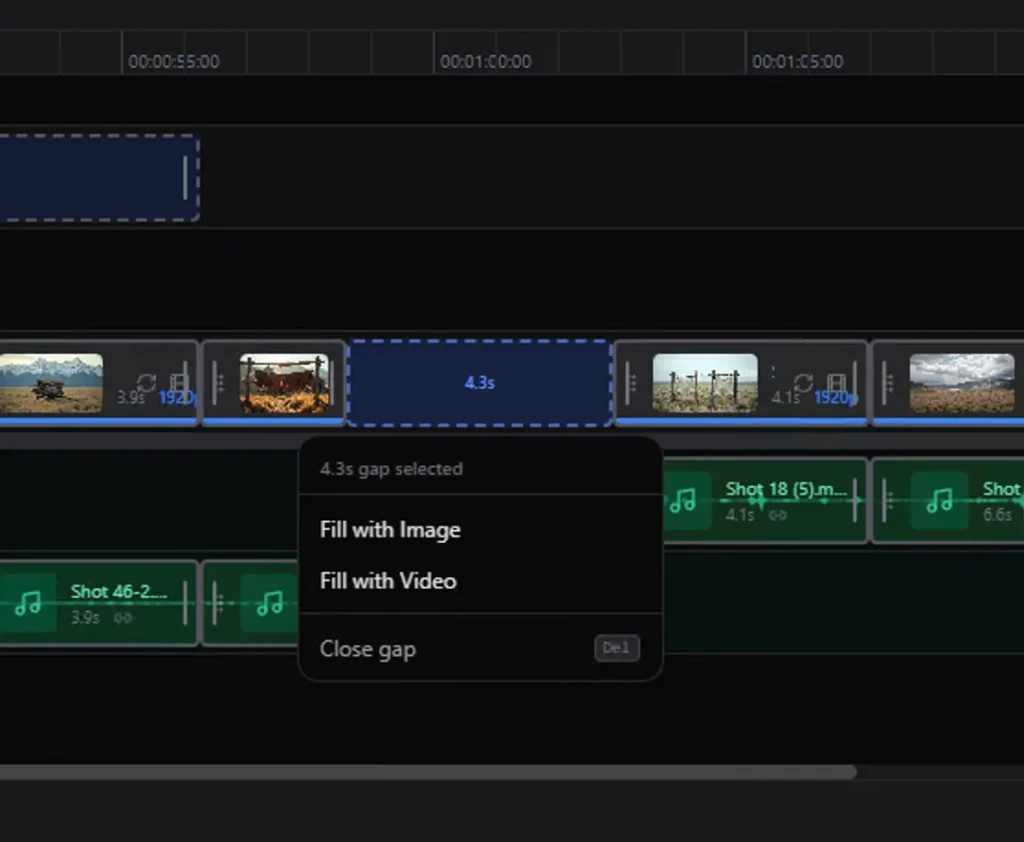
The project also includes a timeline-based video editor, retake functionality for regenerating segments, and a flexible architecture combining a React interface, Electron desktop shell, and Python backend for GPU inference.
Use Cases
• Creating AI-generated videos from text prompts
• Turning images into animated video clips
• Generating video sequences from audio input
• Editing AI generated clips inside a timeline editor
• Experimenting with local generative video models
Screenshots & Intro Video
Features of LTX-Desktop
| Feature | Description |
|---|---|
| Text-to-Video Generation | Generate full video clips directly from text prompts. |
| Image-to-Video | Convert images into animated video sequences. |
| Audio-to-Video | Create visuals that respond to audio input. |
| Retake Video Editing | Regenerate specific sections of a video without recreating the whole clip. |
| Video Editor Interface | Built-in editor with timeline support for managing clips. |
| Video Editing Projects | Save and organize multiple video generation projects. |
| Local AI Generation | Run LTX models locally on supported NVIDIA GPUs. |
| API Generation Mode | Generate videos through the LTX API on unsupported hardware. |
System Requirements
Windows (Local Generation)
| Requirement | Details |
|---|---|
| OS | Windows 10 / Windows 11 |
| GPU | NVIDIA GPU with CUDA support |
| VRAM | 32GB VRAM minimum |
| RAM | 16GB minimum (32GB recommended) |
| Storage | Large free space for model downloads |
macOS (API Mode)
| Requirement | Details |
|---|---|
| CPU | Apple Silicon |
| OS | macOS 13 Ventura or newer |
| Internet | Required for API generation |
How to Install LTX-Desktop?
Windows (.exe)
- Download the
.exeinstaller. - Double-click the installer file.
- Follow the setup instructions in the installation window.
- Once installation finishes, launch LTX Desktop from the Start Menu or Desktop shortcut.
- Complete the first-time setup and configure your API key if required.
macOS (.dmg)
- Download the
.dmgfile. - Open the downloaded file.
- Drag LTX Desktop into the Applications folder.
- Launch the application from Applications.
- Enter your API key during setup to enable video generation.
Related: VideoSOS: AI Video Editor with 100+ Models to Create Professional Videos
Download LTX Desktop AI Video Generator
Why Try LTX Desktop?
LTX Desktop makes advanced AI video generation accessible from a desktop application while still giving users the option to run models locally when powerful hardware is available.
For creators exploring generative media, developers testing AI workflows, or enthusiasts experimenting with next-generation video models, the software offers a flexible environment where video generation, editing, and experimentation happen in one place.