



File Information
| File | Details |
|---|---|
| Name | PicoClaw |
| Version | v0.1.1 |
| Category | AI Assistant (CLI) |
| Platform Support | Windows, macOS (ARM64), Linux (amd64, arm64, riscv64) |
| Size | 24 MB |
| License | Open Source (MIT License) |
| Github Repository | Github/picoclaw |
Table of contents
Description
PicoClaw is an ultra-lightweight AI assistant written in Go, built to run on extremely low-resource hardware. It focuses on minimal footprint and fast boot times.
It was refactored from scratch in Go through a self-bootstrapping AI-driven migration process, meaning the architecture itself was heavily shaped by AI-assisted development.
It’s small. It’s portable. And it’s designed for edge devices, SBCs, and low-power systems.
Screenshots
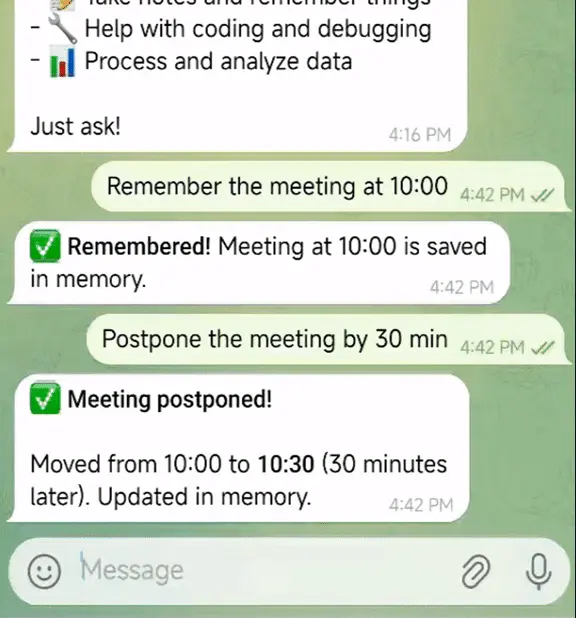
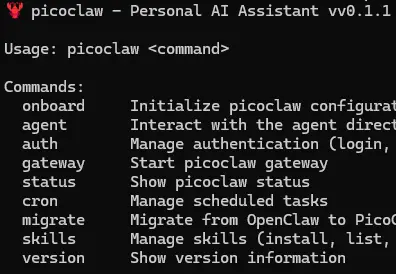
Features of PicoClaw
| Feature | What It Does |
|---|---|
| Ultra-Lightweight | Runs with under 10MB RAM (recent builds may use 10–20MB). |
| 1-Second Boot | Extremely fast startup even on low-frequency CPUs. |
| Cross-Architecture | Supports x86_64, ARM64, and RISC-V. |
| AI Assistant Mode | Chat with LLM providers through CLI. |
| Gateway Mode | Run as a service for integrations. |
| Scheduled Tasks | Built-in cron-based reminders and automation. |
| Sandbox Security | Restricts file and command access to workspace by default. |
| Heartbeat System | Periodic autonomous task execution. |
| Chat App Integrations | Works with Telegram, Discord, QQ, DingTalk, LINE. |
System Requirements
| Component | Requirement |
|---|---|
| OS | Windows / macOS (ARM64) / Linux |
| RAM | 64MB+ recommended (core <10MB usage) |
| CPU | Any modern x86_64, ARM64, or RISC-V |
| Internet | Required for LLM APIs |
| API Key | Required (OpenRouter, Gemini, OpenAI, etc.) |
Early development stage. Not recommended for production environments before v1.0.
How to Install PicoClaw??
Windows
- Download picoclaw .exe file.
- Place it in a folder (e.g.,
C:\picoclaw). - Open that folder.
- Click the address bar, type
cmd, and press Enter. - Drag & Drop that exe file In Command Prompt & press enter
- After that you’ll be prompted with picoclaw options to install & use it.
If double-clicked directly, nothing meaningful will happen because it’s a CLI application. You must run it through Command Prompt or PowerShell.
macOS (Apple Silicon ARM64)
- Download
picoclaw-darwin-arm64. - Move it to a folder (e.g., Downloads).
- Open Terminal.
- Navigate to the folder:
cd ~/Downloads
- Make it executable:
chmod +x picoclaw-darwin-arm64
- Run it:
./picoclaw-darwin-arm64 version
Linux (amd64 / arm64 / riscv64)
- Download the correct binary for your architecture.
- Open Terminal.
- Navigate to the download directory.
- Make executable:
chmod +x picoclaw-linux-amd64
(Replace filename accordingly.)
- Run:
./picoclaw-linux-amd64 version
Recommended For You: OpenClaw: Open-Source Local AI Assistant That Runs 100% on Your Own Machine
PicoClaw Quick Setup
1. Initialize
picoclaw onboard
This creates configuration and workspace directories.
2. Configure API Key
Edit:
~/.picoclaw/config.json
Add your LLM provider API key (OpenRouter, Gemini, OpenAI, etc.).
3️. Chat
One-shot:
picoclaw agent -m "What is 2+2?"
Interactive mode:
picoclaw agent
Download PicoClaw: Lightweight AI Assistant CLI
PicoClaw CLI Commands
| Command | Description |
|---|---|
| picoclaw onboard | Initialize configuration & workspace |
| picoclaw agent | Interactive chat mode |
| picoclaw agent -m | One-shot query |
| picoclaw gateway | Start gateway service |
| picoclaw status | Show status |
| picoclaw cron | Manage scheduled jobs |
| picoclaw skills | Manage skills |
| picoclaw version | Show version |
Conclusion
PicoClaw is built for efficiency. It runs in under 10MB of RAM & on low-cost hardware.
If you’re building AI systems for edge devices, SBCs, or minimal Linux boards, PicoClaw is one of the most lightweight agent frameworks available right now.




