
File Information
| Name | Converseen – Free & Open Source Batch Image Converter |
|---|---|
| Version | Latest Release (stable) • macOS (Beta) |
| File Size | Windows ZIP: 39.5MB • macOS ZIP (Beta): 64.8MB • Linux AppImage: 76.7MB |
| Platforms | Windows (64-bit, 32-bit Portable) • macOS 12+ (Beta) • Linux (AppImage x86_64, AArch64) |
| License | Open Source (GPL – 3.0 License) |
| Official Repository | GitHub / Converseen |
| Official Site | converseen |
Table of contents
Description
Converseen is a free, open-source, cross-platform batch image processor available for Windows, Linux & macOS
It lets you convert, resize, compress, rotate, flip, and rename an unlimited number of images in one click, making it a powerful tool for photographers, designers, bloggers, and developers.
Powered by the ImageMagick library, Converseen supports 100+ formats including:
- JPG, PNG, WebP
- TIFF, DPX, EXR
- GIF, SVG
- JPEG-2000
- HEIC/HEIF
- And many more
You can even convert entire PDF documents into multiple images with your preferred settings.
Screenshots
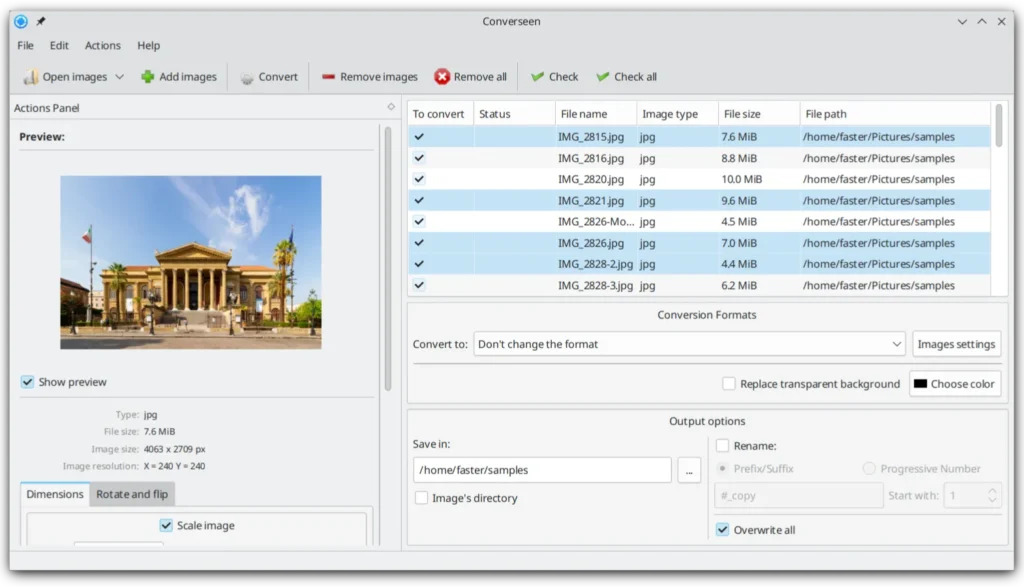

Features of Converseen
| Feature | Description |
|---|---|
| Batch Conversion | Convert hundreds or thousands of images at once |
| Resize Images | Scale images individually or in bulk with custom dimensions |
| Compress for Web | Reduce size without sacrificing quality |
| Rotate & Flip | Apply transformations to multiple images instantly |
| Bulk Rename | Add prefixes, suffixes, or progressive numbers |
| PDF → Images | Convert full PDF documents into images |
| 100+ Supported Formats | Thanks to ImageMagick backend |
| Resampling Filters | Choose advanced filters for perfect resizing |
| Cross-Platform | Windows, macOS, Linux, FreeBSD |
| Free & Open Source | No ads, no tracking, no data collection |
| Lightweight & Fast | Designed to be practical and efficient |
Why You Should Use Converseen??
- Free forever: no subscriptions or paywalls
- Open source: transparent and community-driven
- Processes everything locally: no uploads, no cloud, 100% privacy
- Handles unlimited images: perfect for heavy workflows
- Over 100+ formats supported
- PDF-to-image conversion built-in
- Available for all major OS (Windows, macOS, Linux)
System Requirements
| OS | Minimum Version |
|---|---|
| Windows | Windows 7/8/10/11 |
| macOS | macOS 12 Monterey or later |
| Linux | Any modern distro (Ubuntu, Mint, Fedora, Arch, openSUSE, etc.) |
| FreeBSD | Default supported packages |
How to Install Converseen??
Windows (ZIP Portable)
- Download the ZIP file for 32-bit or 64-bit.
- Extract the ZIP.
- Double-click the executable to launch Converseen.
- No installation required — portable and ready to use.
macOS (ZIP – Beta Release)
- Download
converseen_macos.zip. - Extract the ZIP file.
- Right-click (or Ctrl+Click) the Converseen app.
- Select Open to bypass Gatekeeper.
- The app will launch normally.
Linux AppImage Installation
- Download the AppImage for your architecture.
- Make it executable:
chmod +x converseen_x86_64.AppImage
or (depends on what file you downloaded)
chmod +x converseen_aarch64.AppImage
Run the AppImage:
./converseen_x86_64.AppImage
Download Converseen: Batch Image Converter & Processor Tool
Support This Project
Converseen is developed by Francesco Mondello.
If you find the tool useful, you can support the project. Visit the official website for donation links and more info.
Conclusion
Converseen is one of the best free batch image processors available today, powerful, lightweight, privacy-friendly, and fully cross-platform. Whether you’re converting thousands of images, compressing assets for the web, or extracting images from PDFs, Converseen delivers exceptional speed and reliability for free.