
File Information
| Name | gImageReader – Simple OCR GUI for Tesseract |
|---|---|
| Version | Latest Stable Release v3.4.3 |
| File Size | Windows: ~60 MB (.exe) • Linux: ~14MB (.deb) |
| Platforms | Windows • Linux (Debian / Ubuntu / Derivatives) |
| License | Open Source (GPL v3 License) |
| Official Repository | GitHub / gImageReader |
Table of contents
Description
gImageReader is a lightweight, intuitive, and user-friendly front-end for Tesseract OCR, designed to make text recognition from images and scanned documents faster and more accessible. It supports both Gtk and Qt interfaces, giving users flexibility depending on their desktop environment.
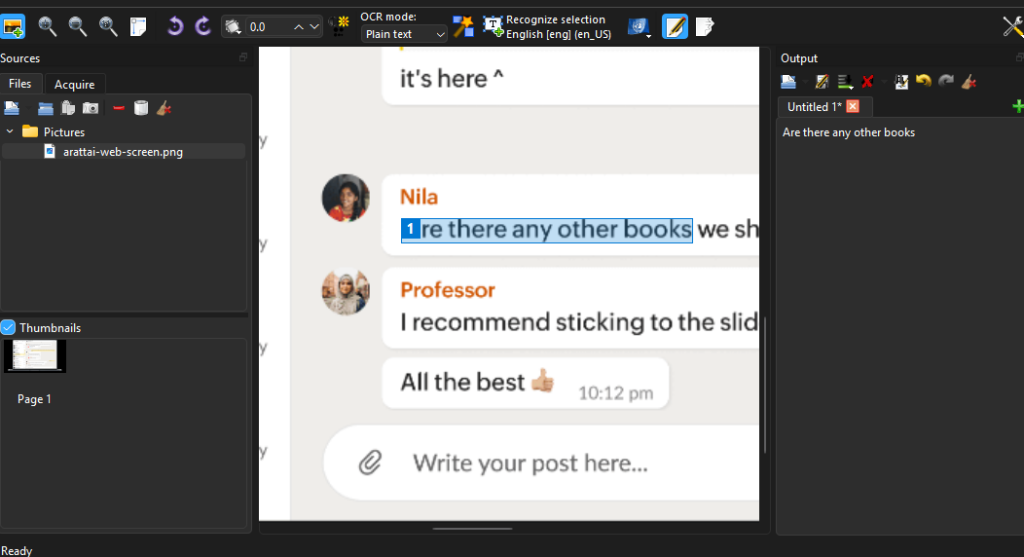
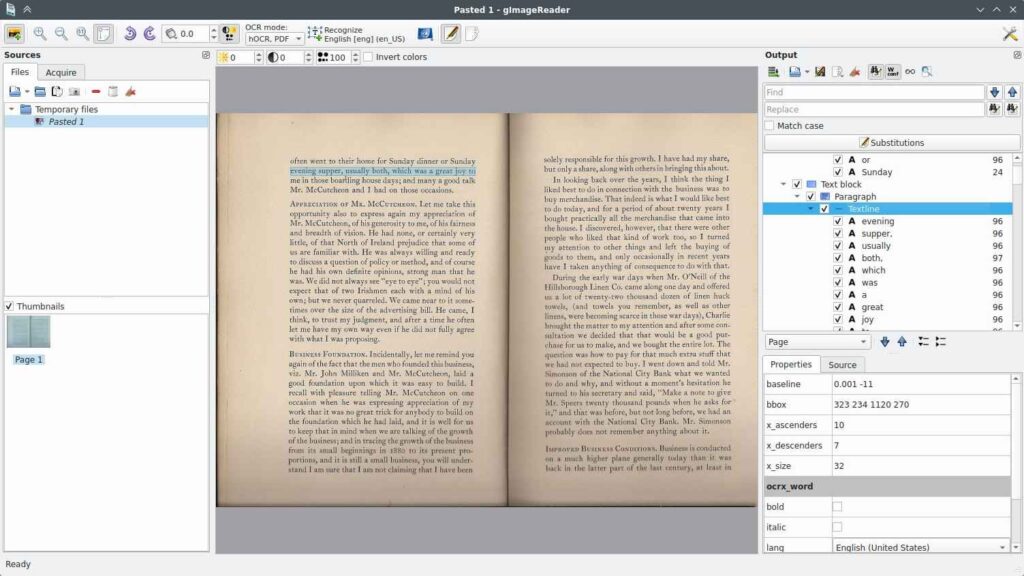
With gImageReader, you can import various file types—including PDFs, images, and screenshots—and convert them into editable, selectable text using powerful OCR algorithms. The software displays recognized text directly next to the source image, enabling easy verification and correction. Users can also spellcheck, edit, and export the processed content into multiple formats, including plain text, hOCR, and searchable PDFs.
Whether you’re working with scanned documents, printed pages, research material, or multilingual content, gImageReader offers a reliable offline OCR workflow powered by Tesseract.
Screenshots
Features of GImageReader
| Feature | Description |
|---|---|
| Import from Multiple Sources | Load images and PDFs from disk, scanners, clipboard, or screenshots. |
| Batch OCR Processing | Recognize text from multiple documents or images at once. |
| Manual and Automatic Area Selection | Define custom OCR regions or let the software automatically detect text blocks. |
| Export to Text & hOCR | Convert recognized text into plain text or structured hOCR documents. |
| Side-by-Side Text Preview | View original image and extracted text simultaneously for easy editing. |
| Spellchecking & Post-Processing | Clean and refine recognized text with built-in spellcheck tools. |
| Searchable PDF Generation | Create searchable PDFs directly from hOCR output. |
| International Language Support | Supports dozens of languages via Tesseract models and Weblate translations. |
| Qt & Gtk Versions | Choose the interface that best suits your workflow. |
| Open-Source & Community Supported | Regular updates, active issue tracking, and ongoing translation efforts. |
System Requirements
| Platform | Minimum Specification |
|---|---|
| Windows | Windows 10 or newer, 4 GB RAM, 150 MB free disk space, 64-bit processor |
| Linux | Any modern Debian/Ubuntu-based system, 4 GB RAM, 150 MB free disk space |
How to Install GImageReader??
Scroll to the Download Section to choose your version before following the installation instructions.
Windows (.exe)
- Download the Windows installer (.exe).
- Double-click the file to start installation.
- Follow onscreen instructions until installation completes.
- Launch gImageReader from the Start Menu.
Linux (.deb)
- Download the .deb package (e.g.,
gimagereader-dbg_3.4.1-1~kineticppa1_amd64.deb). - Open Terminal and install using:
sudo dpkg -i gimagereader-dbg_3.4.1-1~kineticppa1_amd64.deb
Install missing dependencies if needed:sudo apt --fix-broken install
Launch gImageReader from your applications menu.
Download GImageReader: Offline Image To Text (OCR) Software For Windows & Linux
Conclusion
gImageReader is one of the most efficient open-source OCR tools available today, combining the accuracy of Tesseract with a clean, intuitive graphical interface. Whether you’re digitizing documents, extracting text from PDFs, or processing multilingual content, it provides a simple yet powerful offline solution for both casual and professional users.
With full Windows and Linux support, fast recognition, batch processing, and community-driven improvements, gImageReader stands out as a reliable and essential tool for anyone looking to work with OCR technology.