


File Information
| Name | Rufus |
|---|---|
| Version | Latest Stable |
| File Type | .exe for Windows |
| Platform | Windows |
| Size | ~1 MB |
| License | Free & Open Source |
Table of contents
Description
Rufus is the ultimate tool for anyone who needs to create bootable USB drives quickly and reliably. It is a lightweight, free, and open-source utility designed to make the process of installing operating systems as seamless as possible. Whether you are preparing a Windows installer, creating a live Linux USB, or flashing firmware, Rufus gives you full control over your bootable media without unnecessary complications.
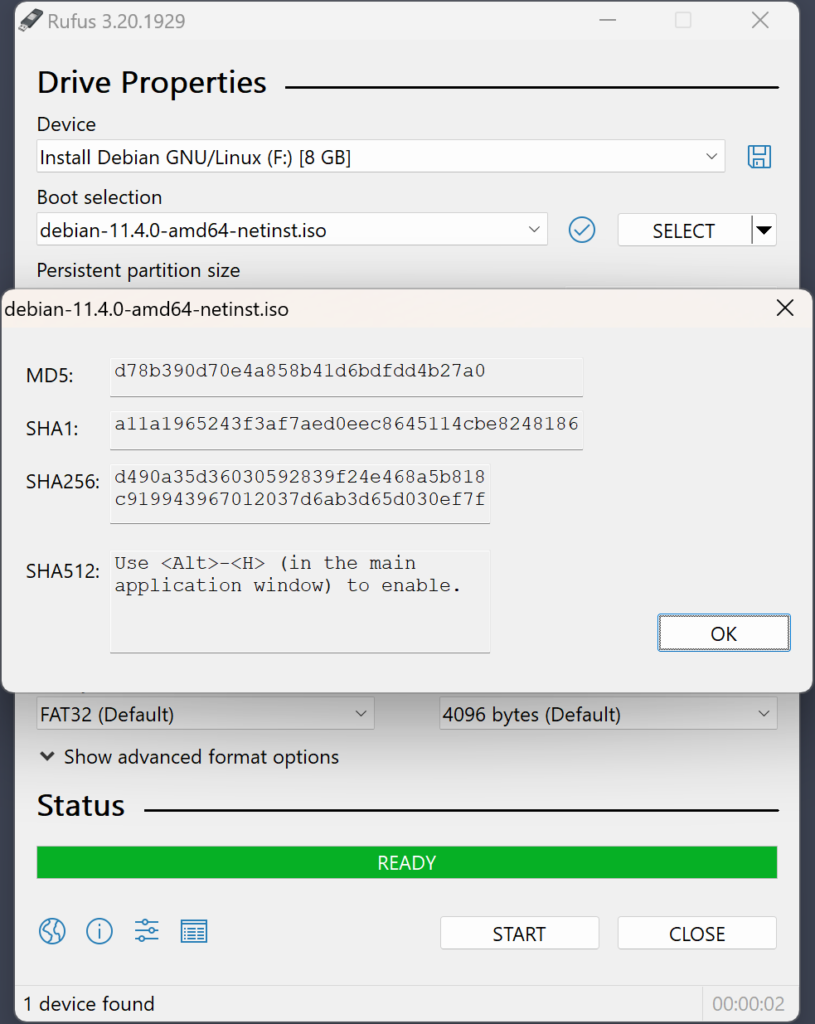
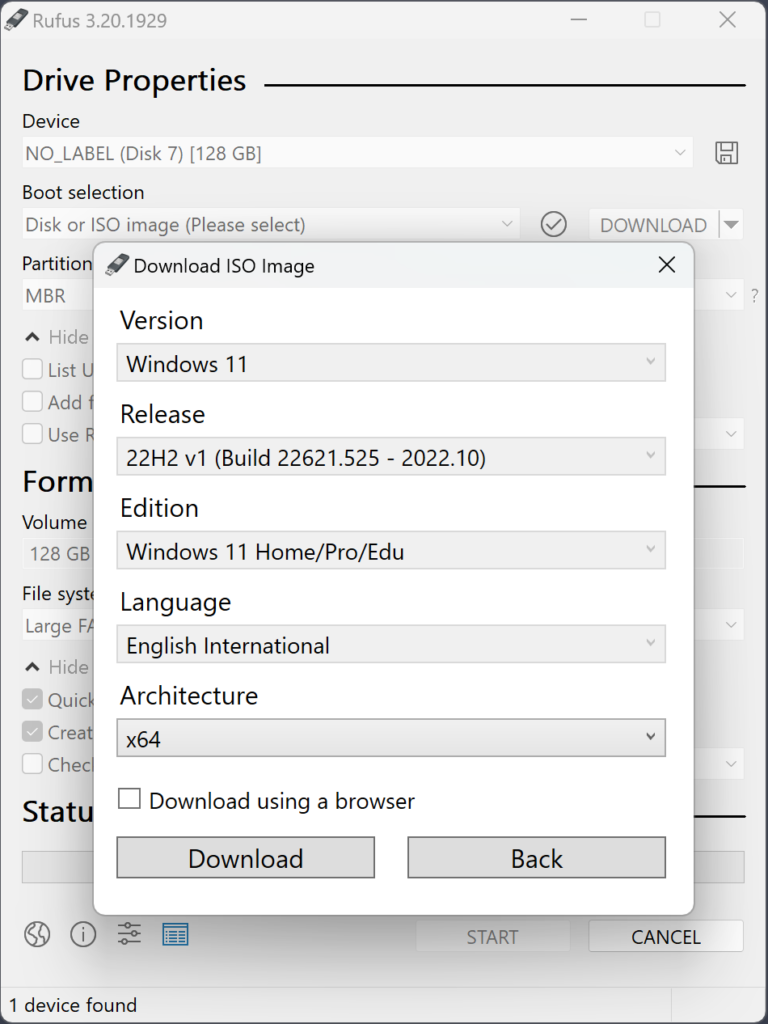
Rufus works fast, uses minimal system resources, and provides a clear, intuitive interface that anyone can understand. You do not need advanced technical knowledge to create USB installation drives for Windows, Linux, or even custom ISO images. With Rufus, the process is straightforward: select your device, choose the ISO, and hit start. Its reliability, speed, and simplicity have made it the go-to tool for IT professionals, developers, and hobbyists alike.
Rufus is also ideal for users who value safety & customization. You can format drives using multiple file systems, choose partition schemes, and configure advanced options such as cluster size, volume label, and more. It ensures that every bootable USB you create is compatible with the target system, whether it is UEFI, BIOS, or legacy hardware.
Scroll down to the download section and follow the installation guide to get Rufus running on your Windows system. Within minutes, you can create bootable drives for operating system installation, system recovery, or testing new software.
Features of Rufus
| Feature | Description |
|---|---|
| Bootable USB Creation | Quickly turn any USB drive into a bootable media for Windows, Linux, or custom ISOs |
| Fast & Lightweight | Uses minimal system resources for maximum speed |
| Wide Compatibility | Supports UEFI, BIOS, legacy hardware & multiple partition schemes |
| ISO Flashing | Easily flash ISO images to USB without losing data integrity |
| Custom Formatting | Format drives with FAT32, NTFS, exFAT, UDF or ReFS |
| Portable Version | Run Rufus without installation for on-the-go usage |
| Open Source | Free to use & modify, ensuring transparency & community support |
| Advanced Options | Control cluster size, volume labels, and boot options for professional use |
Screenshots
System Requirements
| Requirement | Minimum |
|---|---|
| OS | Windows 7 or later |
| RAM | 1 GB |
| Disk Space | 50 MB |
| CPU | Any modern processor |
| USB Drive | Minimum 4 GB recommended |
How to install Rufus??
Before you start the installation, scroll down to the download section and grab the latest Rufus .exe file for your Windows system.
Step-by-Step Installation Guide
- Download the Rufus .exe from the download section below.
- Locate the downloaded file in your Downloads folder or the directory you chose.
- Double-click the .exe file to run Rufus. There is no traditional installation — Rufus runs as a portable application.
- Accept any User Account Control prompts to allow Rufus to make changes on your system.
- Connect the USB drive you want to use for bootable media.
- Select the USB device, choose your ISO image, configure partition schemes if needed, and click Start.
- Wait for Rufus to format the drive and write the bootable files. The duration will depend on your USB speed and ISO size.
- Once completed, safely eject the USB drive and use it to boot or install your operating system.
Download Rufus
Get the latest Rufus version directly from here and start creating bootable USB drives instantly:
Conclusion
Rufus is a must-have tool for anyone working with operating systems, firmware, or system recovery. It is fast, reliable, and simple to use while offering advanced customization for power users. With Rufus, creating bootable USB drives has never been easier. Download it today, create your bootable media, and experience a tool that is trusted worldwide by IT professionals and enthusiasts alike.




