
File Information
| File | Details |
|---|---|
| Name | OBS Studio (Open Broadcaster Software Studio) |
| Version | v32.0.4 |
| Platforms Supported | Windows (10, 11), macOS (Intel & Apple Silicon), Linux (various distributions) |
| License | GPL-2.0-or-later (completely free & open source) |
| Formats | Windows: exe installer , macOS: DMG for Intel & Apple Silicon, Linux: (deb) |
| Size | 180MB (May vary according to OS) |
| Category | Best free alternative for professional live streaming & screen recording |
Table of contents
Description
OBS Studio is the premier free and open source software for video recording and live streaming that professionals and content creators across the globe rely on. It offers powerful scene composition, high performance capturing, and flexible broadcasting, all without any cost. OBS Studio brings studio-quality tools to your desktop, whether you are streaming on Twitch, YouTube, or recording tutorials and webinars.
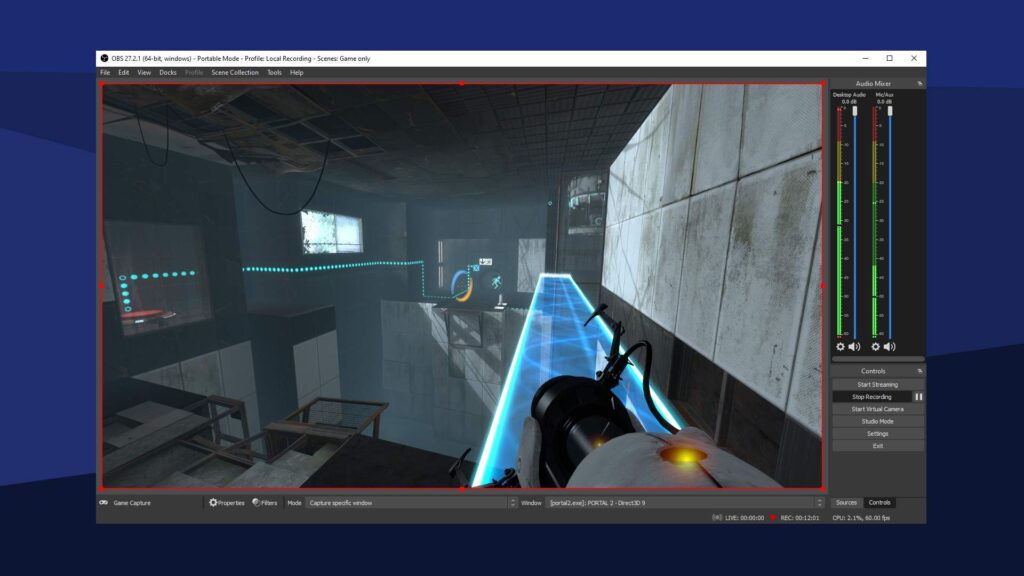
With a fully modular and dockable interface, OBS Studio lets you arrange your workspace exactly how you want it. You can mix multiple sources—window captures, video devices, browser inputs, images, text—into seamless scenes that you can switch between with custom transitions. The intuitive audio mixer gives per-source filters like noise suppression, gain control, and optional VST plugin support.
It supports both software and hardware encoding. You can choose from industry-standard encoders like x264, AV1, H.264, as well as hardware-accelerated options such as Intel Quick Sync, Nvidia NVENC, AMD VCE, and VAAPI. OBS also captures multiple audio tracks and works with formats like AAC, Opus, and more. It integrates perfectly into streaming pipelines.
Consistently ranked as the best free screen recorder overall, OBS Studio stands out for its unmatched flexibility, cross-platform support, and zero cost. If you want to stream live, record screencasts, or build advanced scene compositions without paying a monthly fee, OBS Studio is the clear top choice
Features of OBS Studio
- Real time high performance video and audio capturing with powerful scene composition
- Unlimited scenes and sources with custom transitions
- Flexible audio mixer offering per-source filters like noise gate and suppression
- Hardware and software encoding: x264, H264, AV1, Intel QSV, Nvidia NVENC, AMD VCE, VAAPI
- Multiple output tracks and format options via libavcodec and FFmpeg
- Modular dock UI that is fully customizable
- Hotkeys for nearly any action: switch scenes, mute, start recording or streaming
- Plugin support to extend functionality as needed
- Cross-platform consistency—same experience on Windows, macOS, Linux
Screenshots

System Requirements
| Component | Windows (64 bit) | macOS (Intel & Apple Silicon) | Linux (various distros) |
|---|---|---|---|
| OS | Windows 10, 11 | macOS 10.13 or later | Ubuntu 18.04 or newer, similar modern distributions |
| Processor | Dual-core Intel i5 or AMD FX or better | Intel 64-bit or Apple Silicon | Dual-core Intel/AMD x86-64 CPU or better |
| RAM | 4 GB minimum, 8 GB recommended | 4 GB minimum, 8 GB+ recommended | 4 GB minimum, 8 GB+ recommended |
| Graphics | DirectX 10.1 capable GPU, or OpenGL 3.3+ | OpenGL 3.3+ or Metal engine via compatibility | OpenGL 3.3+ compatible GPU with proper drivers |
| Storage | At least 500 MB free (more for recordings) | At least 500 MB free | At least 500 MB free (additional for stream/video output) |
How to Install OBS Studio ??
Before installation, scroll down to the Download section to grab the right file for your operating system.
Windows Installation
- Download the installer .exe from Download section
- Run the installer
- Complete on-screen prompts and open OBS Studio
- Optionally, run the Auto-Configuration Wizard to optimize for recording or streaming
macOS Installation
- Download the universal DMG for Intel and Apple Silicon
- Mount the disk image and drag OBS Studio into Applications
- Launch from Applications and run configuration wizard if prompted
Linux Installation (Ubuntu using .deb)
- Download the OBS Studio
.debpackage for Ubuntu. - Open terminal and navigate to the folder containing the
.debfile. - Run the following command:
sudo dpkg -i obs-studio*.deb sudo apt-get install -f - Once installed, launch OBS Studio from Applications Menu or by typing
obsin terminal.
OBS Studio: Best Open Source Streaming & Recording Software
Conclusion
If you’re looking for an open source, reliable & trusted screen recording software, you should give OBS Studio a try. Its not only reliable but very easy to setup & use for your tutorials, streams or even product demo videos.