



File Information
| File | Details |
|---|---|
| Name | VLC Media Player |
| Developer | VideoLAN |
| Latest Version | 3.0.21 |
| License | Free & Open Source |
| File Size | ~40 MB |
| Platforms | Windows, macOS, Linux |
| Last Updated | July 2025 |
| Category | Media Player |
| Official Site | www.videolan.org |
Description
VLC Media Player is one of the most popular and versatile multimedia players in the world. Developed by VideoLAN, it’s a free and open-source application that supports nearly every audio and video format without needing additional codecs.
Whether you’re watching movies in high definition, playing music playlists, or streaming online radio and videos, VLC provides a smooth and user-friendly experience. It’s completely ad-free, spyware-free, and regularly updated by a large global developer community.
Available for Windows, macOS, and Linux, VLC runs efficiently even on older systems. It supports subtitles, audio sync correction, video filters, and much more. It’s a lightweight yet powerful player trusted by millions of users worldwide.
Features of VLC Media Player

1. Plays Almost Any Media Format
VLC Media Player is renowned for its ability to play virtually all video and audio formats without the need for additional codecs. Supported formats include MP4, MKV, AVI, MOV, FLV, WMV, MP3, FLAC, AAC, and many more. This wide compatibility makes VLC a universal media player suitable for nearly all types of files.
2. No Codec Packs Required
Unlike many other players, VLC comes with built-in codecs. This means you don’t have to waste time downloading and installing third-party codec packs. Everything you need is included in the installation, ensuring quick and hassle-free playback.
3. Cross-Platform Availability
VLC is available on Windows, macOS, and various Linux distributions. The user interface and performance are consistent across platforms, allowing users to enjoy the same features regardless of their operating system.
4. DVD, CD, and VCD Playback
The player can handle DVDs, audio CDs, and VCDs seamlessly. It can also play damaged or region-locked DVDs better than many other media players, making it a reliable solution for physical media playback.
5. Network Streaming
VLC allows users to stream content from the internet using URLs, including live streams, YouTube videos, and IPTV. You can even use it to set up local media servers or listen to online radio stations.
6. Subtitle Support
The player supports multiple subtitle formats such as SRT, SSA, and SUB. You can add subtitles manually or let VLC automatically search and download subtitles for your content. Users can also customize font size, color, and position.
7. Audio and Video Filters
VLC includes a wide range of audio and video filters. You can adjust brightness, contrast, hue, sharpen the video, add watermarks, or apply audio equalization. These built-in tools help enhance playback without needing external editing software.
8. Playback Controls
The application offers advanced playback options including speed control, frame-by-frame playback, A-B loop (repeat between two points), and bookmarking. Keyboard shortcuts further enhance control over media playback.
9. Safe and Lightweight
VLC is completely free from ads, spyware, and user tracking. It installs quickly and uses very little system resources, making it ideal for both low-end and high-performance systems.
10. Customization and Extensions
VLC supports skins and extensions to enhance its appearance and functionality. Users can customize the interface or add plugins to extend features like converting files, streaming, or fetching metadata.
Screeshots
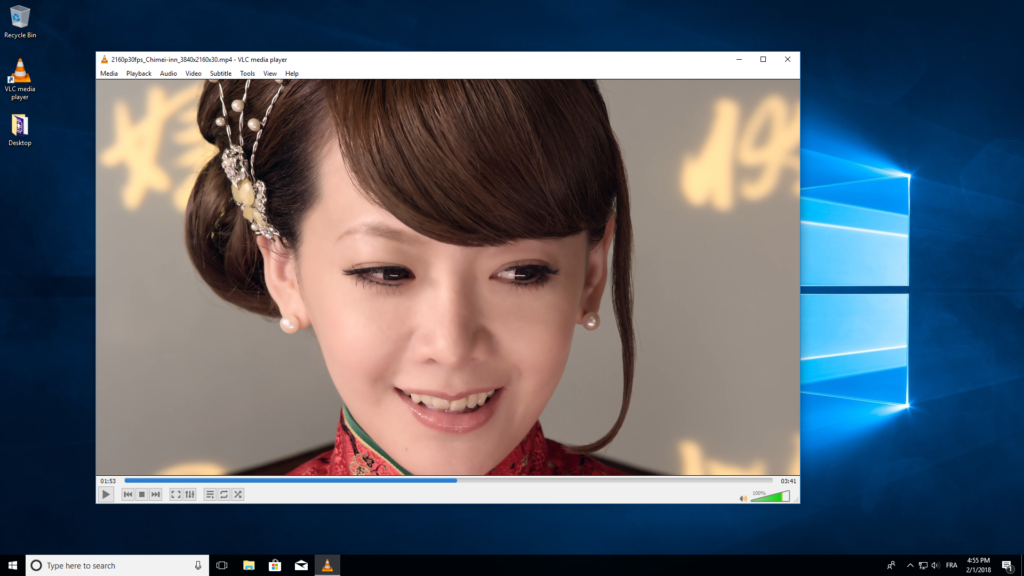
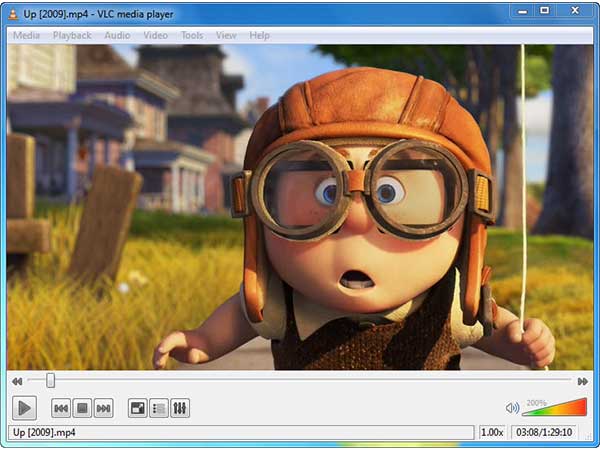
System Requirements
Before you download
Windows
- OS: Windows 7, 8, 10, 11 (32/64-bit)
- RAM: 512MB minimum
- Storage: ~100MB free space
macOS
- OS: macOS 10.10 or later
- Intel or Apple Silicon (M1, M2)
Linux
- Varies by distro (supports Ubuntu, Fedora, Arch, Debian)
- Installable via Terminal or Software Center
How To Install ??
- Click the download link below for your operating system.
- Run the setup file and follow the installation wizard.
- Choose default settings (recommended) or customize installation.
- Once installed, open VLC and enjoy seamless media playback.




