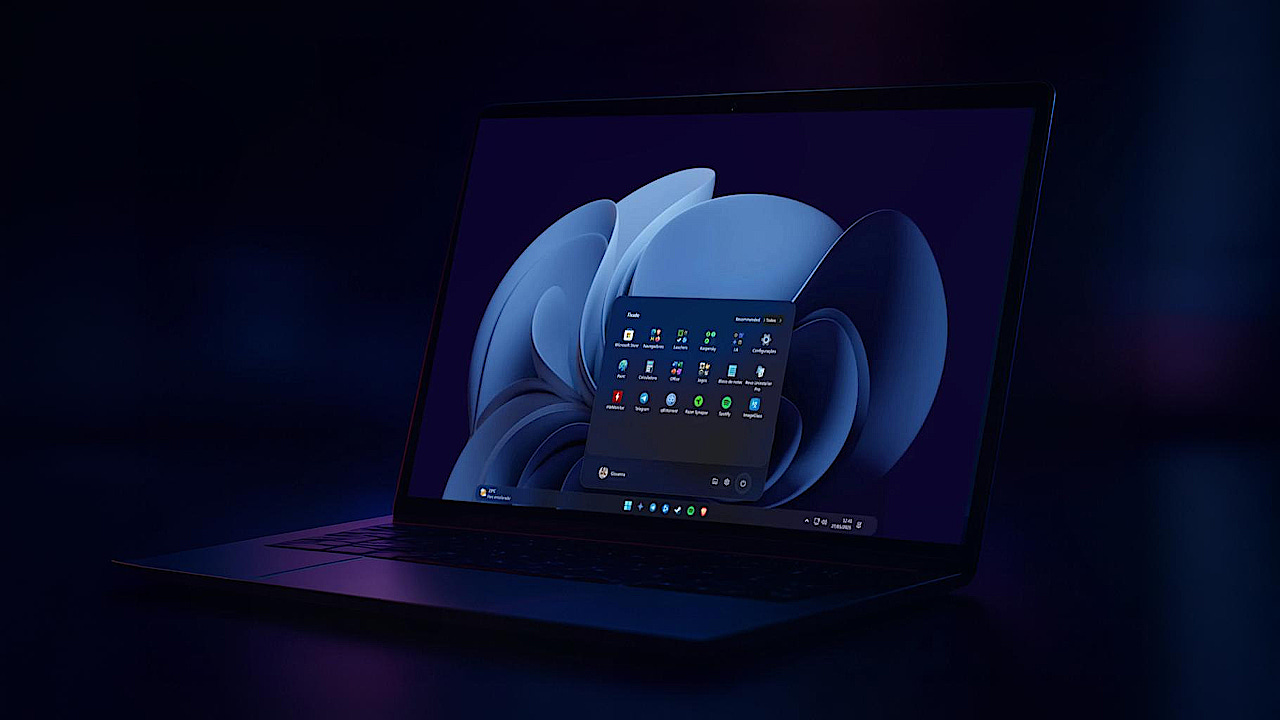

Ever look at your computer & think there has to be more to this?
Windows already gives you a lot out of the box. For most users, that default experience is more than enough to get work done & stay productive. What many people never realize, though, is how much flexibility sits just beneath the surface. Windows can be shaped, refined, and extended far beyond its default look and behavior.
Over time, small details start to matter. How the taskbar feels. How quickly you can preview files. Whether the interface feels calm or busy when you sit down to work. These things do not show up on spec sheets, but they strongly influence how enjoyable a system feels day to day. With a few carefully chosen tools, Windows can become cleaner, more visually consistent, and noticeably more pleasant to use without changing how you work or forcing unnecessary complexity.
I’ll walk you through 8 minimalist apps that I actually use to refine my Windows setup. Each one improves a specific part of the experience, from how the system looks to how it feels to use every day, giving you more control and a cleaner, more intentional setup than what comes by default.
1. TranslucentTB

This is one of those tools that instantly makes Windows feel more sleek. TranslucentTB focuses only on the taskbar, which is actually a big part of how the system looks and feels.
It offers far more customization than the default solid bar. I can control exactly how my taskbar looks, be it fully transparent, softly blurred, tinted, or cleanly opaque. The icons stay sharp & visible, so the desktop still feels premium and usable.
What I really like is the flexibility. It gives enough options to match different wallpapers and moods with just a few clicks. Once set up, it quietly runs in the background and makes Windows feel cleaner, lighter, and more intentional every time the system boots.
Official Site: TranslucentTB
2. Lively Wallpaper
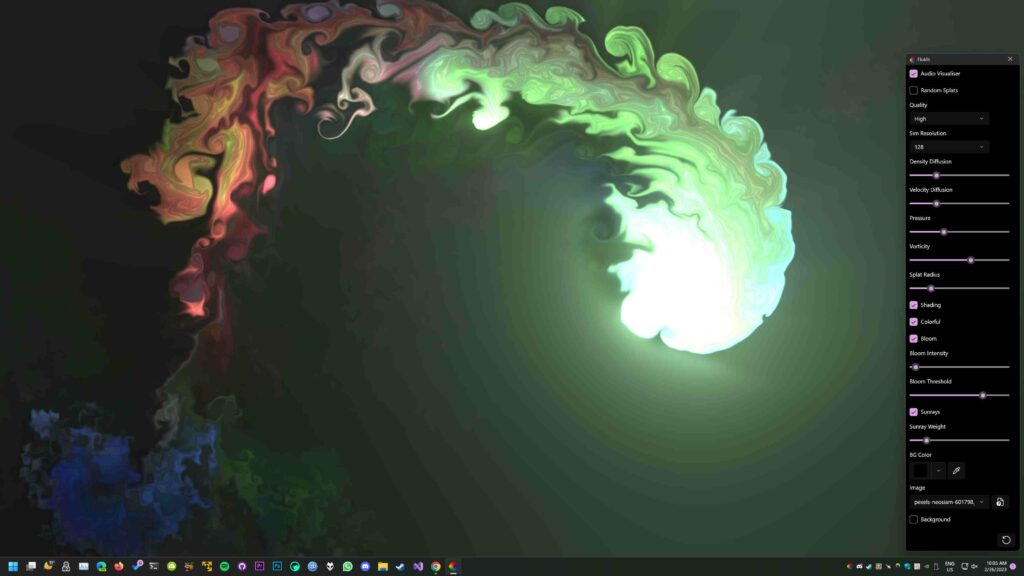
A desktop is more than icons & windows, it’s the background that sets the mood. Lively Wallpaper transformed my Windows experience by bringing it to life, literally. This tool lets you set animated, interactive, or dynamic wallpapers that respond to your system and even sound.
It doesn’t slow my PC down. It keeps my desktop vibrant without distracting me, and I can easily switch between minimal loops, subtle animations, or interactive visuals depending on my mood. Its smooth & lightweight.
For me, it makes opening my computer feel rewarding. Each time the system boots, the desktop immediately feels fresh, alive, and intentionally designed. It’s a simple change that adds a surprisingly premium feel to the whole environment.
Github Repository: Lively Wallpaper
3. AutoDarkMode
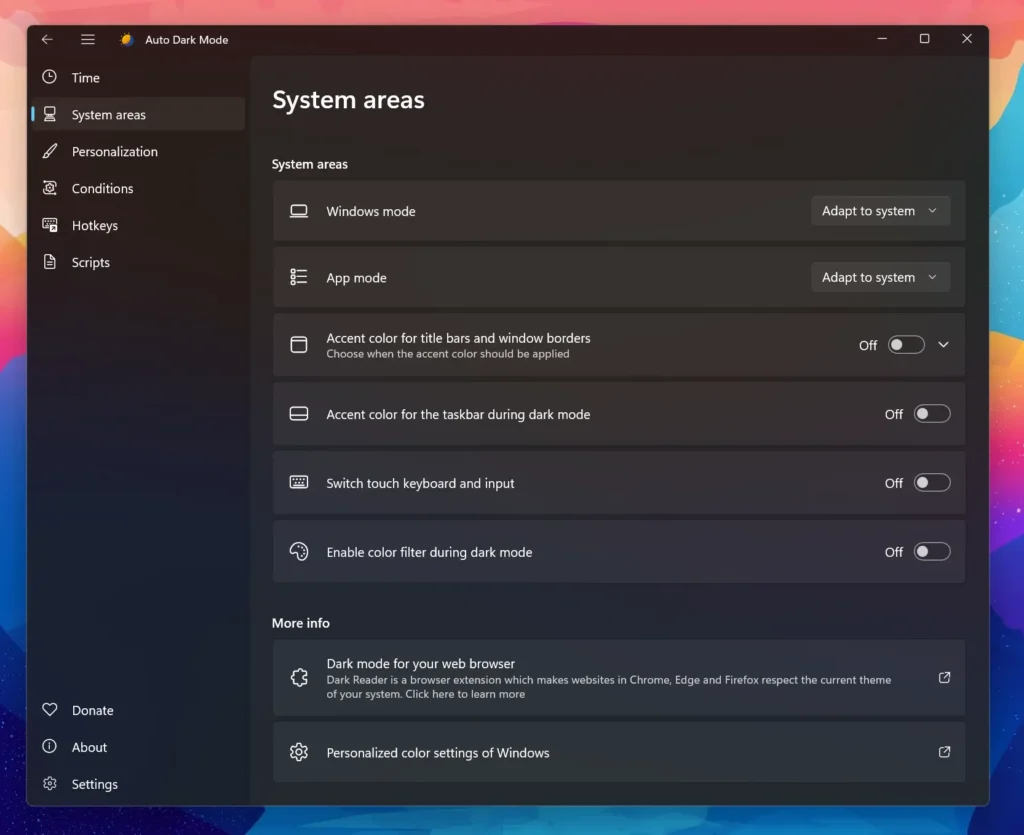
Switching between light & dark modes manually is one of those small chores that somehow becomes annoying after a while. Auto Dark Mode takes that decision off your plate, letting Windows adapt automatically to the time of day. During the day, everything stays bright and readable. When night falls, the interface shifts to dark mode to protect your eyes and reduce strain.
What I love is how customizable it is. It’s not just about switching themes. Auto Dark Mode can change wallpapers, accent colors, the mouse cursor, and even run scripts—all automatically. For gamers or anyone running full-screen apps, it respects your workflow and avoids switching mid-game.
It’s lightweight, requires no admin rights, and runs quietly in the background. Every time I sit down at my PC, the system already feels in tune with the time, my environment, and my workflow
Github Repository: AutoDarkMode
4. Windhawk
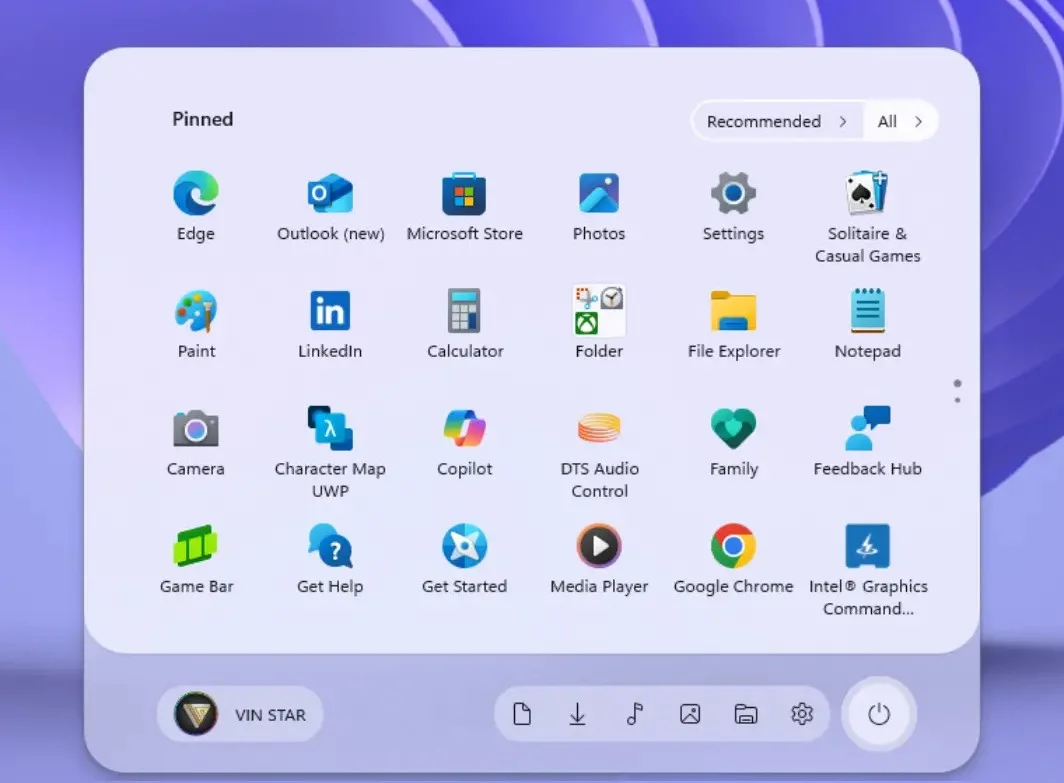
If you like the idea of customizing Windows to your exact preferences, Windhawk is a must-have. Think of it as a customization hub for both Windows and your apps, letting you tweak behaviors and visuals that normally aren’t adjustable.
What stands out is how lightweight and stable it is. Windhawk quietly runs in the background without affecting performance, so your system stays fast while looking and behaving the way you want. The interface is simple enough for anyone to use, customizations can be applied in just a few clicks, & options are inbuilt to tweak.
I also appreciate its transparency. Every customization offered is clear and easy to understand, so you know exactly what changes are being applied to your system. For me, it’s one of those tools that turns a standard Windows setup into something much more personal, polished, and enjoyable to use every day.
Github Repository: WindHawk
5. Flow Launcher

This is a must-have if you’ve ever used macOS and appreciated how quick and effortless search feels there. Flow Launcher brings that same instant, minimal search experience to Windows & honestly, it completes the system for me.
With a simple keyboard shortcut, a clean search window appears anywhere on the screen. I can search apps, system files, folders, settings, or even run commands without touching the Start menu. It is fast, distraction-free, and does exactly what I want in the moment.
What makes it special is how natural it feels once you start using it. It does not interrupt your workflow, it speeds it up. The minimal design looks modern, the results appear instantly, and over time you stop thinking about where things are stored. You just search and move on. For me, this one tool alone significantly improves both usability and the overall feel of Windows.
Github Repository: Flow Launcher
Also Read: 11 Must-Have Software I Install on Every New PC
6. QuickLook
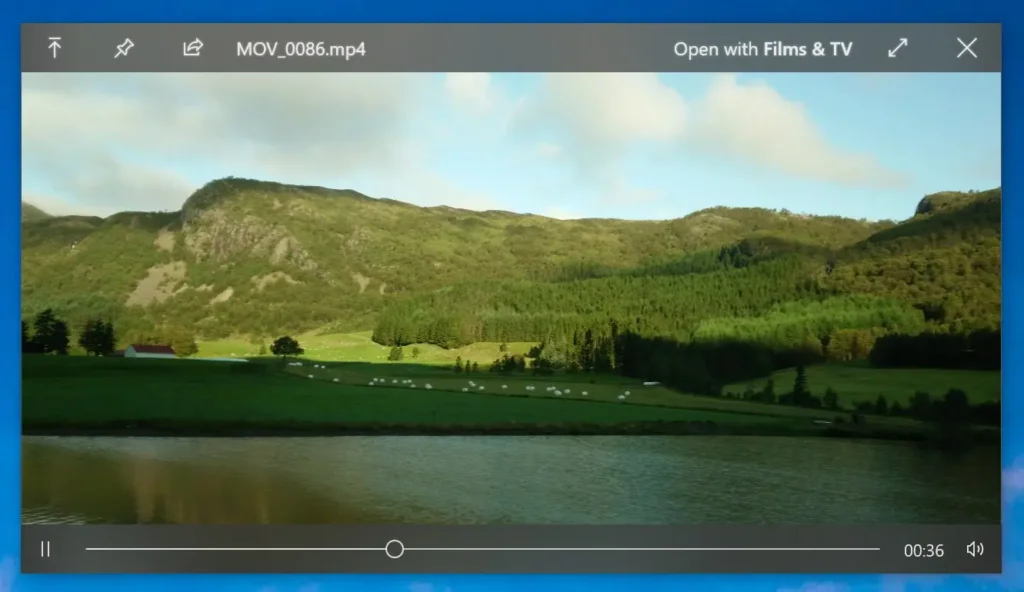
This tiny utility feels like it was missing from Windows all along. QuickLook lets you preview files instantly, just select a file and hit the spacebar, you don’t even have to open the file or wait for it.
The beauty of QuickLook is in its simplicity. It stays out of your way until you need it, then pops up a clean, minimal preview window that feels natural and smooth. The previews are fast, high-quality, and let you quickly check content without interrupting your workflow.
It’s one of those tools where, once installed, you wonder how you ever managed without it. Every time I browse folders, it saves me clicks and keeps the Windows experience feeling lighter, cleaner, and surprisingly more premium.
Github Repository: QuickLook
7. Nilesoft Shell
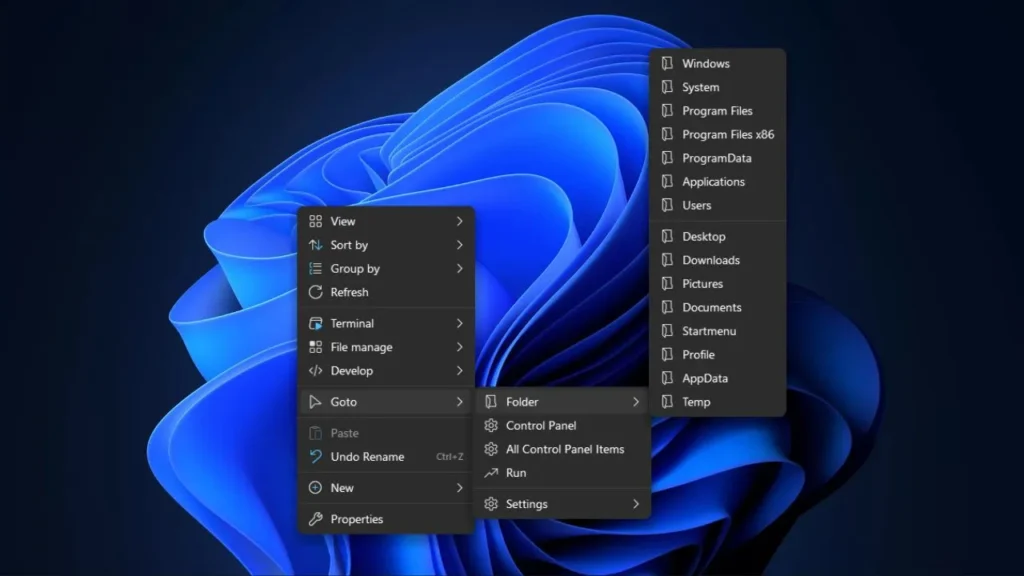
If you spend a lot of time navigating Windows File Explorer, Nilesoft Shell is a must-have. It gives you full control over your context menu, letting you handpick exactly what appears when you right-click files, folders, or even the desktop. You can create custom commands to open your favorite apps, folders, or web pages instantly
What I love about it is how lightweight and fast it feels. It runs without slowing down the system, yet it’s surprisingly powerful. You can modify or remove any existing item, add nested menus, multiple columns, icons, colors, and even complex commands all while keeping the interface clean and minimal.
For me, Nilesoft Shell turns a basic right-click into a smart, personalized hub that speeds up daily tasks and makes Windows feel more intentional. It’s one of those subtle upgrades that, once you start using it, you wonder how you ever worked without it.
Github Repository: NileSoft Shell
8. Rainmeter
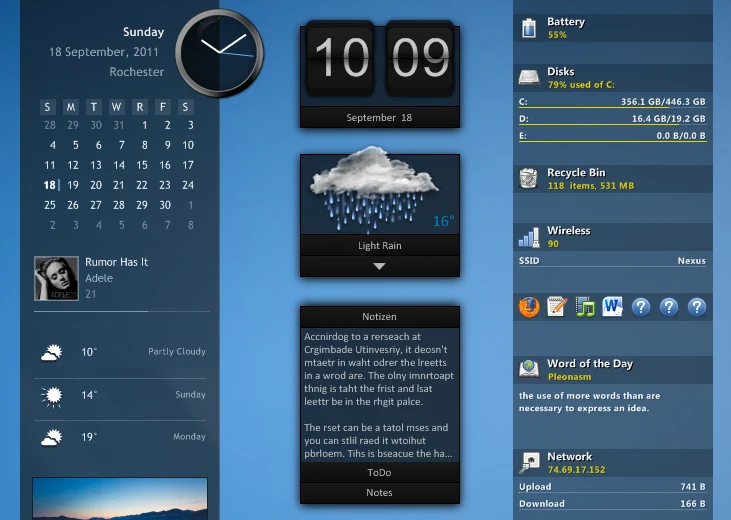
Rainmeter is one of the most well-known desktop customization tools on Windows, and for good reason. It gives you the freedom to design your desktop exactly the way you want, whether that means minimal widgets, system stats, clocks, or subtle visual elements that blend into your wallpaper.
What makes Rainmeter easier than many people expect is the community. You don’t have to build anything from scratch. Thousands of ready-made skins are available online, and installing them is as simple as opening an .rmskin file. In a few clicks, you can completely change how your desktop looks and behaves.
Once set up, Rainmeter lets you fine-tune your system visually without forcing a single style. You can keep things extremely minimal or slowly layer in features as you get comfortable. It’s lightweight, respects privacy, and runs quietly in the background. For users who enjoy personalizing their space, Rainmeter turns Windows into something that feels uniquely yours
Github Repository: Rainmeter
Also Read: I Replaced Canva With These 9 Open Source Desktop Apps in 2026
Wrapping Up
Windows already gives you a great foundation, but it does not have to stop there. With the right set of lightweight, thoughtfully designed tools, you can shape the experience to match how you work and how you want your system to feel. A cleaner taskbar, faster search, smarter previews, dynamic visuals, and subtle automation can quietly transform everyday usage without changing what makes Windows familiar.
What matters most is that none of these apps force a single style. You can start small, customize at your own pace, and gradually build a setup that feels more personal, more intentional, and more enjoyable every time you power on your system.
If you care about both productivity and aesthetics, these tools show just how much more Windows can offer when you take control of it.