
File Info
| File | Details |
|---|---|
| Name | llamafile |
| Type | Local LLM Runner & Server |
| Developer | Mozilla AI |
| License | Apache 2.0 License (Open Source) |
| Size | 721MB |
| Platforms | Windows • macOS • Linux • BSD |
| File Formats | .llamafile • .exe • .gguf |
| Primary Use | Running open-source LLMs locally with a single file |
| Github Repository | Github/llamafile |
| Official Site | llamafile |
Table of Contents
Description
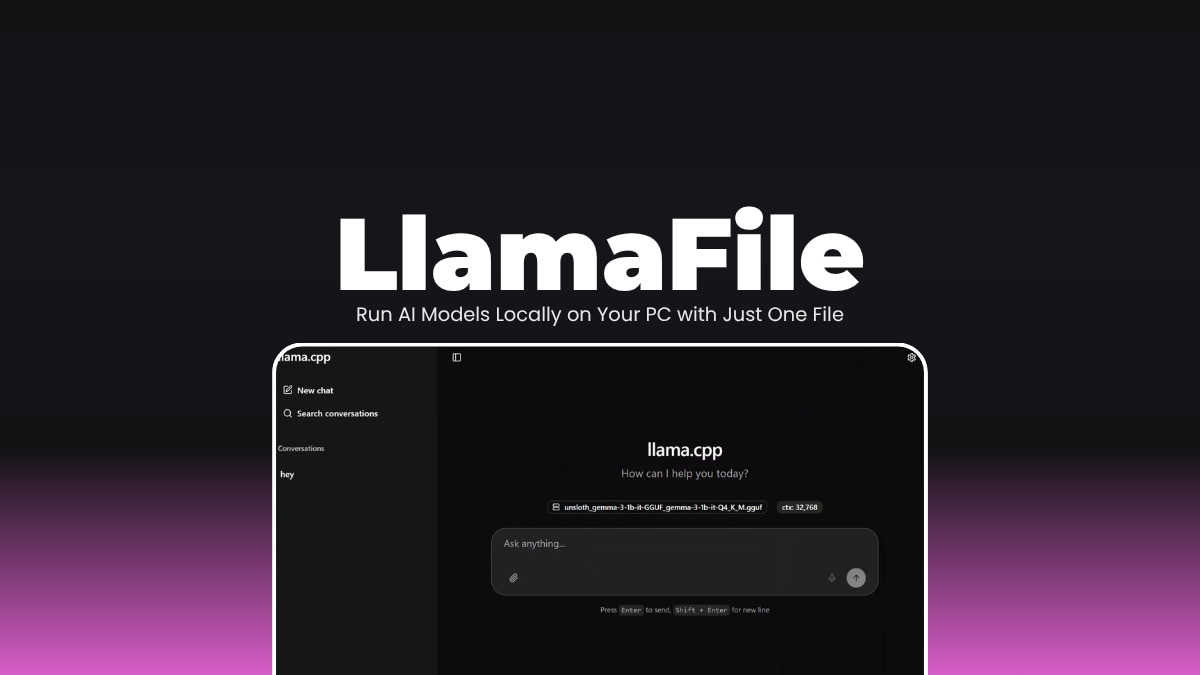
Running a local LLM usually means a Python environment, CUDA drivers, and at least one Stack Overflow tab open before you’ve even started. llamafile skips all of that. Mozilla.ai packaged the whole runtime like model weights and everything into a single executable. On Windows you rename it to .exe. On Mac or Linux you chmod +x it. That’s the setup.
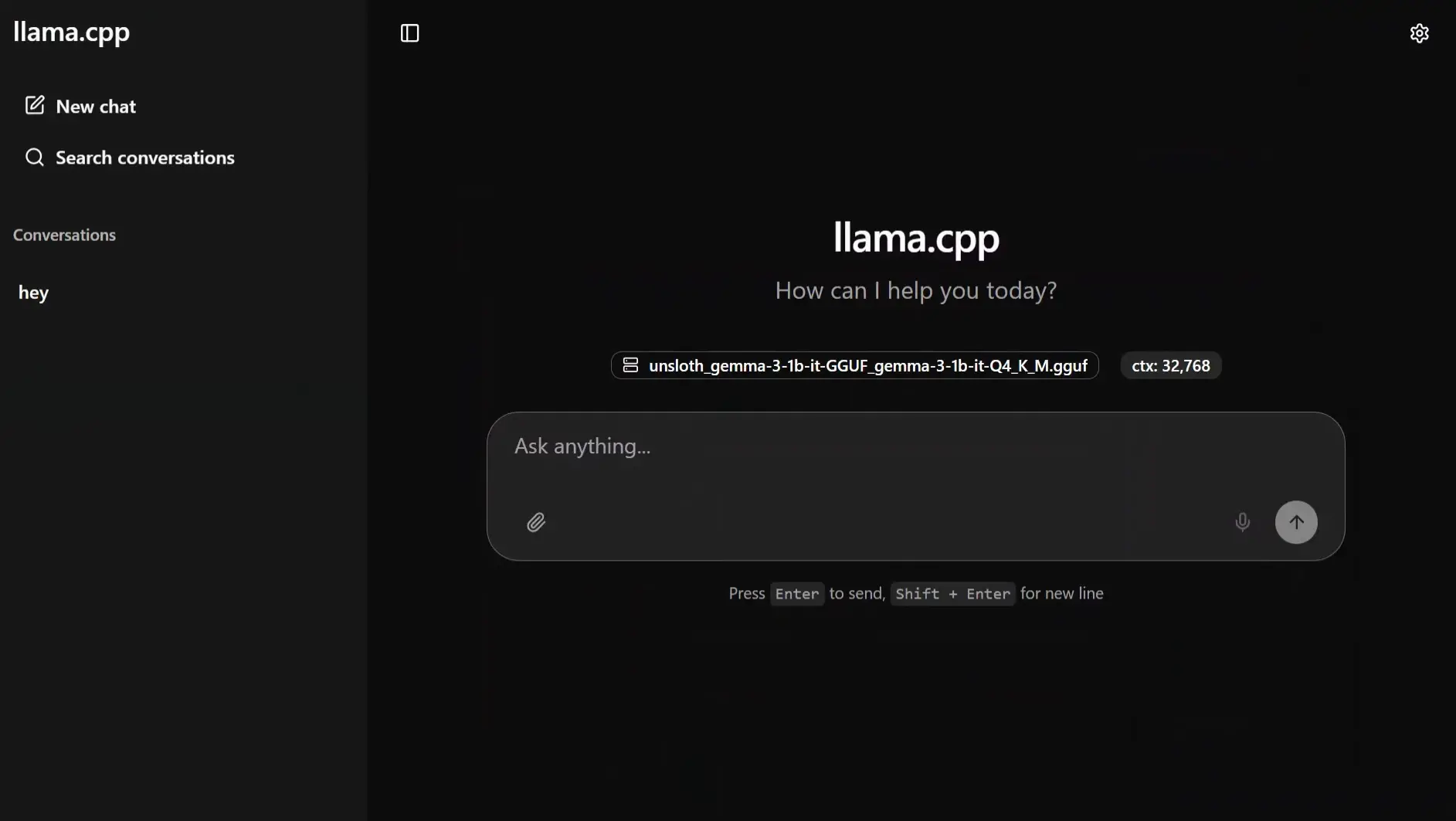
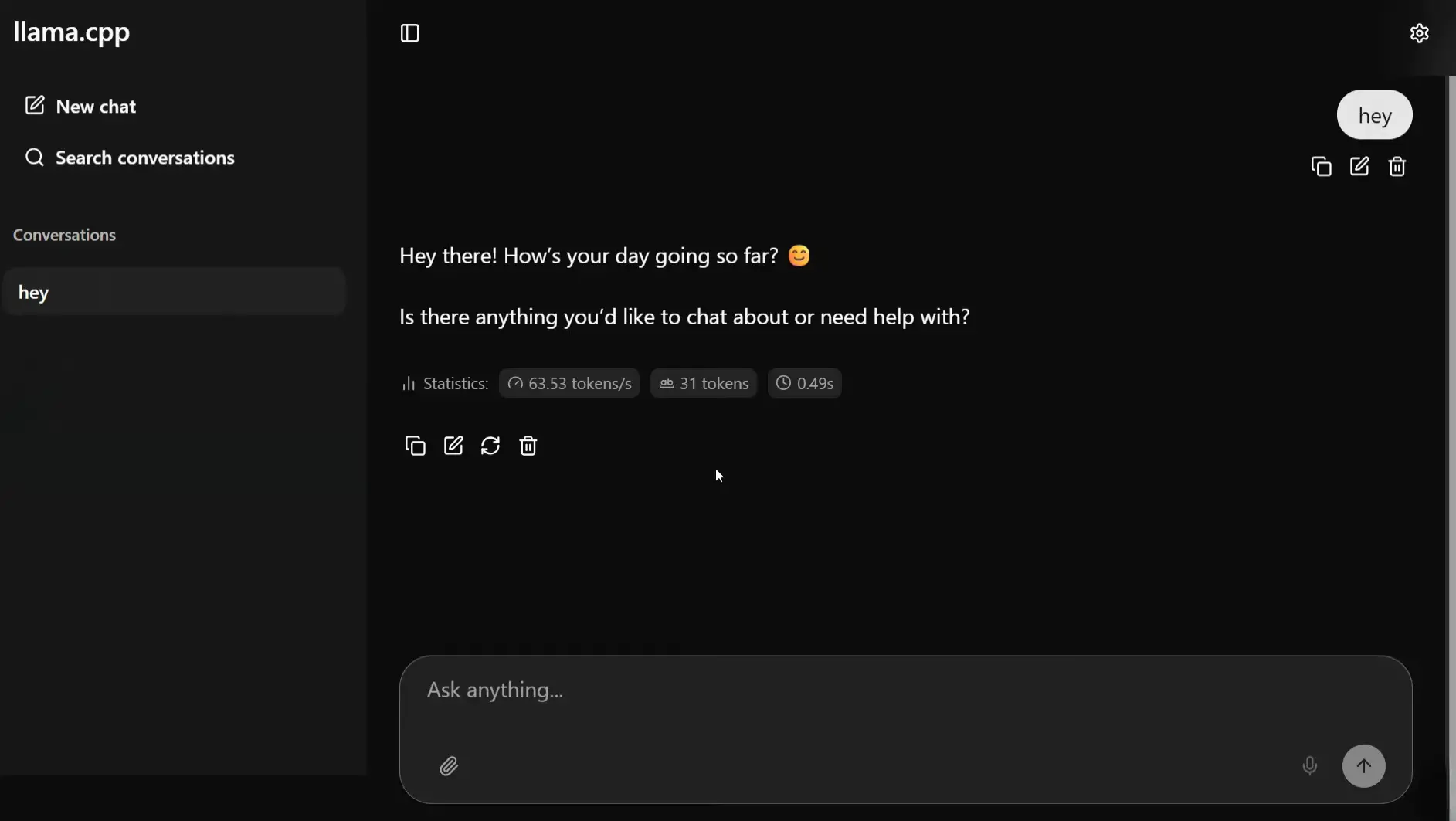
There are two ways to actually use it. Mozilla offers pre-packaged .llamafile downloads with the model baked in, so one file, double-click, done. Or grab the bare llamafile binary and point it at any GGUF model you download from Hugging Face, which opens it up to basically the entire open-source model library. Either way you end up at http://127.0.0.1:8080 with a working chat interface.
Small models run fine on ordinary hardware. The 0.8B Qwen3.5 does around 8 tokens per second on a Raspberry Pi 5. Anything up to 8B is reasonable on a laptop. Vision models like llava take image attachments directly in the browser. Nothing touches a server.
One limitation is that the GPU acceleration on Windows isn’t there yet in v0.10.0. Mac gets Metal, Linux gets CUDA, Windows runs on CPU for now. On small models that’s livable. On a 20B model it’s slow.
Screenshots
Features of Llamafile
| Feature | Description |
|---|---|
| Single-File Execution | The entire runtime is one file thus no Python, CUDA or package managers needed |
| Cross-Platform Binary | Runs on Windows, macOS, Linux, and BSD from the same file format |
| Built-in Web UI | llama.cpp’s chat interface launches automatically at http://127.0.0.1:8080 |
| GGUF Model Support | Load any compatible GGUF model from Hugging Face or local storage |
| Pre-packaged Llamafiles | Ready-to-run files with model weights bundled in |
| File Attachment Support | Upload images and documents directly in the web UI (model-dependent) |
| OpenAI-Compatible API | Exposes an API endpoint compatible with OpenAI and Anthropic’s Messages API |
| Whisperfile Included | Bundled speech-to-text tool based on whisper.cpp |
| No Internet Required | Fully offline after the initial model download |
| GPU Support | Optionally accelerated via GPU for faster inference |
Related: Jan AI: Best Open Source ChatGPT Alternative to Run Language Models Locally on Any Platform
System Requirements
| Component | Requirement |
|---|---|
| Operating System | Windows • macOS • Linux • BSD |
| Processor | x86-64 or ARM64 |
| RAM | 8 GB minimum for small models • 16 GB+ recommended for 7B+ |
| Storage | Varies by model (1.6 GB – 20 GB+) |
| Internet | Not required after download |
How to Install & Use Llamafile?
Option 1 – Pre-packaged Llamafile
Download any .llamafile from Mozilla’s example models page. The whole model is inside the file. To run the model follow below steps.
For macOS / Linux / BSD
open command prompt and run the command below use the model name based on what you downloaded. I’m using Qwen3.5-0.8B as an example.
chmod +x Qwen3.5-0.8B-Q8_0.llamafile
./Qwen3.5-0.8B-Q8_0.llamafile
For Windows
Rename the file to Qwen3.5-0.8B-Q8_0.llamafile.exe, then double-click it or run it from Command Prompt. You will see the port http://127.0.0.1:8080. Press ctrl+click on it and a browser window will open automatically. Start chatting.
Option 2 – llamafile Binary + Your Own GGUF Model
This approach lets you use any GGUF model from Hugging Face, recommended for models up to 8B parameters, though larger models work fine with enough RAM or a GPU.
Step 1 – Download the llamafile binary
Download the latest llamafile binary from the download section.
Step 2 – Download a GGUF model
Pick any GGUF model from Hugging Face. For a good starting point, search for models tagged GGUF, look for Q4 or Q5 quantizations for a balance of speed and quality. Place the .gguf file in the same folder as your llamafile binary.
Step 3 – Run it
For Windows
rename llamafile llamafile.exe
.\llamafile.exe --server --model .\your-model.gguf
For Eg. If you download qwen3-8b gguf then all u need to do is paste the llamafile.exe in a folder along with the model gguf and run the .\llamafile.exe --server --model .\QWEN.gguf in terminal.
macOS / Linux
chmod +x llamafile
./llamafile --server --model ./your-model.gguf
Step 4 – Open the web UI
Once running, you’ll see output like llama server listening at http://127.0.0.1:8080. Open that address in your browser. The llama.cpp web UI loads and you can start chatting. If the model supports vision, you can attach images directly in the chat interface.
To stop the server, press Ctrl+C in the terminal.
Download LlamaFile Web UI For Running LLMs Locally
Your Own LLM, On Your Machine
llamafile removes everything complicated about running local AI. There’s no environment to set up, no services to configure. The pre-packaged models make it genuinely instant. You download one file, run it, and you’re in a working chat interface in under a minute. The GGUF route opens it up to the full Hugging Face model library. For anyone who’s been curious about local LLMs but put off by the setup, this is the easiest starting point there is.