


File Info
| File | Details |
|---|---|
| Name | VSCodium |
| Developer | Community Maintained |
| License | MIT |
| Version | v1.102.35058 |
| Platform | Windows, macOS & Linux |
| File Types Available | .exe (Windows), .dmg (macOS), .AppImage (Linux) |
| Size | 110MB |
| Category | Code Editor / IDE |
| Github Repository | Vscodium |
Table of contents
Description
If you love Visual Studio Code but want to break free from telemetry & proprietary licensing, VSCodium is what you’ve been waiting for. Built directly from the VS Code source code, VSCodium is a fully open-source, telemetry free alternative to Visual Studio Code, maintained by a strong community of developers & contributors.
VS Code includes telemetry tracking by default, VSCodium strips away all the bloat, giving you a clean, privacy-respecting code editor without compromising features or extensions.
Whether you are a developer, student, or tech enthusiast, VSCodium provides a fast, sleek & powerful environment for all your coding needs.
Features of VSCodium
- No Telemetry
Your code is your business. VSCodium disables all telemetry tracking that VS Code enables by default. - Fully Open Source (MIT Licensed)
You are free to inspect, modify & distribute your version. - Supports All Extensions
Yes, you can install all your favorite extensions from the Open VSX registry or even manually from the VS Code marketplace. - Faster Startup
With telemetry disabled, startup is faster & more efficient. - Cross-Platform Support
Works seamlessly on Windows, macOS & Linux. - Portable & Lightweight
Grab the.exe,.dmgor.AppImage& run it without bloated installers or extra configurations.
Why Choose VSCodium over VS Code?
| Feature | VSCodium | Visual Studio Code |
|---|---|---|
| License | MIT | MIT |
| Telemetry Tracking | Disabled | Enabled by default |
| Branding | Community | Microsoft |
| Privacy | Full Control | Limited Control |
| Extension Support | Yes | Yes |
Can You Use Both?
Absolutely. You can have both VS Code & VSCodium installed side by side on the same machine. This allows you to test, compare or switch based on your need without any conflict.
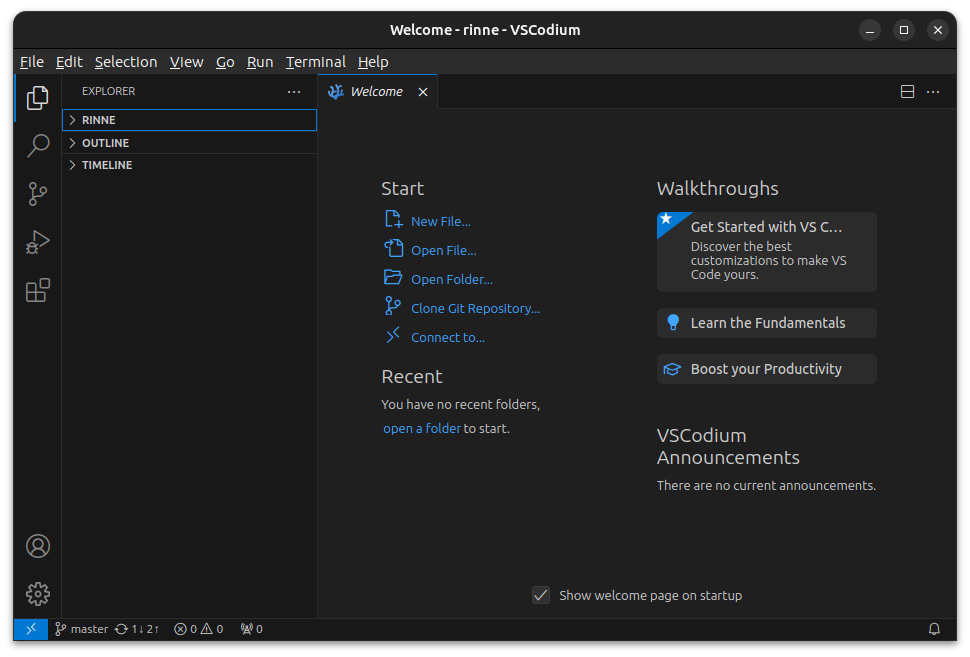
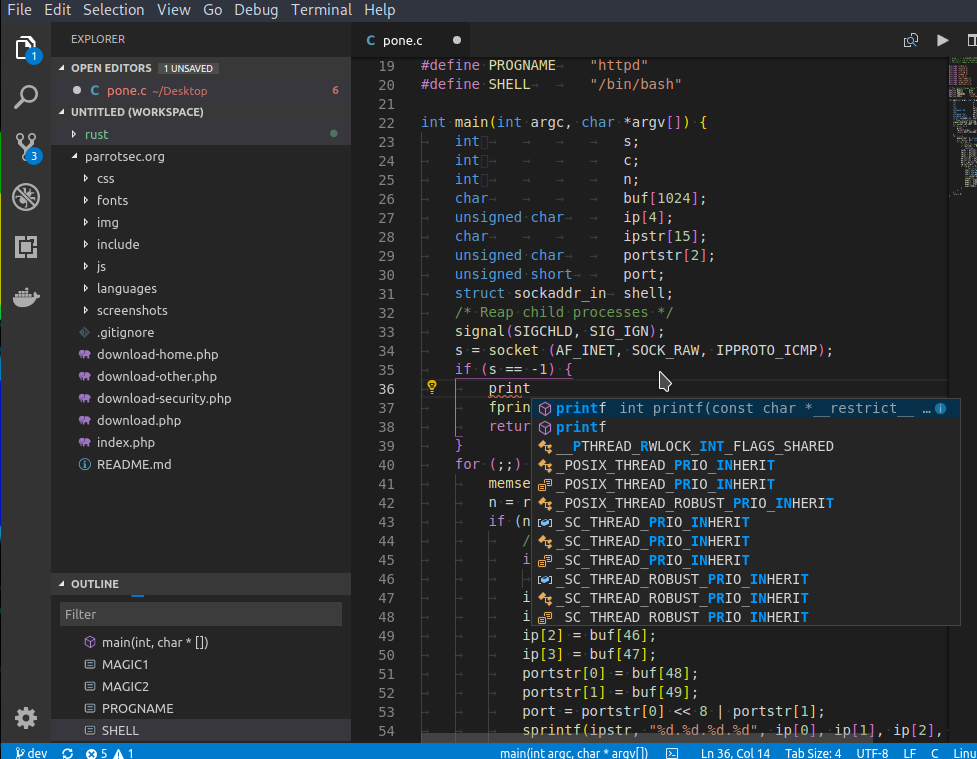
Screenshots
System Requirements
| OS | RAM | Disk Space | Architecture |
|---|---|---|---|
| Windows | 4GB+ | 300MB+ | x64/x86 |
| macOS | 4GB+ | 300MB+ | Apple Silicon & Intel |
| Linux | 4GB+ | 300MB+ | x64 |
How to Install VSCodium??
Before you begin, scroll down to the download section & get the appropriate installer for your operating system.
Windows (.exe)
- Download the
.exefile from the link below. - Double-click the file to start the installer.
- Follow the prompts & select your installation directory.
- Once installed, launch VSCodium from your Start Menu.
- Customize your settings & start coding.
macOS (.dmg)
- Download the
.dmgfile from the link below. - Double-click to open the disk image.
- Drag the VSCodium app into your Applications folder.
- Open it from Launchpad or Spotlight.
- If macOS warns you about opening apps from unidentified developers, go to System Preferences > Security & allow the app.
Linux (.AppImage)
- Download the
.AppImagefile from below. - Right-click the file > Properties > Permissions tab > Check “Allow executing file as program”.
- Double-click to run.
- You can optionally integrate it into your system menu using AppImageLauncher or similar.




